

- Select which LaunchDarkly organization you want to sign in to
- Receive all LaunchDarkly email notifications at the same address, if you have email notifications enabled
Use one email address for multiple accounts
You can use the same email address with multiple LaunchDarkly accounts, but only if you join through an invite or domain match. LaunchDarkly does not support creating an additional account from the sign-up page with an email address that already has an account of any kind, including a trial account or one associated with an organization. If you need a separate, standalone account under the same email address, for example to migrate flags to a new commercial account, contact your account representative or LaunchDarkly Support.Update existing accounts to use the same email address
If you already have multiple accounts, you can update them to use the same email address. Here’s how:- Determine the email address you want to use to sign in and receive notifications.
- Sign in to an existing account that you want to update.
- Click your profile picture and choose Personal settings from the menu.
- In the “My profile” section, enter the email address from step 1 in the Email address field.
- Click Update my info. You are logged out and prompted to log back in using your original email address.
Sign in with an email address associated with multiple LaunchDarkly accounts
Google OAuth customers must use the “Continue with Google” buttonIf you use the same email address with multiple LaunchDarkly accounts and one of those accounts uses Google OAuth as the SSO provider, you must use the “Continue with Google” button to sign in to your accounts.
- Enter the email address associated with your LaunchDarkly accounts. The system will redirect you to a page that lists all of the organizations associated with that email address.
- Click on an organization to continue.
-
Authenticate your account:
- If your selected organization uses Single sign-on (SSO), the system will redirect you to sign in through your SSO provider.
- If your selected organization uses multi-factor authentication (MFA), LaunchDarkly requests that you enter the code from your authenticator app.
- If your selected organization uses password authentication, enter the password associated with the account.
- If LaunchDarkly doesn’t recognize the device you’re signing in from, it will send a verification link to your email. Click Verify email to confirm your identity. You are directed to a “Trust this browser?” page.
- If you want to trust the browser and skip identity verification for the next 30 days, click Trust this browser. Otherwise, click Don’t trust.
- Select which organization to log in to.
- Enter your password.
Switch to another organization while signed in
To switch to another organization while signed in:- Click your profile picture and choose Switch organization:
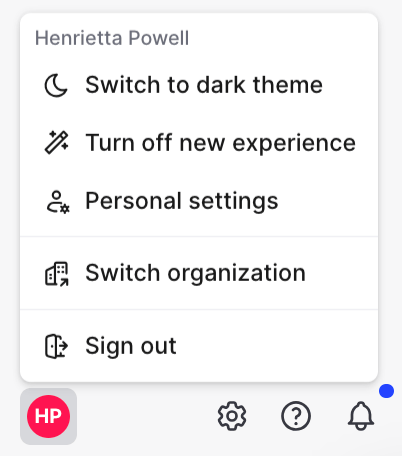
The "Switch organization" option.
- Select the organization to sign in to.
Find your organization during sign in
There are several reasons your organization may not be listed during the sign in process:- You may need to join your company’s LaunchDarkly organization: If you have a pending invite to join an organization, accept the invite and complete the account creation process. If your new account is using the same email address as your other accounts, you will be able to see the organization you just joined the next time you sign in.
- Your accounts may have different email aliases: If your accounts are using different email aliases, you will need to update the email of those accounts to the same email address you want to use
- If your company uses single sign-on (SSO), your initial sign in must be from your SSO provider: LaunchDarkly must be assigned to you by an admin within your company. To access LaunchDarkly for the first time, sign in from your company’s SSO provider to create your new LaunchDarkly account. Your company’s organization will be listed the next time you sign in.
Delete trial accounts
Deleting a trial account permanently removes all account data, including projects, environments, flags, and members. If your application still includes calls to any of the LaunchDarkly SDKs, the SDK will fail to authenticate and any feature flag evaluation will serve the fallback value defined in your code. Please be certain. To delete a trial account:- Click the gear icon in the left sidebar to view Organization settings.
- On the General settings page, click Delete account.
- LaunchDarkly logs you out. You must reauthenticate to confirm this action.
- Log back in to LaunchDarkly. The General settings page appears.
- Click Delete account again.
- Enter
yesin the Confirm field. - Click Delete.