

The Debugging Workflow: An Observability Loop
Before diving into scenarios, let’s understand the complete workflow we’ve built: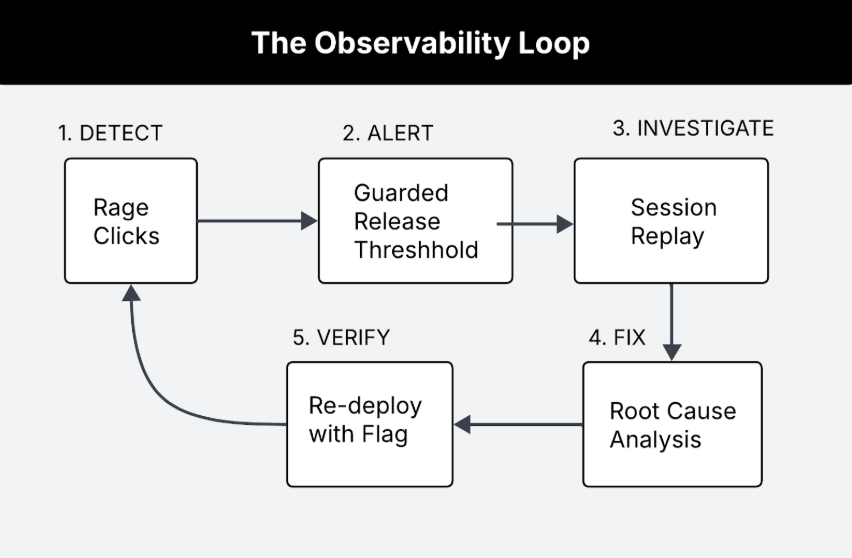
The Debugging Workflow using rage click detection, session replay, and guarded releases.
- Detect frustration signals automatically as they happen.
- Alert when thresholds are breached during rollouts.
- Investigate with full session context, not just error logs.
- Fix with confidence knowing the exact user experience.
- Verify the fix works by monitoring the new rollout.
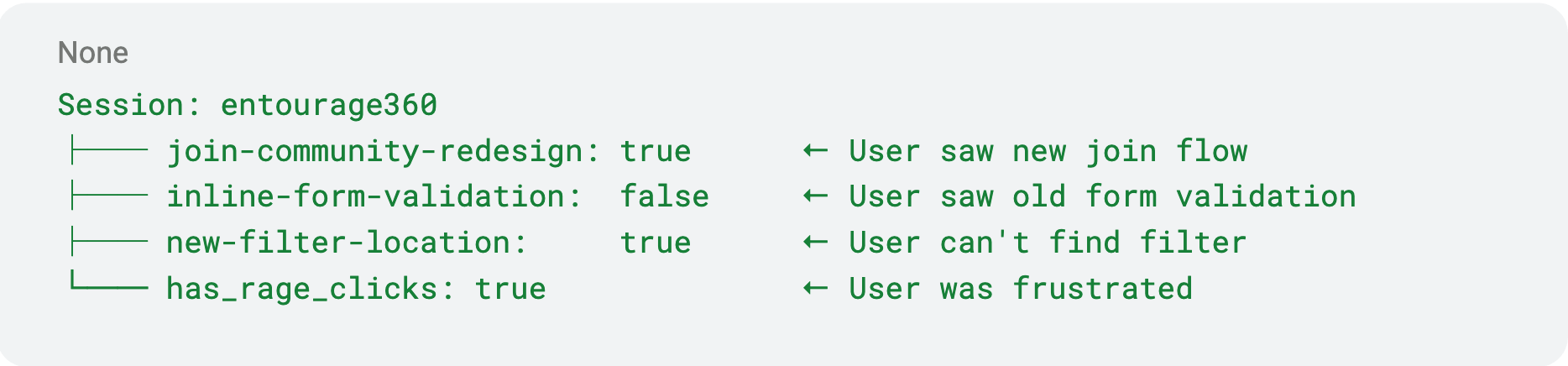
Feature Flag Snapshot.

Example of join-community-redesign flag variation.
join-community-redesign: true” It’s important to note that rage clicks aren’t the only measure for frustration signals around user experience.
When items are out of place, confusing or navigation is not consistent across mobile and web, it can cause users to rage scroll. Unlike rage clicks that can be measured and tracked, rage scrolls are a little more nuanced, which will result in relying heavily on session replay and drops and traffic to diagnose.
Just as LLM observability tools monitor model outputs for hallucinations or drift, rage click detection monitors the human layer, catching UX failures that no server-side metric would reveal.
Using feature flags, session replay and guarded releases, let’s take a closer look at both scenarios to debug in a real-world worklunch app.
Scenario 1: Form Validation Frustration
The Setup
Your team ships a new “Create Community” button redesign and places the feature behind a feature flag called (inline-form-validation).
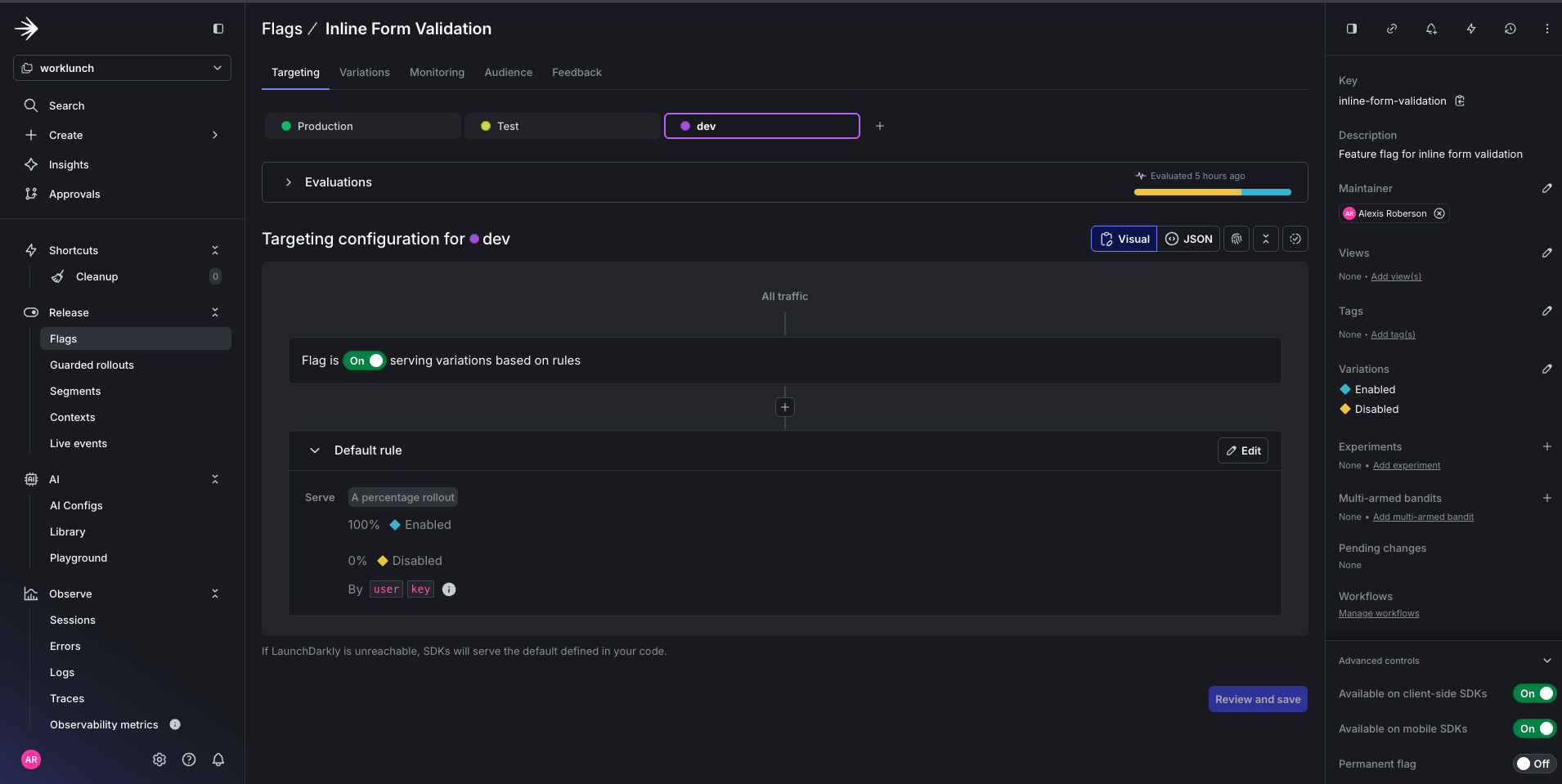
Feature flag for Inline-Form-Validation breaking change.
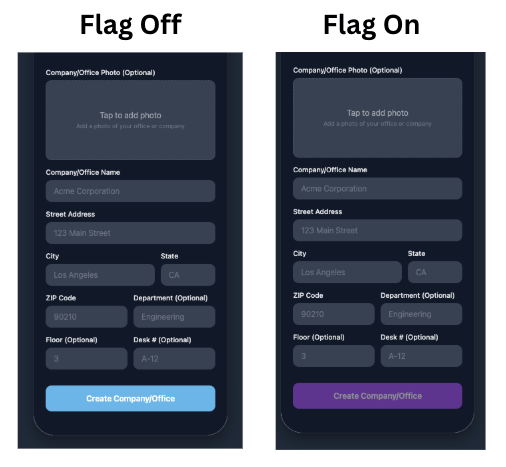
How the feature flag status impacts the app UI.
Investigation Steps
Step 1: Search for sessions with rage clicks Since we attached a Guarded Rollout to your feature flag using a metric for detecting rage clicks, we can navigate to the LaunchDarkly’s Session page and filter for those specific sessions. In the LaunchDarkly Sessions tab search bar, apply this filter:- User fills out the form completely.
- User clicks Create Community.
- User sees a loading spinner and nothing else.
- User clicks button repeatedly.
- User abandon forms altogether.
The Root Cause
When the flag is off, the code does the right thing after a successful create:- Success → Set
createdSpace→ Show verification card (name, join code, “Back to community list”) - User taps Back → Return to community list
- Success → Nothing. The
if (!useInlineValidation)block runs only for the old flow, so when the flag is on,setCreatedSpaceis never called. - The user stays on the form with no confirmation, no join code, and no way to know the create worked.
The Fix
To fix the issue, you can either rollback to previous working code or fix the issue and toggle flag back on. Option A – Roll back the flag: Setinline-form-validation to off in LaunchDarkly. Users are no longer on the new feature; they get the existing, working code path and see the verification card after Create Community.
Option B – Fix the new feature so it no longer breaks the success card: The new feature (flag on) breaks the code that shows the success card. Fix it by adding the success handling to the flag-on path. Also, when the flag is on, also call setCreatedSpace after a successful create so the success card is shown again.
Resolution
With the root cause identified from Session Replay, you update the code and resolve the rollout:- Roll back
inline-form-validationtofalseso users get the verification card and can return to the list (instant, no deployment needed). - Fix the flag-on success path so it shows the verification card (or redirects) after create.
- Deploy and re-enable the flag with the guarded rollout (rage click metrics) still attached, then monitor to confirm rage clicks return to baseline.
Scenario 2: The Infinite Scroll Frustration
The Setup
Your team ships a feature flag (new-filter-location) that moves the existing Category and Sort controls on the “Lunches for Swap” feed from the top of the list to the bottom.
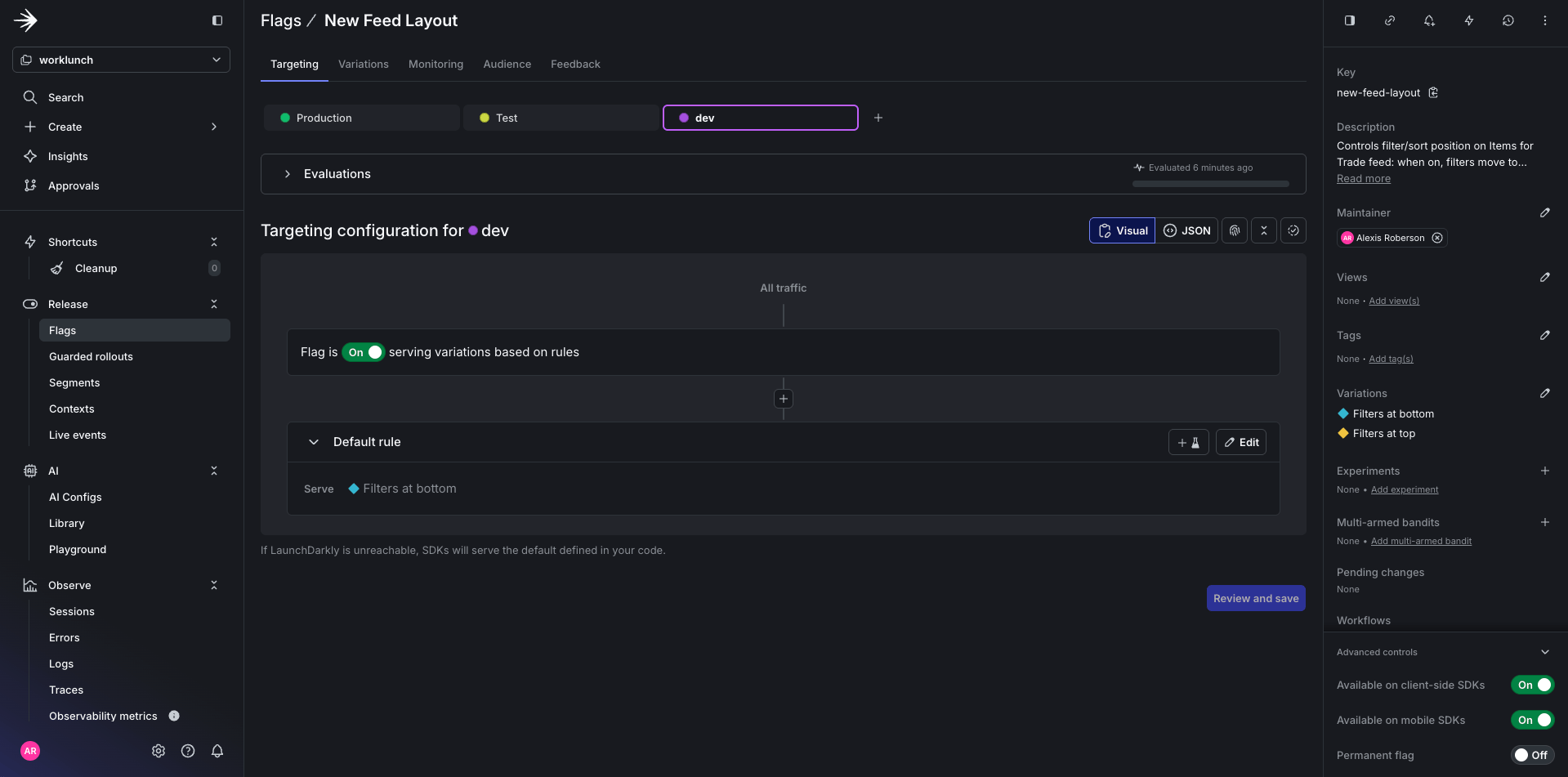
Feature flag for changing the position of the sort and filter options.
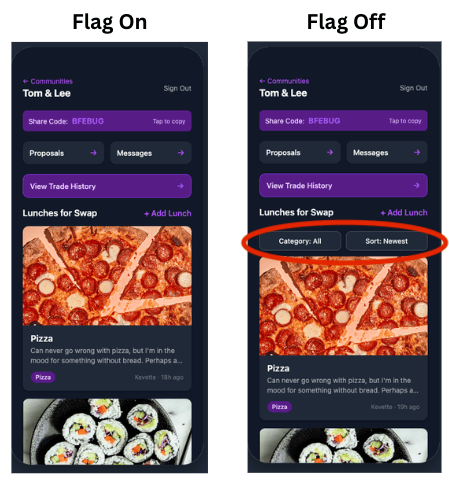
How the feature flag status impacts the app UI for the filter options.
Investigation Steps
Step 1: Filter by flag variationnew-filter-location is set to true.
Step 2: Watch for user behavior patterns
- users scroll down the feed, then back up, then down again.
- Minimal item taps.
- Constantly moving through the list without making selections.
- User navigates to a different page.
The Root Cause
The feature flag moves the existing filter bar from the top to the bottom of the list (ListFooterComponent when the flag is on). Same controls, different position.
The Fix
Step 1 – Roll back the flag: Setnew-filter-location to false. Filters return to the top (original position); rage scrolls drop.
Step 2 – Fix the experiment: Don’t move the filters to the bottom. Keep the filter bar at the top regardless of the flag, or remove the flag and leave filters in their original place.
Resolution
- Roll back
new-filter-locationtofalseso filters are at the top again - Fix keep the filter bar at the top.
- Deploy and re-enable the flag with monitoring.
Building your debugging playbook
Based on these scenarios, here’s a systematic approach to rage click debugging: Step 1: Triage with Filters
Step 2: Identify the Pattern
When reviewing session replays, look for:
- Visual feedback gaps (Did the UI acknowledge the click?)
- Loading states (Is there a spinner? Does it ever resolve?)
- Error visibility (If there’s an error, can the user see it?)
- Touch target issues (On mobile, are elements too small or overlapping?)
- Timing problems (Does the click happen before the element is ready?)
- Network tab (API response codes and payloads.)
- Console errors (JavaScript exceptions.)
- Feature flag state (Which variation was the user seeing?)
- Timing (When in the session did frustration peak?)
- Roll back using your feature flag (instant, no deployment needed).
- Fix the root cause in code.
- Re-deploy with the guarded rollout active.
- Monitor rage click metrics to confirm the fix worked.
Bringing it all together
The combination of rage click detection, session replay, and guarded releases creates something powerful: observability that starts with the human experience. Traditional monitoring asks: “Is the system healthy?” This approach asks: “Are users successful?” When you can detect frustration in real-time, watch exactly what users experienced, and roll back problematic features instantly, you fundamentally change how fast you can ship with confidence. This workflow fits into the broader ai deployment lifecycle, treating user frustration signals as first-class deployment metrics, just like error rates or latency. By embedding rage click detection into your ai lifecycle management strategy, every release becomes a feedback loop that improves both the product and the process.Series recap
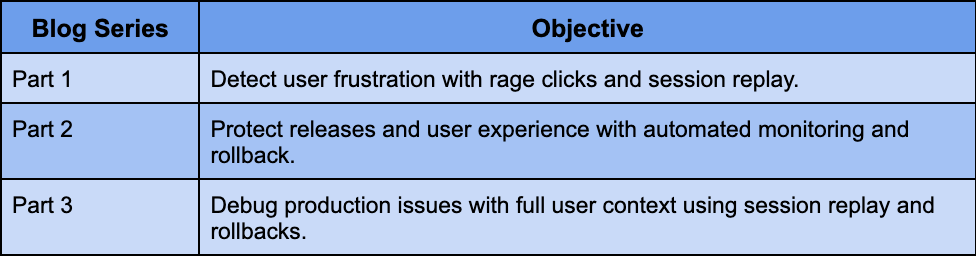
The three-part rage click detection series recap.