

Interactive mode
Interactive mode connects your front end with the LaunchDarkly MCP server. This lets you use an AI agent in Cursor or another integrated development environment (IDE) to wrap the code for front-end elements in a new or existing feature flag. To wrap the code for a front-end element in a flag:- In the toolbar, click the arrow icon to enter interactive mode. The toolbar minimizes.
- Click the front-end element you want to wrap in a flag. The toolbar reappears.
- In the toolbar, click Add to Cursor to enable the LaunchDarkly MCP server in Cursor.
- Enter the Flag key for the flag you want to wrap around the element.
- Use the Open in menu to open Cursor. If you don’t want to use an AI agent in Cursor, you can also make the changes manually in an IDE of your choice.
- In Cursor, a prompt appears with instructions for its AI agent to update your code with the feature flag.
Feature flags
From the Feature flags tab, you can toggle boolean flags on and off. For string, number, and JSON flags, you can edit the value the flag is serving as needed:- To edit the value of a string flag, click on on the pencil icon and enter a string, then click the check icon.
- To edit the value of a number flag, click on on the pencil icon and enter a number, then click the check icon.
- To edit the value of a JSON flag, click Edit JSON, make your edits as needed, and click Save.
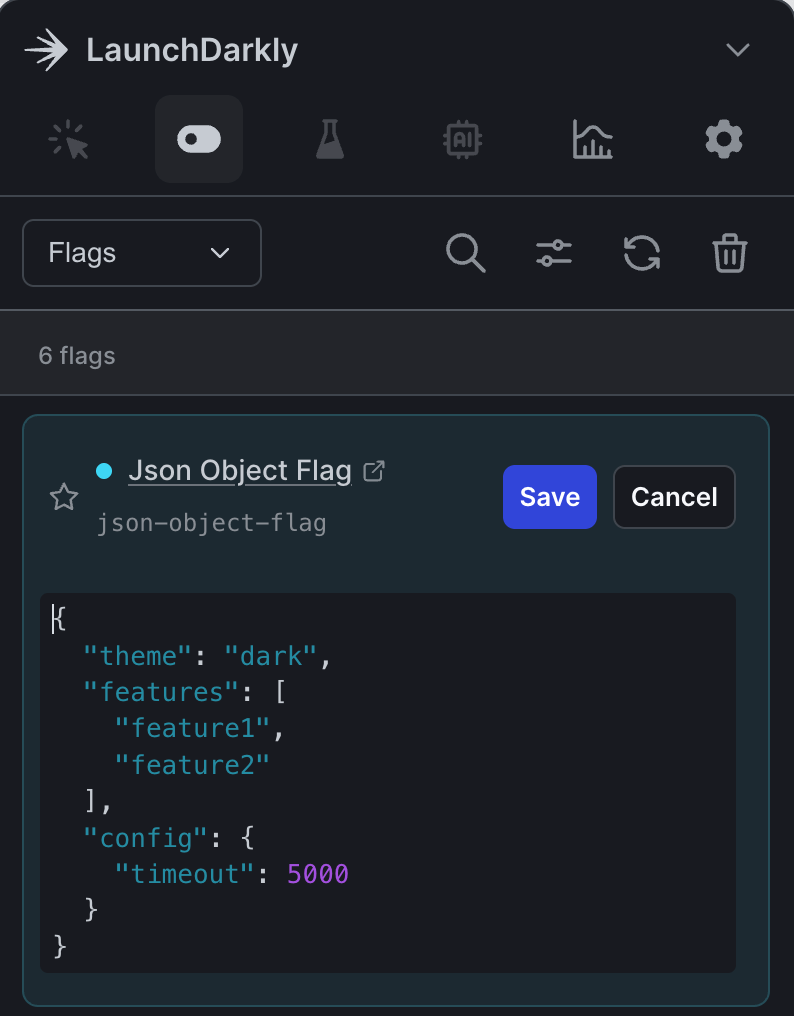
Editing a JSON flag in the developer toolbar.
Monitor events
From the Monitoring tab, you can view incoming flag evaluation events. Use the filter icon to narrow your view to only feature, custom, or identify events. Use the trash icon to clear the event list.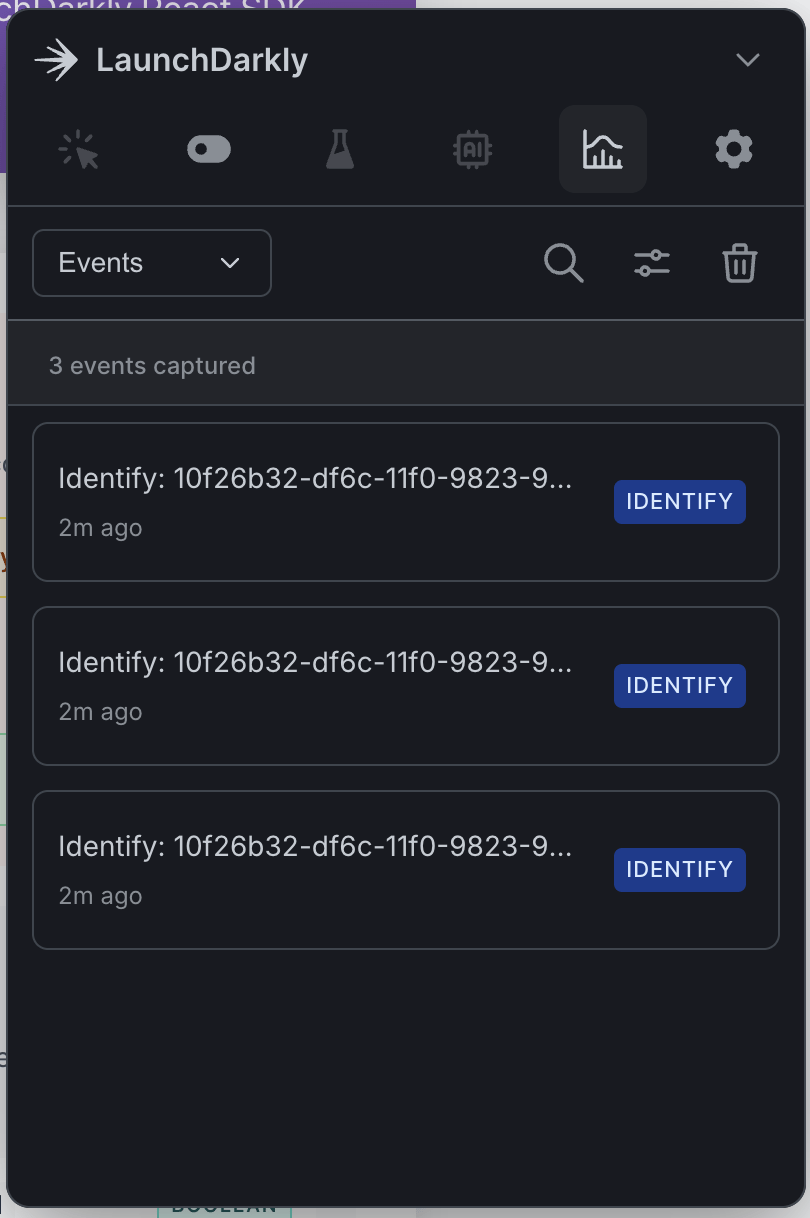
The monitoring tab in the developer toolbar.
Safe domains
You can specify hosted domains and domains you control as safe for use with the toolbar. This allows you to test flags in your local and hosted environments. Here’s how to specify safe domains:- Navigate to the developer toolbar setup. The “Create LaunchDarkly Developer Toolbar configuration” page appears.
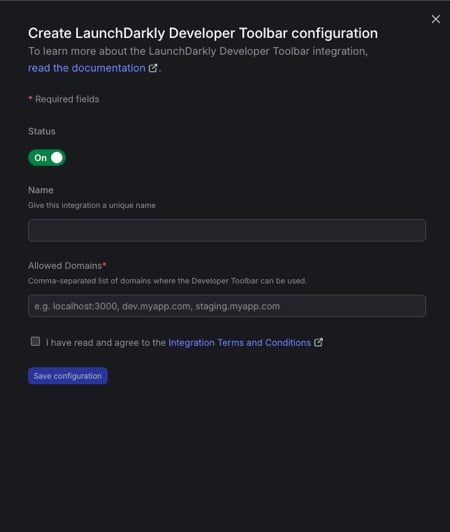
The "Allowed domains" field in the developer toolbar setup.
- In the “Allowed domains” field, enter the domain to add. You can specify multiple domains as a comma-separated list. You can also use wildcards, for example
*.example.com, to allow all subdomains. - Click the checkbox to acknowledge the Integration Terms and Conditions.
- Click Save configuration.