
SDK credentials
This topic explains how to view and copy SDK credentials and environment keys.
SDK credentials authenticate your applications to LaunchDarkly and determine which environment your SDK connects to. Each environment has three types of credentials, and which one you need depends on which SDK you use:
- SDK keys: Use with server-side and AI SDKs. Keep SDK keys secret. You can rotate an SDK key if it’s exposed. SDK keys always start with the prefix
sdk-. - Mobile keys: Use with client-side SDKs designed for mobile. Mobile keys do not need to be kept secret, but you can rotate them if needed. Mobile keys always start with the prefix
mob-. - Client-side IDs: Use with JavaScript-based client-side SDKs and edge SDKs. Client-side IDs do not need to be kept secret and cannot be rotated. Client-side IDs are alphanumeric and do not contain dashes.
When you connect a client-side SDK to the ldcli dev-server for local testing, use your project key as the SDK credential and set all service endpoints to http://localhost:8765.
Do not use an SDK key, mobile key, or client-side ID with the dev-server. Using a client-side ID connects the SDK to LaunchDarkly instead of the dev-server, which can result in CORS errors.
To learn more about different SDK key types, read About the different types of SDKs and Keys.
To learn how to create and manage API access tokens, read API access tokens.
You can view, copy, and reset SDK credentials from the SDK keys page under Organization settings. All plans can create and manage multiple SDK keys and multiple mobile keys per environment at the same time. Serving those keys concurrently through the Relay Proxy is a separate capability. To learn more, read Multiple SDK credentials for multiple applications.
Customers that use the views feature can optionally add filters to SDK payloads. To learn more, read Filtered SDK payloads.
View or copy SDK credentials
To view or copy an SDK key, mobile key, or client-side ID:
- Click the gear icon in the left sidebar to open Organization settings.
- Under the “Security” section, click SDK keys. The “SDK keys” page opens.
- Use the dropdown menus to search for and select the project and environment for which you want to view or copy a credential.
- To reveal an SDK key, click the eye icon.
- Click the clipboard icon to copy a credential to your clipboard.
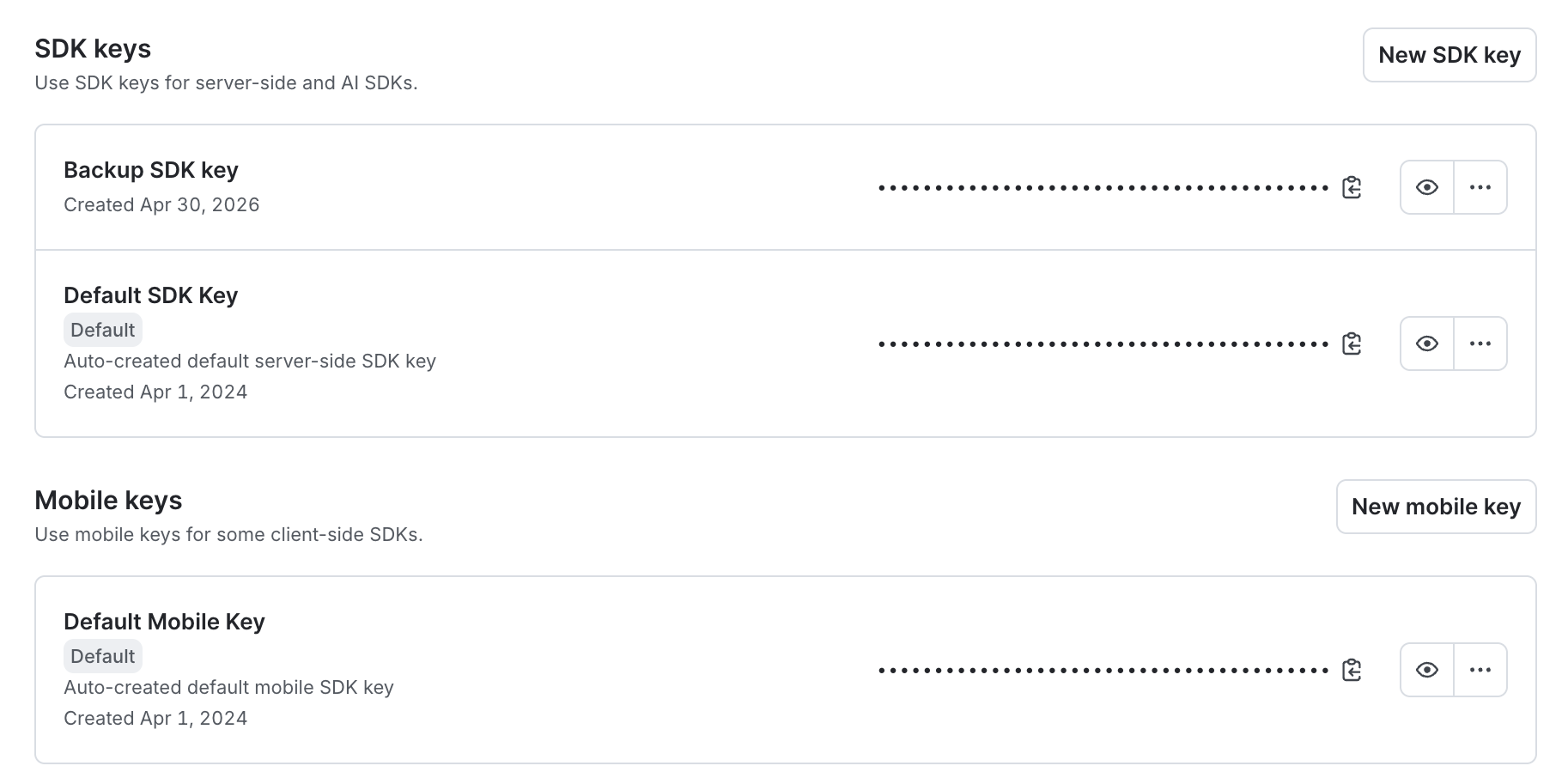

You can also use the REST API: Get all SDK keys
Rotate SDK credentials
To rotate an SDK key or mobile key, first create a new key, then delete the old key after you have fully moved your application to the new key. You can also set an expiry on a key at any time, as long as the environment always has at least one active server-side SDK key and one active mobile key.
You can also use the REST API: Update SDK key
Best practices for rotating SDK keys
Client-side IDs and mobile keys do not need to be rotated because they do not need to be kept secret. Rotate SDK keys in the following situations:
- The SDK key is exposed: Create a new SDK key and move your applications to it as soon as possible.
- On a regular cadence: Rotating SDK keys regularly reduces the risk of an undetected exposure.
To rotate a key, follow these steps:
- Inventory all places where the key is used, such as apps, services, Kubernetes secrets, CI/CD tools, and the Relay Proxy.
- Create a new SDK key.
- Optionally set an expiration date for the old key.
- Update all apps, services, secrets, and tools with the new key. Both the old and new keys work until you delete the old key or it expires.
- For a manually configured Relay Proxy, update the relay config with the new key and restart the relay so it re-authenticates.
- For a Relay Proxy using automatic configuration, the proxy detects the new default key automatically during rotation and switches over without a manual restart. This is separate from running multiple concurrent keys through the Relay Proxy. To learn more, read Multiple SDK credentials for multiple applications.
- Verify that your apps are successfully connecting to LaunchDarkly.
- Delete the old key, or let the expiration date pass.
After the old key is deleted or expired, any SDKs still using it fail authentication and feature flag evaluations return fallback values defined in your code.
Multiple SDK credentials for multiple applications
When you manage multiple applications within the same environment, you can generate and manage distinct SDK credentials for each application. Isolating credentials per application limits the impact of accidental exposure, since only the applications using that key are affected.
Concurrent keys are two or more independently managed SDK keys or mobile keys that stay active at the same time for the same environment. Key rotation temporarily overlaps an old and a new key while you migrate applications, then you delete the old key.
To move an application to a new SDK key, create the new key first, update your application, then delete the old key only after you have confirmed you no longer need it.
The Relay Proxy supports multiple SDK keys and mobile keys for an environment when you use automatic configuration or offline mode. This requires Relay Proxy version 8.21.0 or later.
The Relay Proxy does not support SDK keys or mobile keys that are scoped to a view. It rejects view-scoped keys, so use a key that isn’t view-scoped for the Relay Proxy and for the SDKs that connect to it.
When you configure the Relay Proxy manually with a configuration file or environment variables, it can use only the default SDK key and default mobile key for each environment.
Create SDK credentials
To create a new SDK key or mobile key:
- Click the gear icon in the left sidebar to open Organization settings.
- Under the “Security” section, click SDK keys. The SDK keys page opens.
- Use the dropdown menus to search for and select your project and environment.
- Click New SDK key or New mobile key.
- Enter a Name.
- (Optional) Edit the automatically-generated Key. You cannot reuse these, even if the old key is deleted or expired.
- (Optional) Enter a Description.
- (Optional) Click Custom payload to enable filtering.
- Click Add views.
- Select the views to filter the payload by.
- Click Generate key.
You cannot create new client-side IDs.
You can also use the REST API: Create SDK key
Delete SDK keys
Before you delete an SDK key, confirm that none of your applications use the key. Deleting a key that is still in use causes those applications to fail authentication and return fallback values.
To delete an SDK key or mobile key:
- Click the gear icon in the left sidebar to open Organization settings.
- Under the “Security” section, click SDK keys. The SDK keys page opens.
- Use the dropdown menus to search for and select your project and environment.
- Click the three-dot overflow menu next to the SDK key or mobile key you want to delete.
- Select Delete key.
- Enter the environment name to confirm.
- Click Delete key.
You cannot delete client-side IDs.
When you delete an SDK key or mobile key, you cannot reuse the key for the credential for 180 days.
You can also use the REST API: Delete SDK key
Set expiration dates for SDK keys
Setting an expiration date on an SDK key or mobile key lets you plan ahead for key rotation without needing to manually delete the key later. The key remains active until the expiration date, giving you time to update your applications before it stops working.
To set an expiration date:
- Click the gear icon in the left sidebar to open Organization settings.
- Under the “Security” section, click SDK keys. The SDK keys page opens.
- Use the dropdown menus to search for and select the project and environment for which you want to set an expiration date.
- Click the three-dot overflow menu next to the SDK key or mobile key you want to set an expiration date for.
- Select Set expiration.
- Enter an expiration date and time.
- Enter the environment name to confirm.
You cannot set expiration dates for client-side IDs.
View expired SDK keys
To view an expired SDK key:
- Click the gear icon in the left sidebar to open Organization settings.
- Under the “Security” section, click SDK keys. The SDK keys page opens.
- Use the dropdown menus to search for and select the project and environment for which you want to view an expired key.
- Click N expired SDK keys. A new section appears.
- Click the eye icon to reveal the SDK key.