
Tools
This topic explains how to manage and use tools in AgentControl. Tools are reusable, versioned definitions that let configs trigger actions you define in code. Tools allow large language models (LLMs) to retrieve data or take actions on a user’s behalf. You can customize tools with parameters that define more information for the tool to use. For example, if a tool represents an MCP server, you could include connection information in a custom parameter.
You can attach tools to variations in both completion mode and agent mode. Tools can retrieve data, call external APIs, or support multi-step workflows.
Giving your agents access to tools gives them the ability to call them as instructed or needed. Tool invocation depends on your application and SDK implementation, not on the config mode. All configs share the same tool library, so you can define a tool once and reuse it across multiple configurations.
Tools are in the library’s Tools tab, which provides a central location to maintain consistency across projects.
Use cases for tools
Using tools in AgentControl offers organizational and technical advantages that support consistent, auditable workflows.
With tools, you can:
- Reuse tools across multiple variations in both completion mode and agent mode.
- Maintain consistency across projects.
- Integrate standardized actions into LLM workflows, including with custom parameters.
- Collect metrics about how often your tools are being executed (for agent graphs, you must collect this information manually)
How configs use tools
After you create a tool, you attach the tool to a config variation, including an agent mode config variation. Like judges, tools do not work independently of configs. You must attach a tool to a variation for it to function.
After you deploy the variation, attached tools are available for the LLM to invoke. You can use tools as a registry to map a given tool to where it’s invoked in your application, or, depending on which provider you use, provide schemas and pass them directly to the invocation.
You cannot attach a tool to a custom judge. To learn more, read Judges.
Managing tools
Tools are in their own tab in the Library.
From the Tools tab, you can browse existing tools or create a new one. The tools list sorts by Created on, with the newest tools appearing at the top. To reorder the list, click the arrows next to Created on.
To find a specific tool by name, enter its key in the Search tools box.
To create a new tool:
-
In the left sidebar, click Agents. The AgentControl menu appears.
-
Click Library.
-
Select the Tools tab.
-
Click Create tool. The Tool page appears.
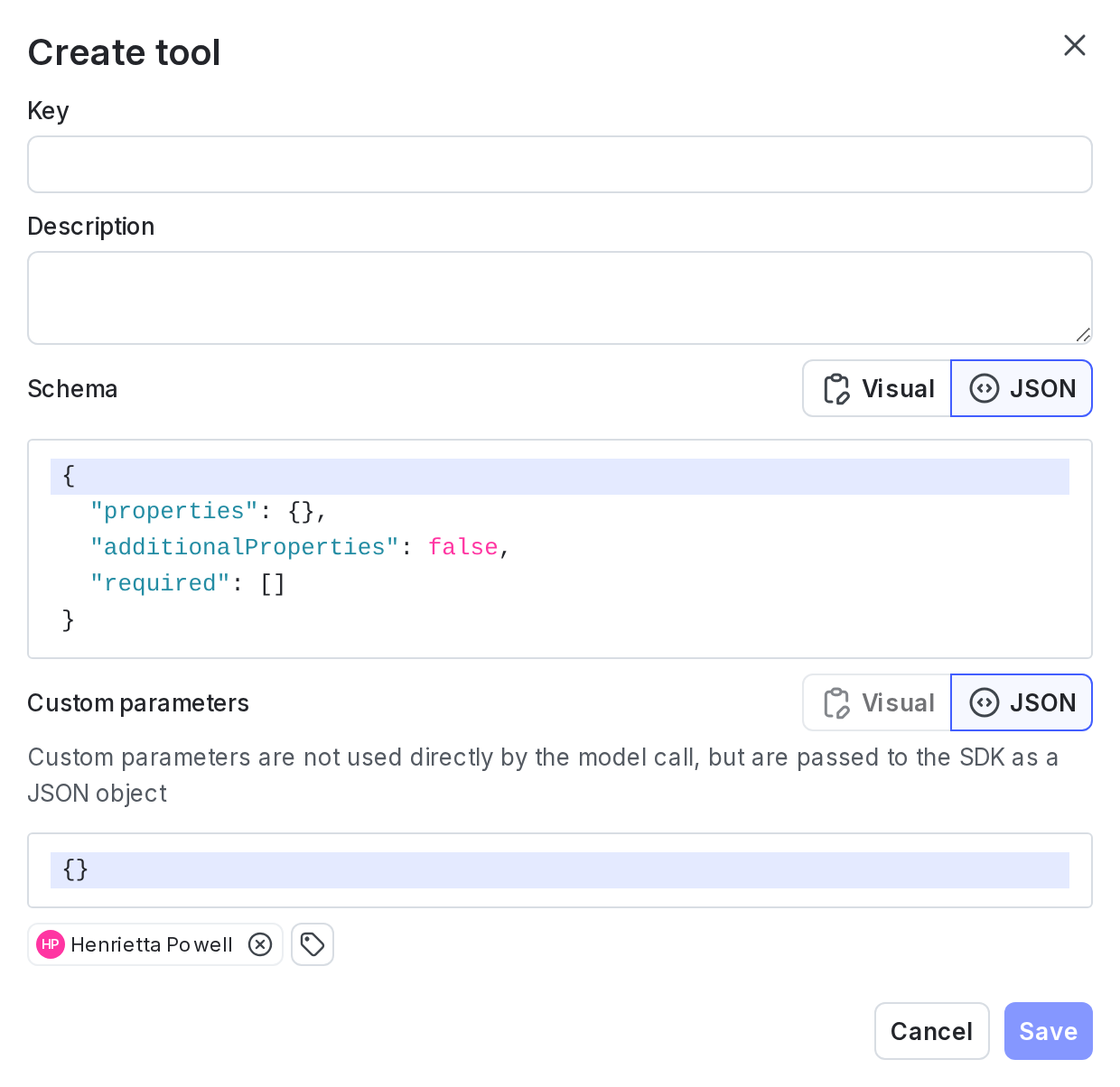
The Tool page. -
Enter a Key for the tool. Keys must be alphanumeric and can include underscores and hyphens.
-
Enter a Description for the tool.
-
Define the tool Schema, or leave it at its default value.
-
Specify any custom parameters.
-
Click Save.
Attach tools to variations
When editing a config variation, you can attach or detach tools, change tool versions, create new tools inline, and explore the tools library.
To manage tools in a variation:
- In the left sidebar, click Agents. The AgentControl menu appears.
- Click Configs.
- Click the name of the config to edit.
- Select the Variations tab and open the variation you want to manage.
- Click + Attach tools. The tools selection menu opens.
- Check or clear the box for the tool.
Legacy tools warning
If your variation defines a tools field inside a model or custom parameter, LaunchDarkly treats it as a legacy tools configuration and displays the following banner:

This means:
- Tools are currently defined as raw JSON in parameters
- LaunchDarkly does not manage or validate these tools
- Your application is responsible for passing them to the model provider
If you attach tools using the tools library:
- LaunchDarkly removes the legacy
toolsfield in parameters - Attached tools become the source of truth for the variation
- The SDK returns tools in a new, structured
toolsfield
This message does not indicate an error. It helps you understand that switching to the tools library replaces the existing parameter-based configuration.