Quickstart for AI Configs
Overview
AI Configs let you manage model configuration and instructions for your AI agents outside of your application code. With AI Configs, you can update prompts and models without redeploying.
By the end of this quickstart, you will have:
- Created your first agent-based AI Config
- Deployed your config and called it from your application
- Made a change to your prompt or model without redeploying
Using an AI coding assistant?
If you have the LaunchDarkly MCP server or agent skills configured, prompt your coding assistant to create the AI Config for you. For example:
“Create an agent-based AI Config called ‘my-agent’ with a GPT-5.5 variation with instructions: ‘You are a helpful assistant.’”
Prerequisites
To complete this quickstart, you need the following:
- A LaunchDarkly account and a server-side SDK key for your environment. To find your SDK key, read SDK credentials.
- An API key for your model provider, such as OpenAI or Anthropic, made available to your application as an environment variable.
- Python 3.10 or higher. To get started with NodeJS or other languages, read the AI SDKdocumentation.
This quickstart uses LangChain as the agent framework. You can adapt the same configuration code to the OpenAI Agents SDK, Strands, or the Claude Agent SDK. For an end-to-end code sample showing different frameworks and model providers, read Full example code.
Step 1: Install the SDK
First, install the LaunchDarkly server-side SDK and AI SDK, as well as the agent framework you want to use. This quickstart uses LangChain with Anthropic.
To get started with other frameworks or model providers, read the AI Configs guides.
Step 2: Initialize the client
Step 3: Create an agent-based AI Config in LaunchDarkly
Create an agent-based AI Config to store your model settings and instructions. You can do this through the LaunchDarkly UI, or agentically using the LaunchDarkly MCP server from your AI coding assistant. For example, Claude Code or Cursor can both perform this task.
To create the agent-based AI Config in the UI:
- In the left navigation, select AI Configs, then click Create AI Config.
- In the “Create AI Config” dialog, select Agent-based.
- Enter a name for your agent-based AI Config and click Create.
Save the AI Config key
When you name your AI Config, a key generates automatically. Copy and save this key now. You’ll use it in Step 5.
- On the Variations tab, add instructions for your agent. For example:
- Click Review and save.
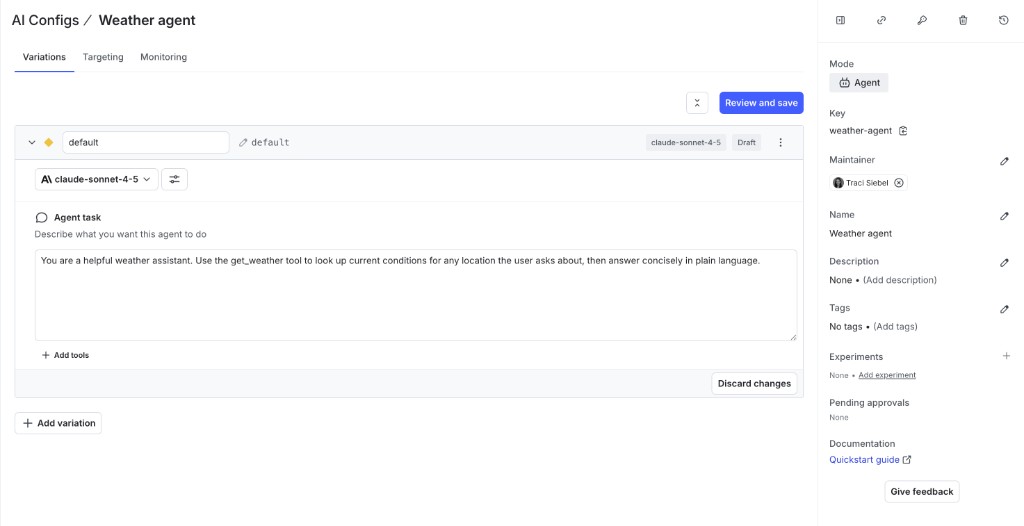
To learn more about configuring agent variations, read Agents in AI Configs.
Step 4: Set up targeting
Now that your agent-based AI Config has a variation, configure targeting to serve it to your users.
- Select the Targeting tab for your agent-based AI Config.
- In the Default rule section, click Edit.
- Set the default rule to serve your new variation.
- Click Review and save.
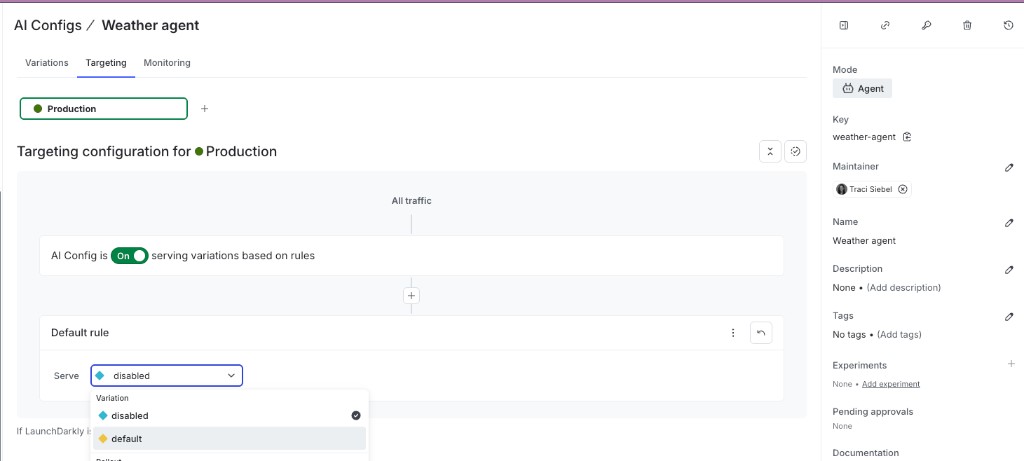
Your agent-based AI Config is now active. When your application calls the SDK, LaunchDarkly evaluates the targeting rules and returns the variation you configured.
To learn more, read Target with AI Configs.
Step 5: Use the agent-based AI Config with your agent framework
First, retrieve the agent-based AI Config in your application. Replace your-agent-config-key with AI Config Key you saved in Step 3:
Next, pass the model name and instructions from config into your agent framework. The example below uses LangChain:
Finally, run the agent:
For an equivalent setup with the OpenAI Agents SDK, Strands, or the Claude Agent SDK, read Full example code.
Step 6: Make a change without redeploying
One of the key benefits of AI Configs is that you can update your model or prompt at any time without redeploying your application.
To update without redeploying:
- Select the Variations tab for your agent-based AI Config.
- Open your variation and change the model, model provider, or instructions.
- Click Review and save.
LaunchDarkly immediately serves the updated configuration to your application. The next time your application calls the SDK, it receives the new model and instructions without needing to redeploy.
Step 7: Monitor the agent-based AI Config
Select the Monitoring tab for your agent-based AI Config. When end users use your application, LaunchDarkly monitors AI Config performance. Metrics update approximately every minute.
To learn more, read Monitor AI Configs.
Summary
Congratulations! You now have an agent-based AI Config that can:
- Load model and instructions from LaunchDarkly at runtime, so your app doesn’t hard-code either
- Change in production without redeploying, by editing the variation in LaunchDarkly
- Keep a full version history of every change to prompts and model settings
- Report cost, token usage, and error rates on the Monitoring tab as real traffic flows through
From here, add a judge, run evals, log traces, and explore the managed AI SDKs.
Full example code
Show full example code
Next steps
- Add a judge to your agent
- Run your first eval
- View your monitoring data
- Log traces
- Explore our AI SDKs
