

Edit environment settings
To view or update environment settings:- Click the project menu. The project menu appears:
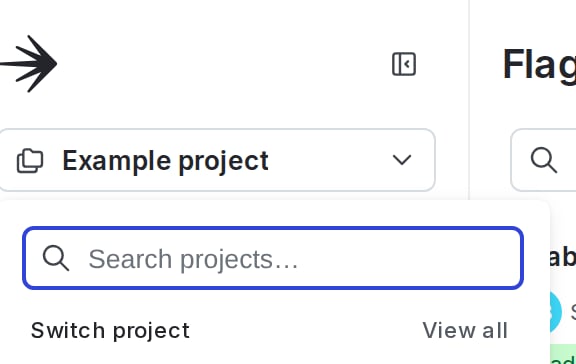
The project menu.
- Select Project settings.
- Select Environments. The Environments list appears.
- Click the three-dot overflow menu next to your environment.
- Select Edit environment.
- Update settings using the Overview, Approvals, or SDK keys tabs.
- Save or cancel your changes before changing tabs or leaving the page.
| Setting | Description | Learn more |
|---|---|---|
| Name | The environment name | |
| Tags | Customizable labels used for categorization | Tags |
| Critical environment | An environment that affects your customers or the health of your systems | Critical environments |
| Require comments | Whether to require a comment before saving flag or segment changes | Required comments |
| Require confirmation | Whether to require entering the name of the environment before saving flag or segment changes | Required confirmation |
| Enable secure mode | Ensures that one end user cannot inspect flag variations for another end user when you use some client-side SDKs | Secure mode |
| Send detailed events to Data Export destinations | Whether to export evaluation events for end users that encounter the flag | Data Export |
| Time-to-live (TTL) | Number of minutes that the PHP SDK can cache feature flag rules locally | TTL settings |
| Environment Color | The color used to indicate this environment in the LaunchDarkly UI |
TTL settings
TTL settings are only used in the PHP SDKThis setting controls how long the PHP SDK can cache feature flag rules locally. You only need to configure this if you are using the PHP SDK.
variation resolve from the local cache. The tradeoff is that flag rule changes take up to five minutes to propagate. For lower-traffic sites with fewer than one request per minute, a higher TTL makes better use of the local cache.
Setting the TTL to zero disables the local cache entirely, and every call to variation makes a remote request to the LaunchDarkly CDN. A zero-minute TTL can be useful in testing environments where you need changes to reflect immediately, but we do not recommend it in production. For high-volume PHP environments, we strongly recommend using the Relay Proxy instead. To learn more, read The Relay Proxy.
To set the TTL:
- Click the project menu. The project menu appears.
- Select Project settings.
- Select Environments. The Environments list appears.
- Click the three-dot overflow menu next to your environment.
- Select Edit environment.
- Click the Overview tab if it is not already selected.
- Enter a TTL value between 0 and 60 minutes.
- Click Save environment.