

How agent graphs work
- Node = AgentControl config (model, instructions, tools)
- Edge = handoff metadata (routing contract you define)
- Graph = topology (which nodes connect)
- Your app = execution + interpretation
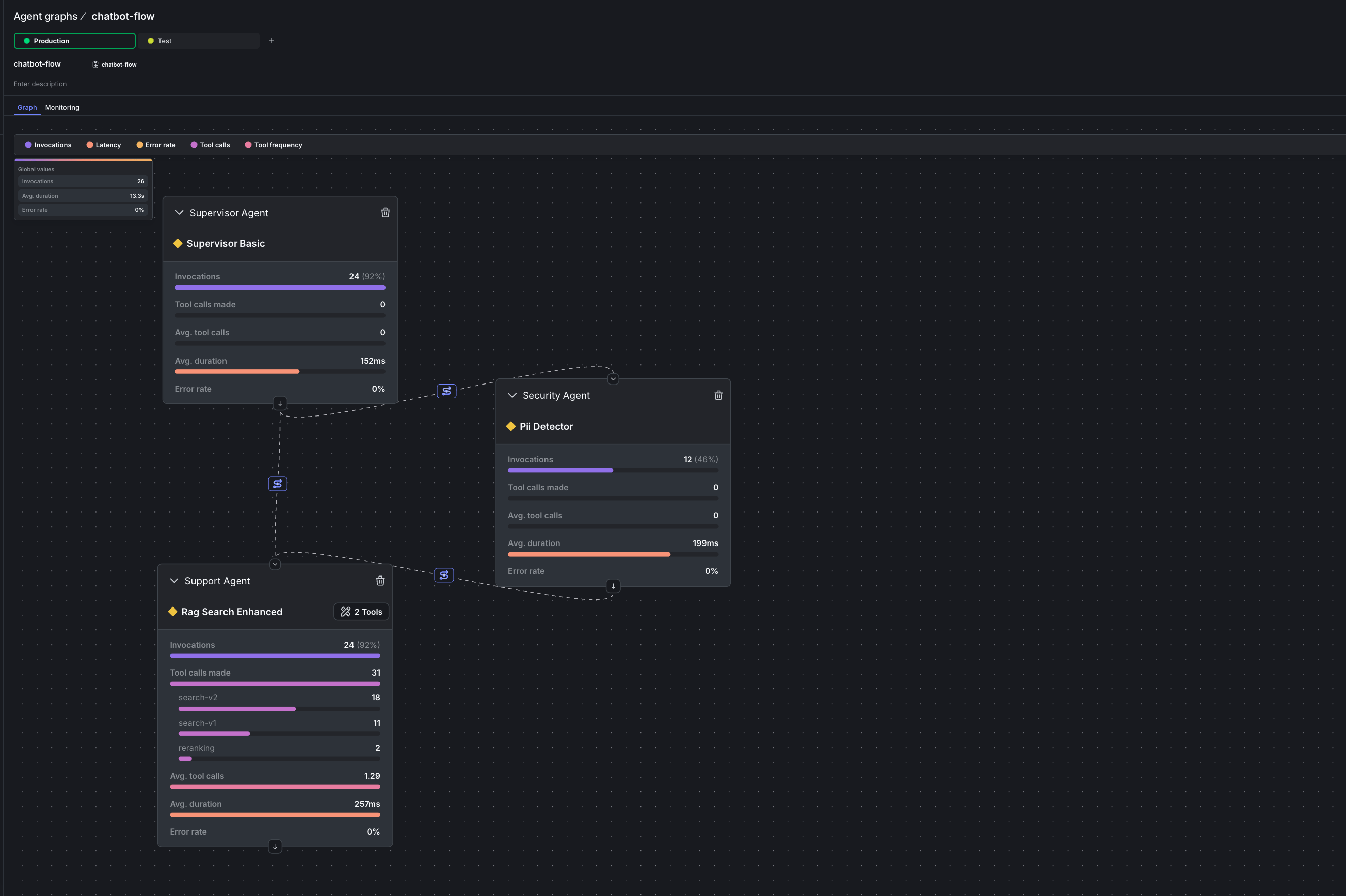
Agent graphs: visual orchestration with per-node metrics overlaid directly on your workflow
What you’ll build
In this tutorial, you’ll add agent graphs to an existing multi-agent workflow:- Build a graph visually in the LaunchDarkly UI
- Connect it to your code with a few lines of SDK integration
- Run your agents and watch the graph in action
- Monitor performance with per-node latency and invocation tracking
- Fix a slow agent by swapping models in the LaunchDarkly UI
Prerequisites
- LaunchDarkly account with AgentControl access (sign up here)
- Python 3.9+
- An existing agent workflow (or use our sample repo)
The problem with hardcoded orchestration
Every multi-agent framework handles orchestration differently:Why externalizing topology helps
If you’ve built multi-agent systems with LangGraph, OpenAI Swarm, or Strands, you’ve run into the same limitations:- Config duplication: Agent definitions scattered across framework-specific formats
- Silent failures: An agent times out and you don’t know until users complain
- No topology visibility: The workflow exists only in code
- Custom observability: Getting consistent per-agent metrics means reconciling different trace formats and data schemas across frameworks
Deep dive on orchestratorsFor a detailed comparison of LangGraph, OpenAI Swarm, and Strands, read Compare AI orchestrators. Agent graphs work with multiple agent frameworks.
- View your entire workflow at a glance, not buried in code
- Monitor per-node metrics overlaid directly on the graph (latency, invocations, tool calls)
- Add or remove agents without changing traversal logic, provided your runtime supports the node’s tools and output contract
- Inspect routing logic on edges, with handoff data visible in the UI
- Use graph-aware SDK methods like
is_terminal(),get_edges(), androot()instead of manual tracking
Step 1: Create a project and configs
Agent graphs live in a LaunchDarkly project alongside your configs. Create a dedicated project for this tutorial, then seed it with an AgentControl config for each agent. The bootstrap script below handles config setup. If you already have a project, skip to Step 2.Create a tutorial project firstAsk your coding assistant to create the project with the LaunchDarkly MCP server (or the
projects agent skill), or create one manually under Account settings > Projects. Then copy its SDK key and project key into your .env.New to AgentControl?Use the AgentControl quickstart or run the bootstrap script in our sample repo to seed your project with the three configs:The bootstrap script creates the configs in the project you set in
LD_PROJECT_KEY.- supervisor-agent: Orchestrates the workflow and routes queries based on PII pre-screening
- security-agent: Detects and redacts personally identifiable information (PII)
- support-agent: Answers questions using dynamically loaded tools (search, RAG)
Step 2: Build the graph in the UI
This is where agent graphs diverge from code-based orchestration. Instead of writingadd_edge() calls, you’ll view your topology and modify it visually.
Open the LaunchDarkly UI and navigate to AI > Agent graphs.
- The first-time setup wizard appears. Since you already created configs in Step 1, expand Create a graph at the bottom.
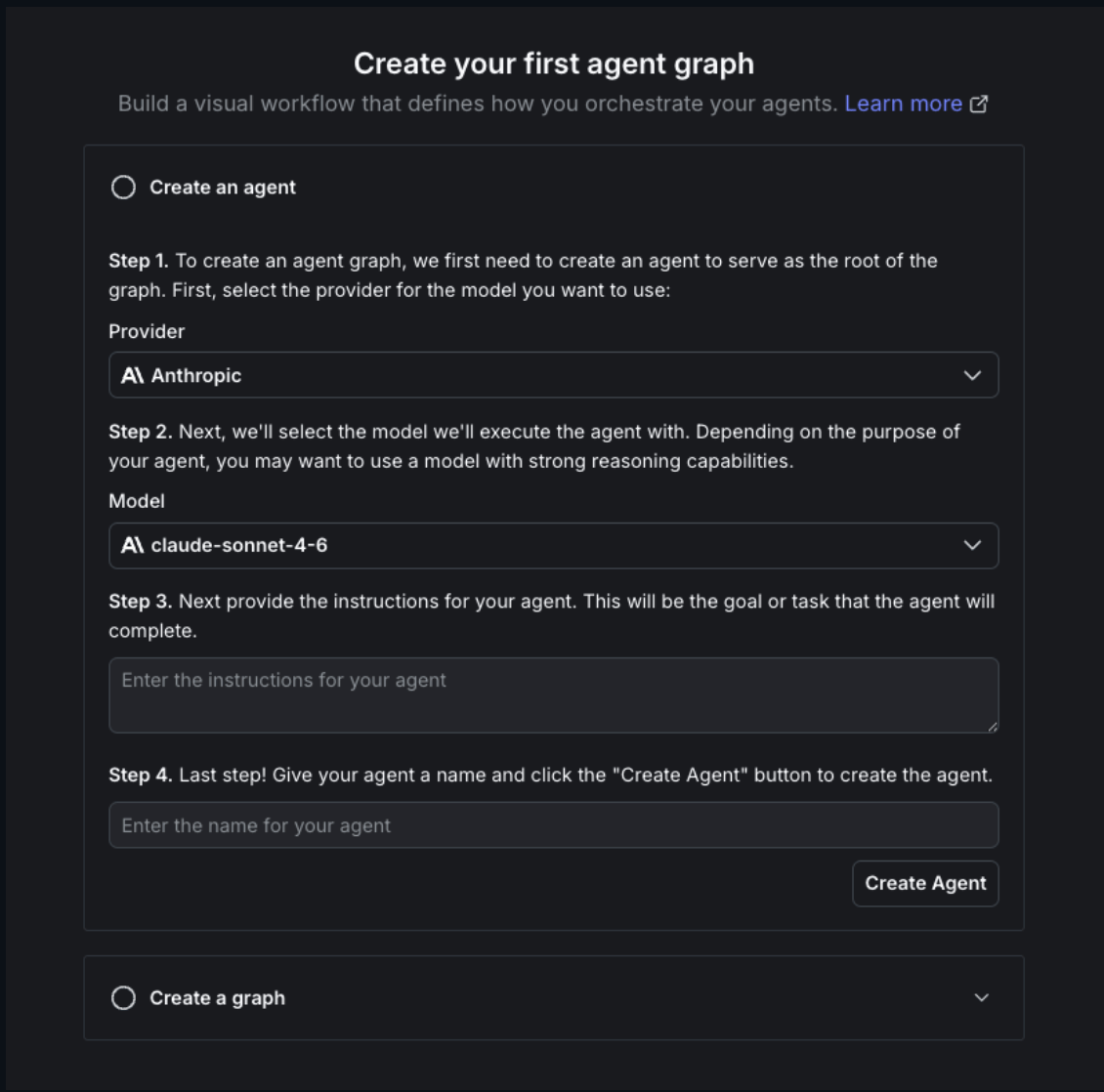
First-time setup wizard. Expand 'Create a graph' since you already have configs.
- Name your graph
chatbot-flowand click Create graph.
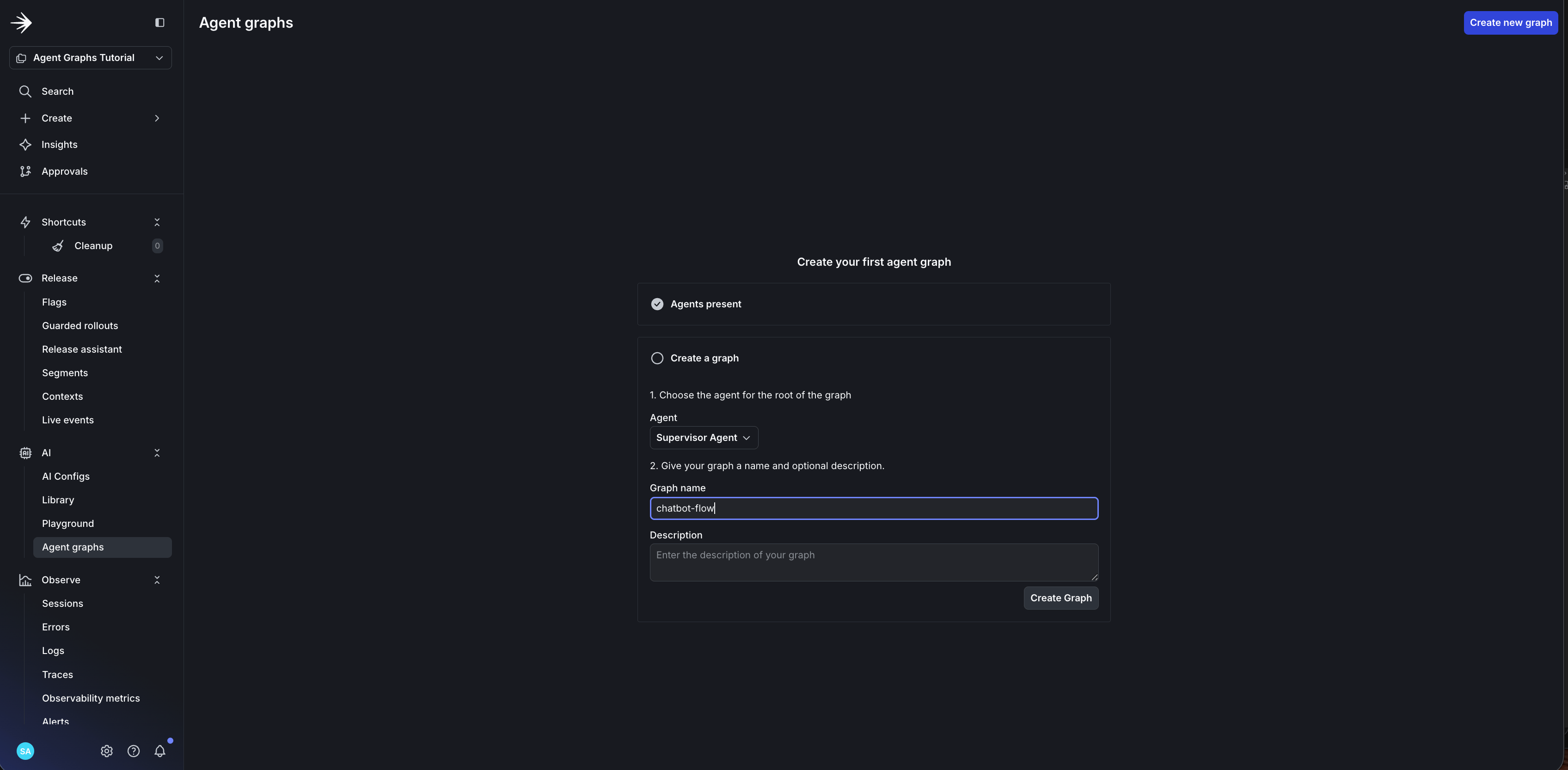
Creating your first agent graph in the LaunchDarkly UI.
- Add your first node: click Add node and select
supervisor-agent - Add
security-agentandsupport-agentas nodes
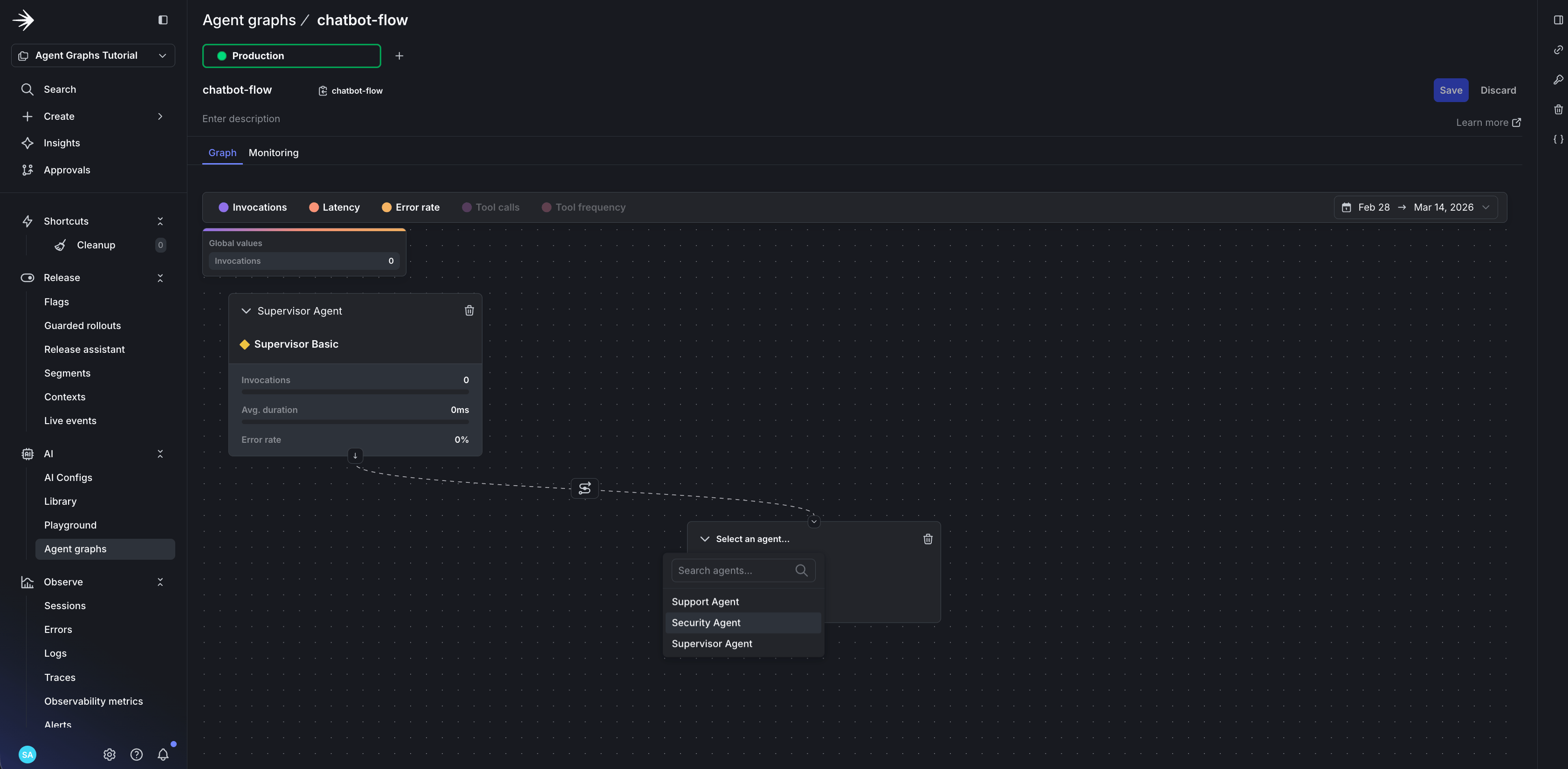
Adding the security-agent node to the graph.
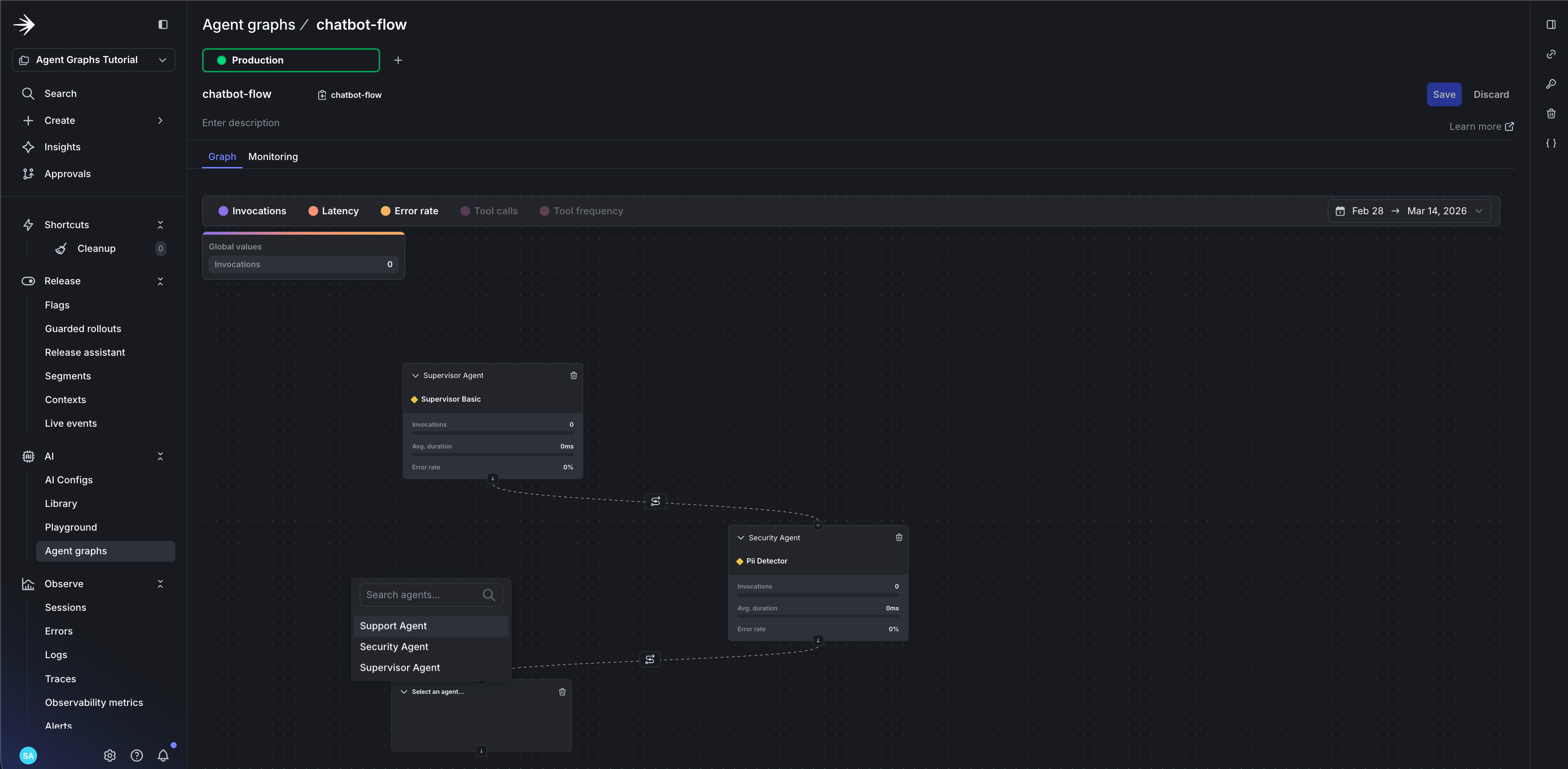
Adding the support-agent node to complete the workflow.
- Draw edges: drag from
supervisor-agentto both child agents - Add handoff data to each edge to define routing logic:
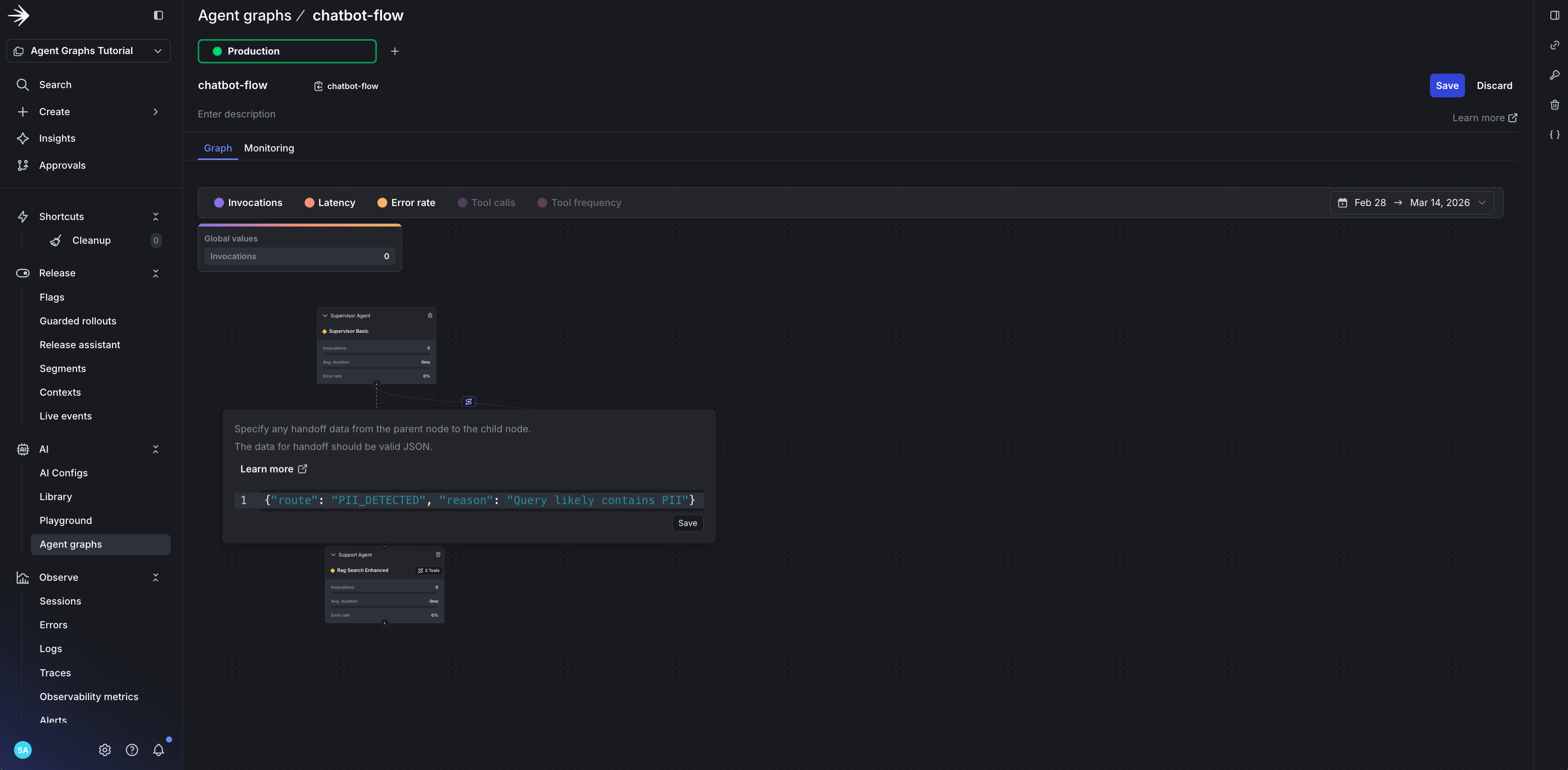
Edge from supervisor to security with route: security handoff data.
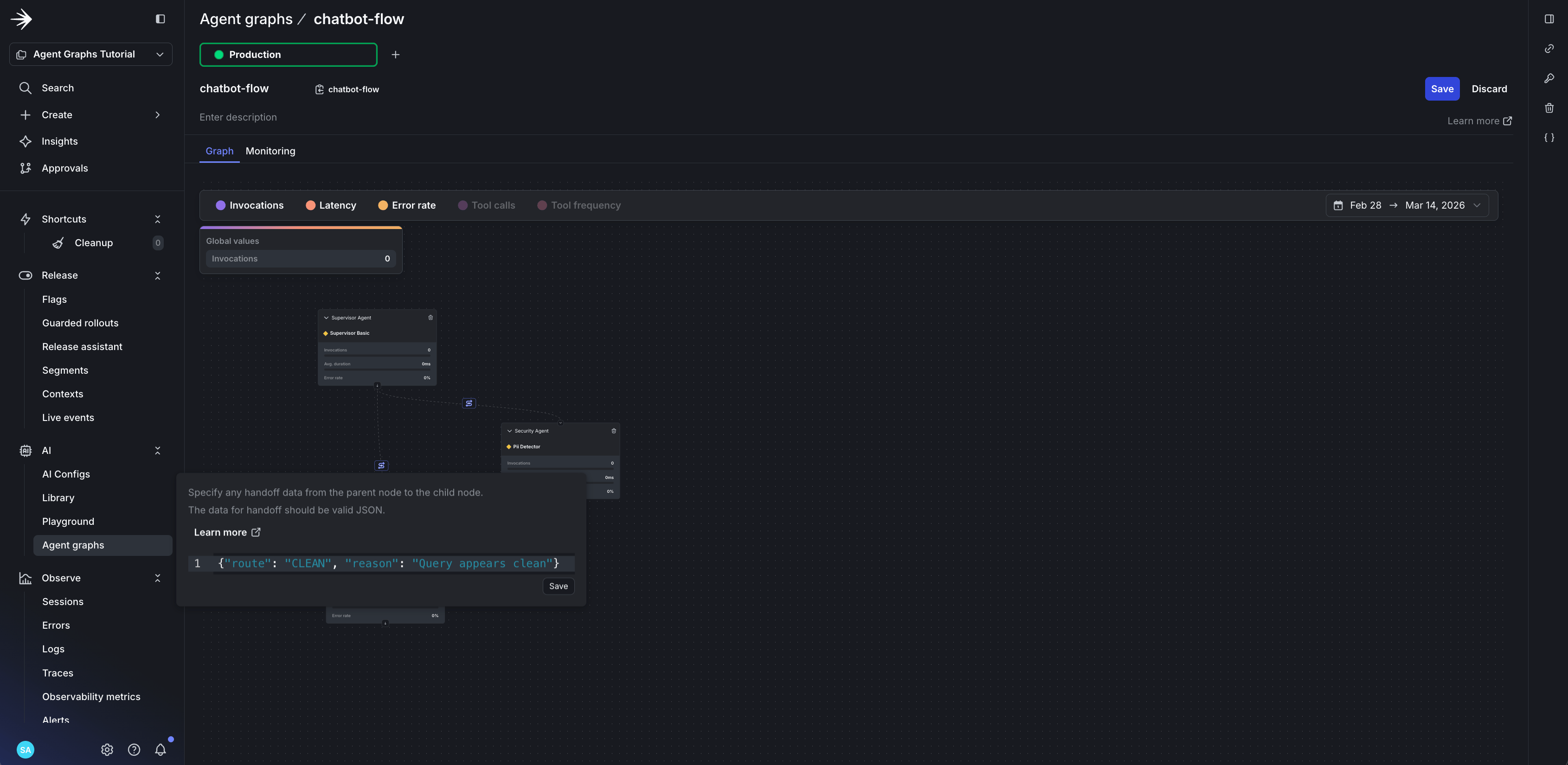
Edge from supervisor to support with route: support handoff data.
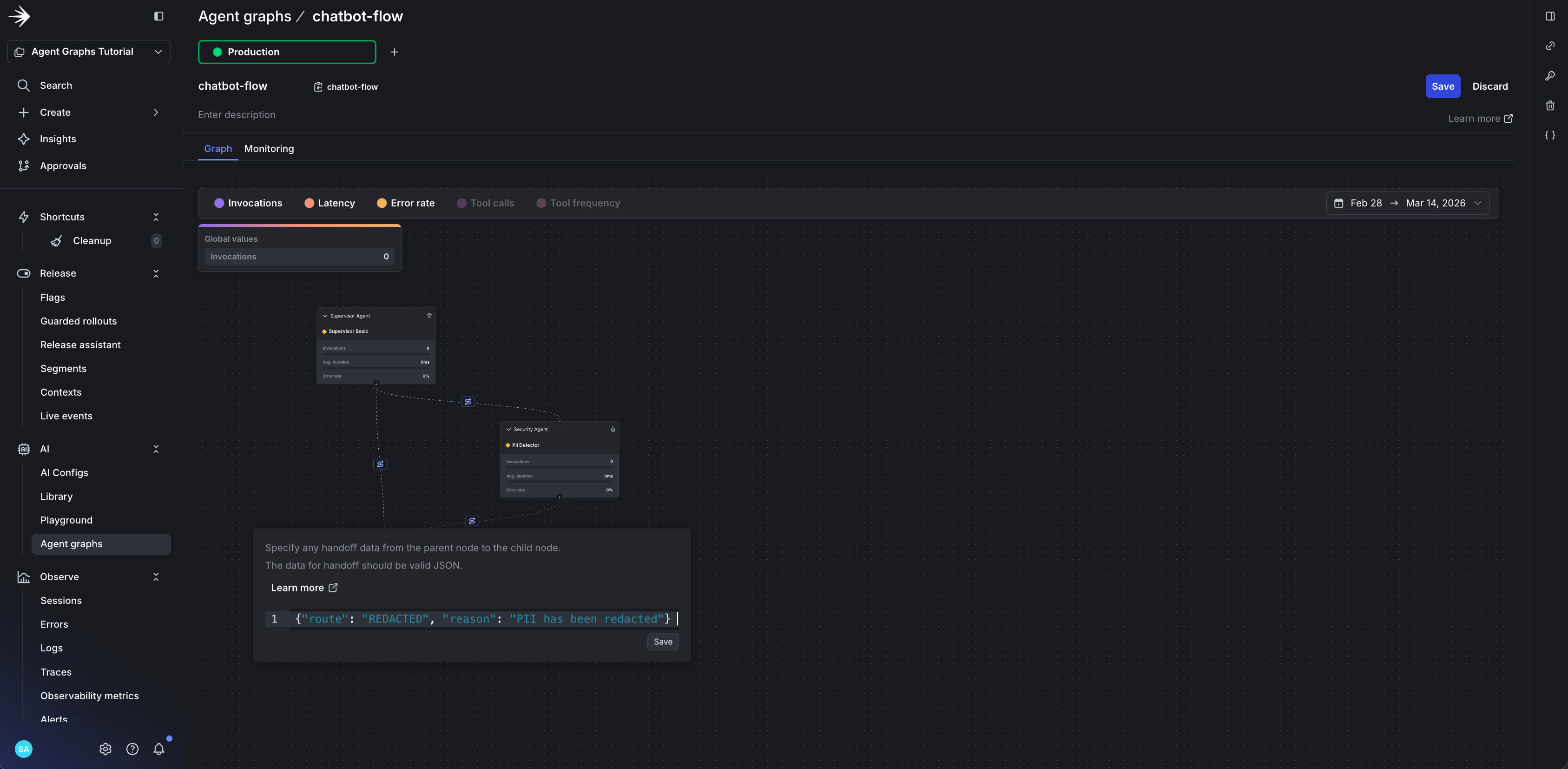
Edge from security to support with route: continue handoff data.
The graph defines structure, your code defines behaviorLaunchDarkly doesn’t execute your graph. It provides:
- Topology: Which nodes exist and how they connect
- Handoff metadata: Whatever JSON you put on edges
- Per-node config: Model, instructions, tools for each agent
- Decides which edges to follow based on agent decisions
- Interprets handoff data however you want (the schema is yours)
- Executes the actual agents
Step 3: Add the SDK to your project
Install the LaunchDarkly AI SDK:Step 4: Integrate with your framework
This section walks through the integration code, starting with the building block (what runs at each node), then showing how nodes are orchestrated.The generic agent pattern
The key to dynamic execution iscreate_generic_agent. Every node uses the same implementation, with no agent registry and no hardcoded agent types:
Why this enables adding agents without code changesThe generic agent pattern means:
- No agent registry: Every node uses the same
create_generic_agentfunction - Config-driven behavior: Model, instructions, and tools all come from LaunchDarkly
- Dynamic routing: Valid routes are injected from graph edges, not hardcoded
- Minimal code changes: Add a new agent in LaunchDarkly, create its config, add it to your graph, and it works, provided your runtime supports the node’s tools and output contract
The AgentService class
TheAgentService class is the entry point for processing messages through your agent graph:
Executing the graph
The_execute_graph method fetches the graph from LaunchDarkly and uses traverse() with skip logic for conditional routing:
Skip logic for conditional routing
Theexecute_node callback implements skip logic, the core pattern that enables conditional routing:
How skip logic enables conditional routingThe
_routed_to set tracks which nodes should execute:- Start: Add root node to
_routed_to - traverse() visits each node: If node is in
_routed_to, execute it; otherwise skip - After execution: Add the next node (based on routing decision) to
_routed_to
Routing between nodes
The_select_next_node method determines which node to route to based on the agent’s routing decision:
Step 5: Run it
With theAgentService wired up (as shown in Step 4), you can now process messages through your agent graph. The service handles:
- Building the LaunchDarkly context for targeting
- Fetching the graph and executing nodes via
traverse() - Tracking metrics for monitoring
- Returning the final response
Step 6: Monitor agent performance
This is the key differentiator: monitoring happens on the graph itself, not in a separate view. You see metrics overlaid on the same visual topology you built, so bottlenecks are immediately obvious. The sample repo includes full instrumentation: calls totracker.track_success(), tracker.track_error(), and tracker.track_tool_call() in the agent execution path. After running some traffic, open your agent graph to view the results.
Navigate to AI > Agent graphs > chatbot-flow. A metrics bar at the top of the graph view lets you toggle different metrics on and off.
Metrics on the graph
Here’s what makes this different from traditional APM: the metrics appear directly on your workflow visualization. No mental mapping between a separate view and your code. No correlating trace IDs. The slow node lights up on the graph. Turn on Latency to see duration data overlaid directly on your graph:- Total duration: The combined time for the entire graph invocation
- Per-node duration: How long each individual agent takes
Monitoring page
Click Monitoring to see all metrics over time. This view shows:- Latency trends: Duration per node over hours, days, or weeks
- Invocation patterns: Traffic flow through your graph
- Tool call breakdown: Which specific tools are being called and how often
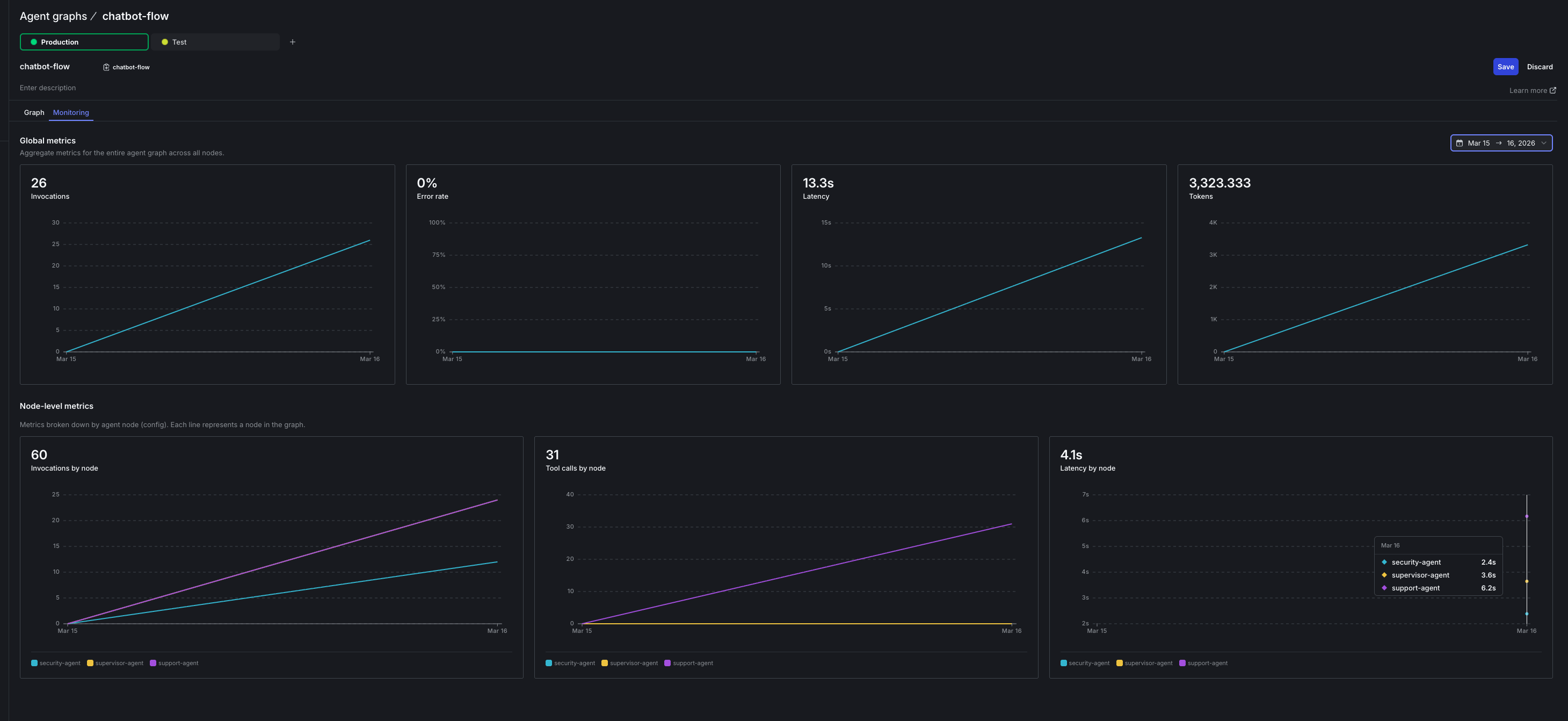
Node-level metrics broken down by agent, showing invocations, tool calls, and latency over time
Instrument tool trackingTo see which specific tools are called, you need to track them in your code using the tracker. The SDK sends this data to LaunchDarkly, which displays it in the monitoring view.
Generate traffic to see metrics
Run the traffic generator from the sample repo to send queries through your graph:Detecting a slow agent
With traffic flowing, suppose the security-agent starts averaging 5 seconds per call. With latency metrics enabled on the graph, you see it immediately: the security-agent node shows a high duration value while other nodes stay fast. The invocation numbers also tell a story. If security-agent shows 50 invocations and support-agent shows 80, you know ~30 queries are bypassing security (the clean path). This helps you understand whether the slow agent is affecting most users or just a subset. Without agent graphs, you’d need custom logging, Datadog queries, and manual correlation. With agent graphs, you spot the problem in 30 seconds.Step 7: Fix without deploying
The security-agent is slow because it’s usingclaude-sonnet-4-6 for PII detection. A smaller, faster model may be sufficient for this task.
In the LaunchDarkly UI, update the security-agent variation:
- Change model from
Anthropic.claude-sonnet-4-6toAnthropic.claude-haiku-4-5-20251001
What just happened
- Traffic generator sent queries through the graph
- Monitoring showed the slow agent on the graph
- Model swap happened in the UI (or via Agent Skills)
- Your code automatically used the new configuration
OpenAI Agents SDK integration (conceptual)
Agent graphs work with multiple frameworks. This conceptual example shows how the pattern translates to OpenAI Agents SDK:Best practices
Start simple: Begin with a linear graph (A → B → C) before adding conditional routing. Use handoff data for context passing: Include metadata like action type, reason, or state that the next agent needs to continue the workflow. Track everything: Calltracker.track_success() and tracker.track_error() in every node for complete visibility. Use node.get_config().create_tracker().track_tool_call(tool_name) to track which tools agents invoke.
Test with targeting: Use LaunchDarkly targeting to route test users to experimental graph configurations.
Handle missing edges: Decide what happens when no edge matches a routing decision or when you turn off a target node. Recommend: fail closed, log diagnostics, and track routing failures.
Keep execution state request-scoped: Store execution state inside the context object (ctx) passed through traversal, not in instance-level variables. Treat graph traversal as request-scoped to avoid concurrency issues.
What you’ve built
You now have a multi-agent system where:- Graph topology is externalized and self-documenting
- Routing logic is visible on edges, not buried in code
- Monitoring appears on the graph itself, not a separate view
- Node-level control lets you disable a single agent without touching others, provided your executor checks node availability
- Multiple frameworks can consume the same graph metadata
Next steps
- Agent graphs: SDK methods for
traverse,reverse_traverse,get_edges(), and handoff data - AgentControl documentation: Learn more about variations, targeting, and experiments
- Agent Skills tutorial: Manage configs from your coding assistant
- Monitor config performance: Deep dive into metrics and monitoring views
- Sample repository: Complete code from this tutorial
- Offline Evaluation of RAG-Grounded Answers: Add a regression-testing layer for the graph’s RAG-bearing nodes
- Smart AI Agent Targeting with MCP Tools: Layer plan, geo, and tier targeting on top of your graph variations
- Evaluate LLM code generation with LLM-as-judge evaluators: Attach custom judges to individual nodes for per-agent quality scoring
- Building Framework-Agnostic AI Swarms: Run the same graph topology across LangGraph, Strands, and OpenAI Swarm
- Proving ROI with data-driven AI agent experiments: A/B test graph variations to prove which routing or model choice wins