Tools in AI Configs
Overview
This topic explains how to manage and use tools in AI Configs. Tools are reusable, versioned definitions that let AI Configs trigger actions you define in code. Tools allow large language models (LLMs) to retrieve data or take actions on behalf of a user. You can attach tools to AI Config variations, including variations in agent mode. The tools library provides a central location to maintain consistency across projects.
You can attach tools to variations in both completion mode and agent mode. Tools can retrieve data, call external APIs, or support multi-step workflows.
In agent mode, tool usage is coordinated through structured instructions. Tool invocation depends on your application and SDK implementation, not on the AI Config mode. All AI Configs share the same tool library, so you can define a tool once and reuse it across multiple configurations.
Benefits of tools in AI Configs
Using tools in AI Configs offers organizational and technical advantages that support consistent, auditable workflows.
Key benefits are:
- Reuse tools across multiple variations in both completion mode and agent mode.
- Track changes with versioned updates.
- Maintain consistency across projects.
- Integrate standardized actions into LLM workflows.
- Reduce duplication, improve discoverability, and support governance and auditability.
Managing tools
You can manage tools from the Library in the left navigation or from the AI Config variation editor.
Library
The Library appears directly under AI Configs in the left navigation. It shows a centralized list of models and tools in your project with two tabs: Models and Tools.
Models tab
From the Models tab, you can browse existing AI model configurations or create a new one.
To browse existing models:
- In LaunchDarkly, click Library. The Models tab opens by default, showing the models available for your AI Configs.
- Enter text in the search bar to search for an existing model. To refine results, click Filters and select from the available options.
To create a new model:
-
Navigate to the Library page.
-
Click Add AI model config. The “Add custom model” dialog appears.
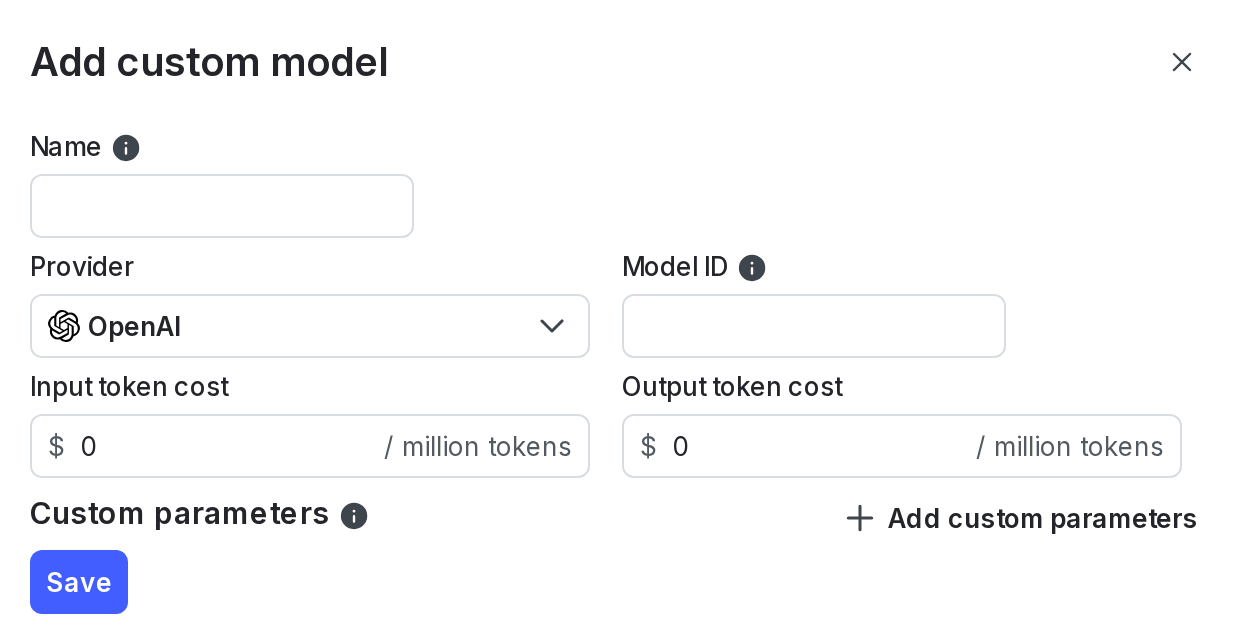
The 'Add custom model' dialog. -
Enter a name for the custom model. Use this name to identify the model within LaunchDarkly. It does not map to any model properties.
-
Select a provider.
-
Select a model ID. This identifier must match the model you want to use with the provider.
-
Add the input token cost and the output token cost.
-
(Optional) Click + Add custom parameters to supply additional configuration.
-
Click Save.
Tools tab
From the Tools tab, you can browse existing tools or create a new one.
To browse existing tools:
- Navigate to the Library page.
- Click Tools.
- Enter text in the search bar to search for an existing tool.
To view previous versions of a tool, open the tool and click View versions.
To create a new tool:
-
Navigate to the Library page.
-
Click Tools.
-
Click Add tool. The Create tool dialog appears.
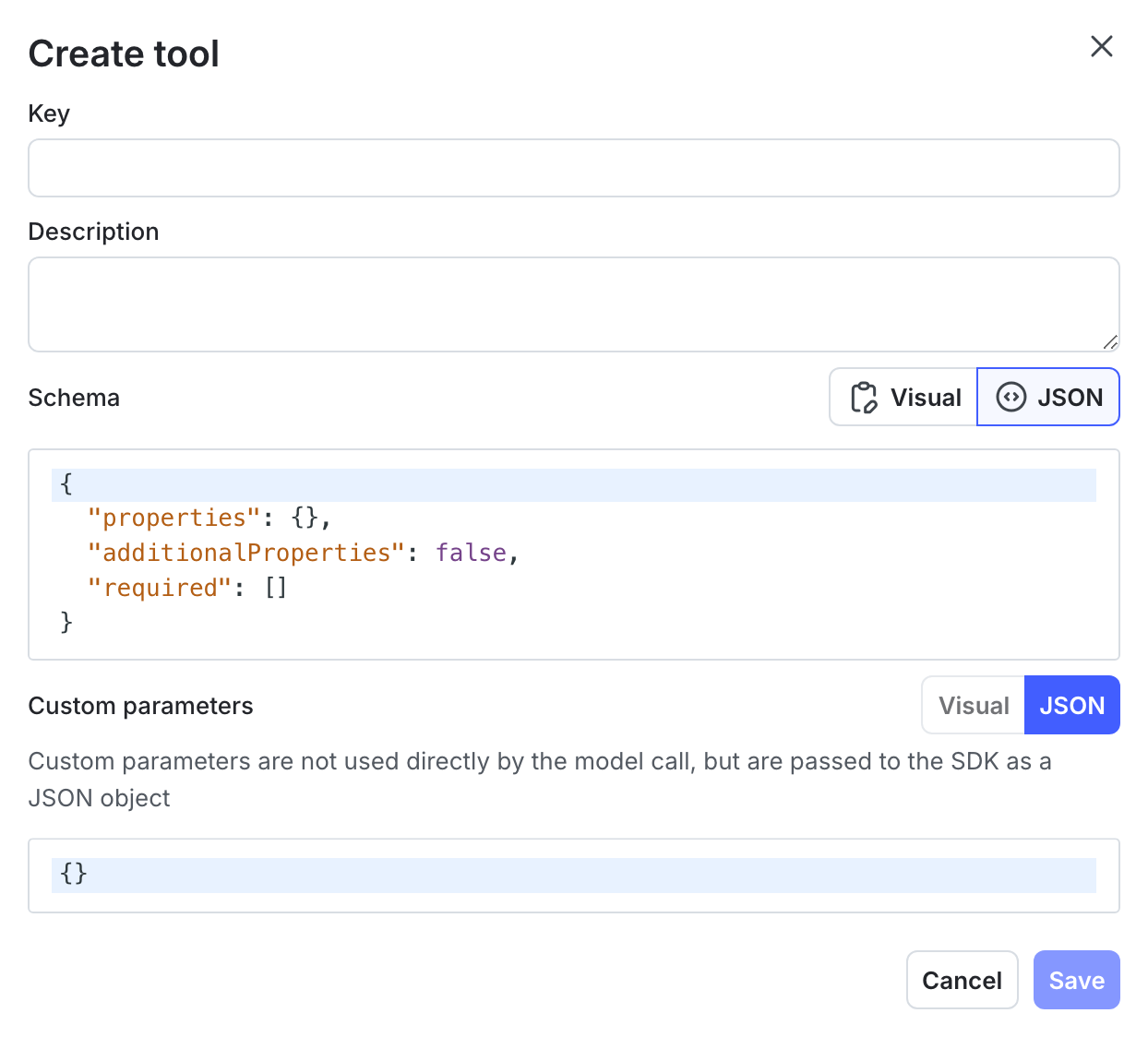
The Create tool dialog. -
Enter a key for the tool. Keys must be alphanumeric and can include underscores and hyphens.
-
Enter a description for the tool.
-
Define the schema using the visual editor or the JSON editor.
-
Click Save.
Variation editor
When editing an AI Config variation, you can attach or detach tools, change tool versions, create new tools inline, and explore the tools library.
To manage tools in a variation:
-
Navigate to the AI Configs page.
-
Click the name of the AI Config you want to edit.
-
Select the Variations tab and open the variation you want to manage.
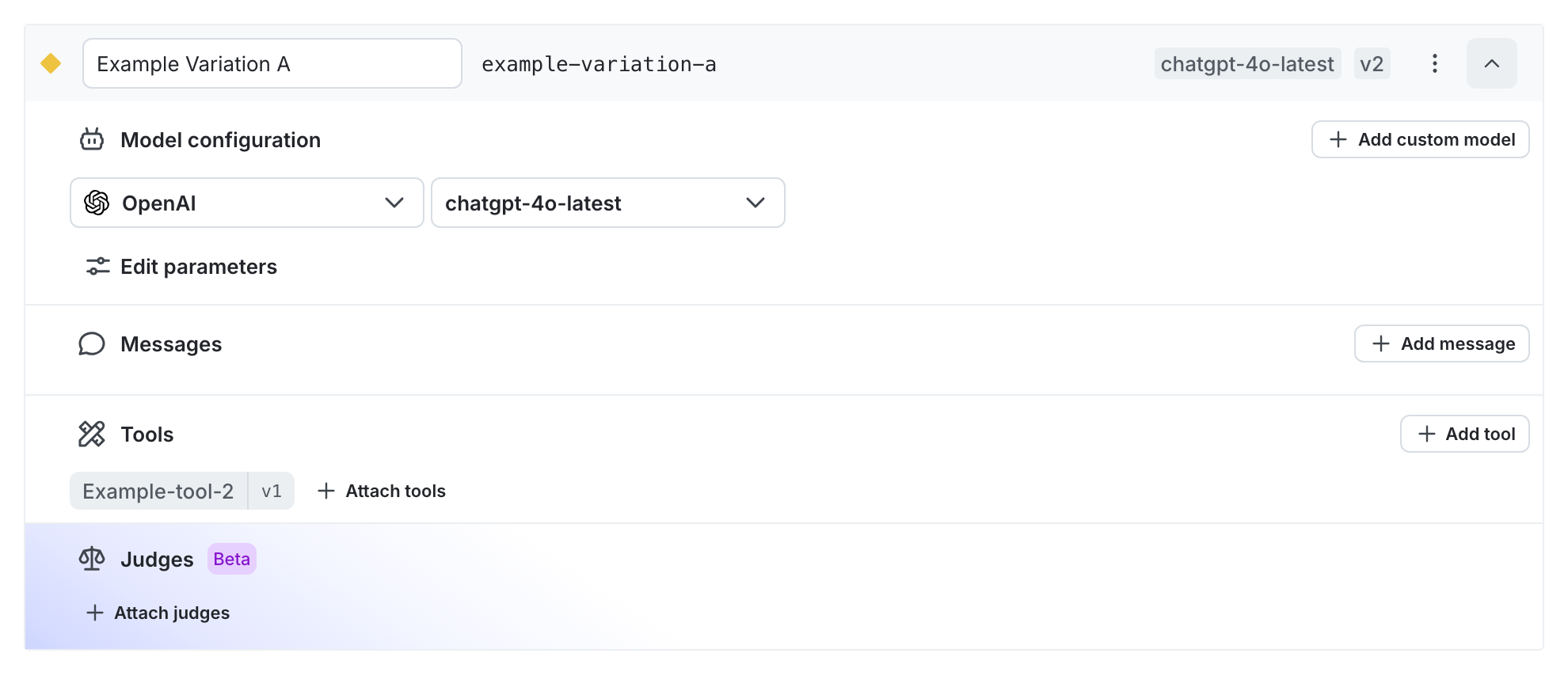
The 'Variation' page.
Attach or detach tools:
- Click + Attach tools.
- Check or clear the box for the tool.
Change the version of an attached tool:
- Click the version number next to the tool name.
- Select a version.
Create a new tool inline:
- Click + Add tool. The Create tool dialog appears.
- Enter a key, description, and schema for the tool.
- Click Save.
Explore the tools library:
- Click + Attach tools.
- Click Explore tools.
- Use the Find a tool dialog to search for existing tools.
Legacy tools warning
If your variation defines a tools field inside a model or custom parameter, LaunchDarkly treats it as a legacy tools configuration.
You may view the following banner:

This means:
- Tools are currently defined as raw JSON in parameters
- LaunchDarkly does not manage or validate these tools
- Your application is responsible for passing them to the model provider
If you attach tools using the tools library:
- LaunchDarkly removes or ignores the legacy
toolsfield in parameters - Attached tools become the source of truth for the variation
- The SDK returns tools in a new, structured
toolsfield
This message does not indicate an error. It helps you understand that switching to the tools library replaces the existing parameter-based configuration.
Use tools
To use tools with AI Configs:
- Create a tool in the library or from within a variation.
- Define the tool schema using the visual editor or the JSON editor.
- Attach the tool to an AI Config variation, including variations in agent mode.
- Deploy the variation. During execution, attached tools are available for the LLM to invoke.
