For AI agents: a documentation index is available at the root level at /llms.txt and /llms-full.txt. Append /llms.txt to any URL for a page-level index, or .md for the markdown version of any page.
Sign inTry it free
DocsGuidesSDKsIntegrationsAPI docsTutorialsFlagship blog
  • Get started
    • Overview
    • Onboarding
    • Get started
    • Launch Insights
    • LaunchDarkly architecture
    • LaunchDarkly vocabulary
  • AgentControl
    • AgentControl
    • Manage AgentControl
  • Feature flags
    • Create flags
    • Target with flags
    • Flag templates
    • Manage flags
    • Code references
    • Contexts
    • Segments
  • Releases
    • Releasing features with LaunchDarkly
    • Release policies
    • Percentage rollouts
    • Progressive rollouts
    • Guarded rollouts
    • Feature monitoring
    • Release pipelines
    • Engineering insights
    • Release management tools
    • Applications and app versions
    • Change history
    • Restoring previous flag versions
  • Observability
    • Observability
    • Session replay
    • Error monitoring
    • Logs
    • Traces
    • Observability metrics
    • Product analytics events
    • LLM observability
    • Alerts
    • Dashboards
    • Service map
    • Vega for auto-remediation
    • Observability MCP server
    • Search specification
    • Observability settings
    • Observability integrations
  • Experimentation
    • Experimentation
    • Experiment metric types
    • Experiment configuration
    • Managing experiments
    • Analyzing experiments
    • Multi-armed bandits
    • Holdouts
  • Metrics and events
    • Metrics in LaunchDarkly
    • Creating metrics
    • Metric groups
    • Events
    • Autogenerated metrics
  • Warehouse native
    • Warehouse native metrics
    • Setting up external warehouses
    • Creating experiments using warehouse native metrics
  • Infrastructure
    • Connect apps and services to LaunchDarkly
    • LaunchDarkly in China and Pakistan
    • LaunchDarkly in the European Union (EU)
    • LaunchDarkly in federal environments
    • Public IP list
  • Your account
    • Projects
    • Views
    • Environments
    • Tags
    • Teams
    • Members
    • Roles
    • Account security
    • Feature previews
    • Billing and usage
    • Changelog
Sign inTry it free
LogoLogo
On this page
  • Overview
  • View the change history
  • View a change entry
  • Filter the change history
  • Actions recorded in the change history
Releases

Change history

Was this page helpful?
Previous

Restoring previous flag versions

Next
Built with
The LaunchDarkly change history used to be called the audit log

The LaunchDarkly change history used to be called the audit log. The LaunchDarkly REST API still references the audit log.

Overview

This topic explains how to track changes made in LaunchDarkly. LaunchDarkly keeps a running log of changes made to feature flags and other resources in each environment. You can also use the change history to roll back a flag to a previous version.

View the change history

The unlimited change history is available to customers on select plans

The unlimited change history is only available to customers on select plans. For Foundation plans, the change history is restricted for account changes to the last 30 days of events, and is otherwise unlimited. For Developer plans, the change history is restricted to the last 30 days of events. To learn more, read about our pricing. To upgrade your plan, contact Sales.

The change history is a running tally of changes made to feature flags or other resources in a given environment.

To access the change history, click the clock icon from any page:
A portion of the Flags list, with the clock icon highlighted.

A portion of the Flags list, with the clock icon highlighted.

The “Change history” dialog appears. It is automatically filtered based on the page from which you clicked the clock icon. For example, if you click the clock icon from the Flags list, the change history is filtered to show changes for flags in your current project, in the environments that you have selected on the Flags list:
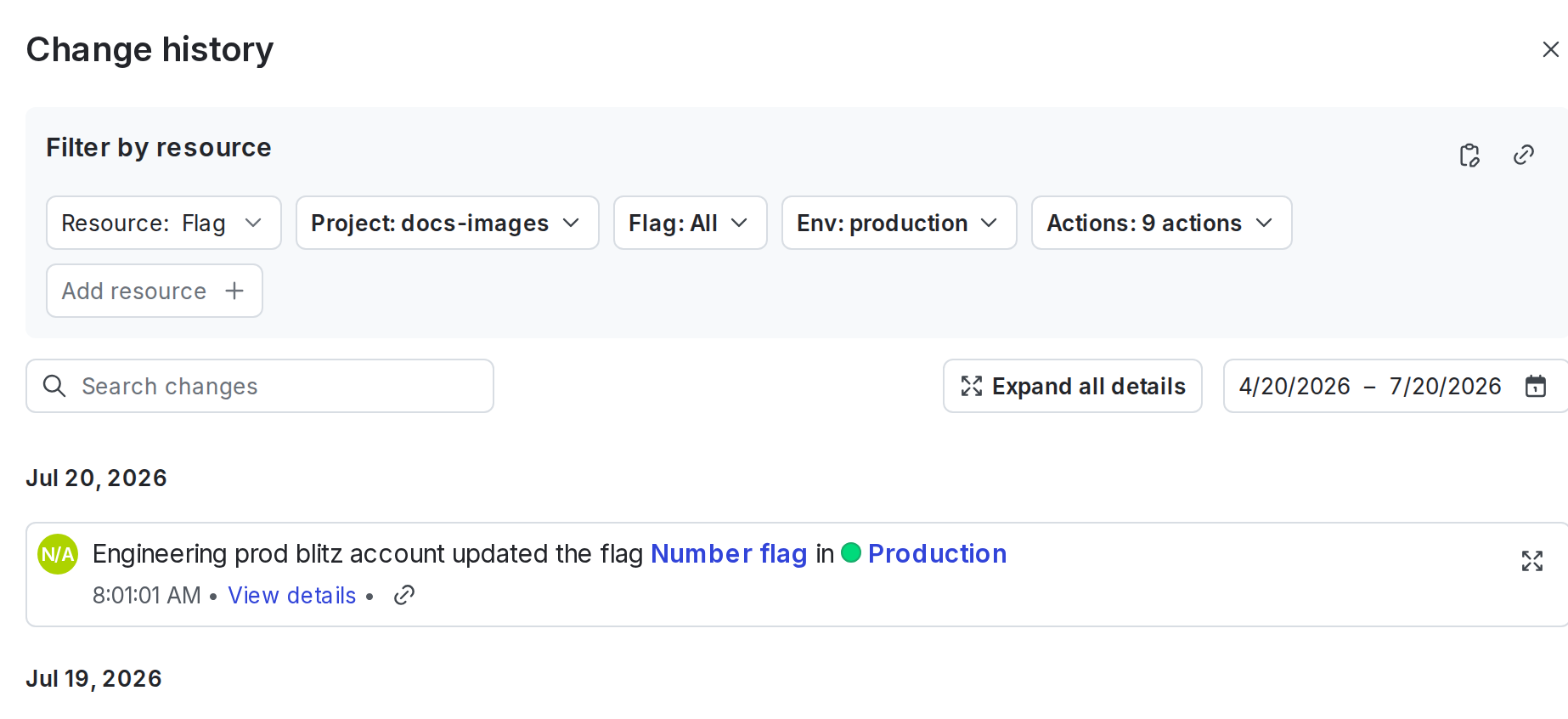
The "Change history" dialog, automatically filtered by resource, project, and environment.

The "Change history" dialog, automatically filtered by resource, project, and environment.

Click Expand all details to view detailed information about each change.

View a change entry

To view the details of a specific change entry, click on its four-arrow expand icon:
The "link" and "expand" icons for a change entry.

The "link" and "expand" icons for a change entry.

To share a direct link to the change entry, click its link icon. A direct link to the change entry is copied to your clipboard.

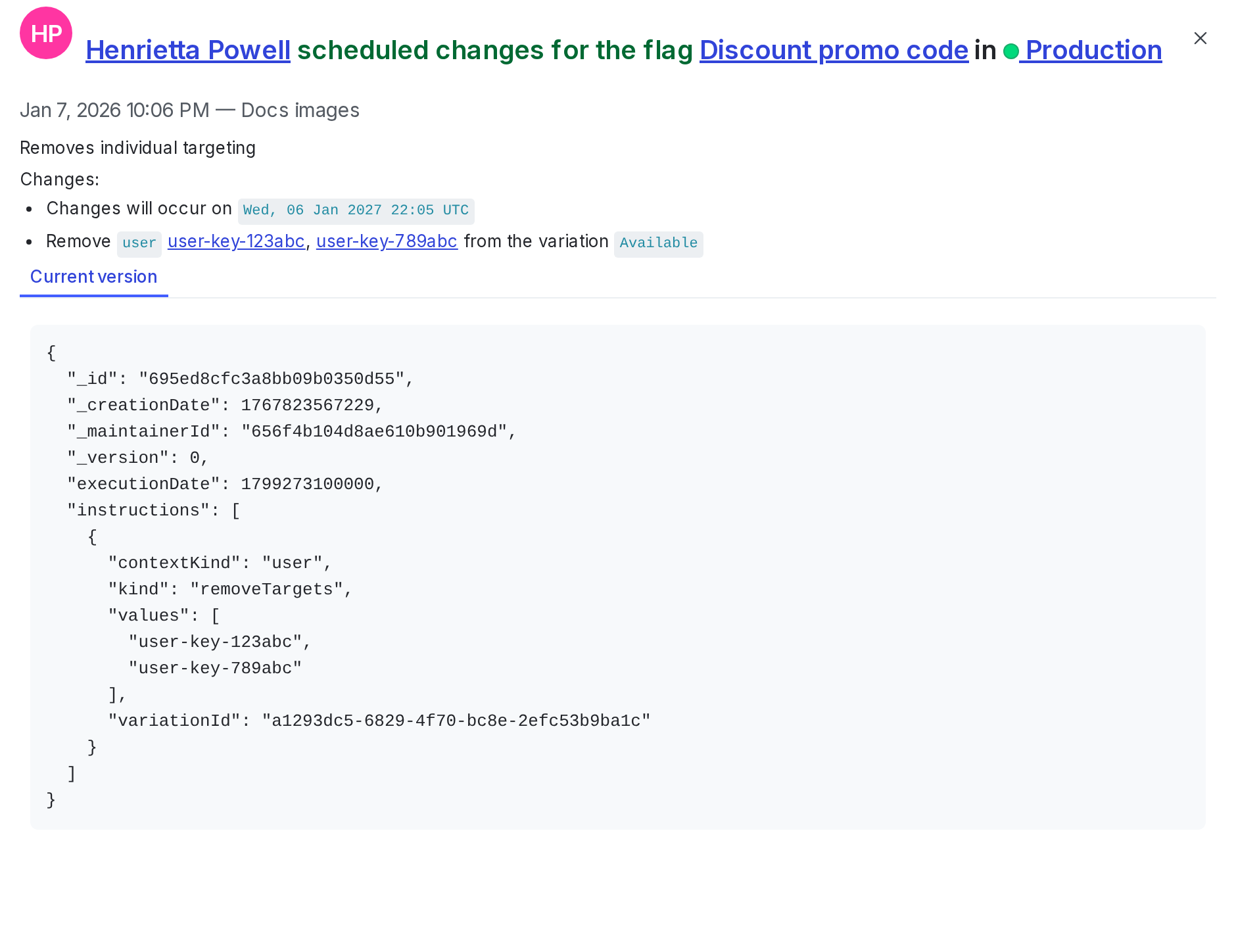
The detailed change entry lists:

  • the member that made the change
  • the resource affected
  • the environment where the change was made
  • the date of the change
  • a list of the included changes
  • a diff of the changes

The details of a flag change.

The details of a flag change.

Filter the change history

To filter the change history, use the “Filter by resource” section.

You can use the “Filter by resource” section to filter the results by any of the following resources:

  • Account
  • AgentControl config
  • Application
  • Code reference
  • Context kinds
  • Experiment
  • Flag
  • Integration
  • Layer
  • Member
  • Metric
  • Metric group
  • Project
  • Relay Proxy
  • Release pipeline
  • Role
  • Segment
  • Service token
  • Team
  • Template
  • Webhook

You can also filter for changes in particular projects, environments, and actions.

Click the link button in the “Filter by resource” section to copy a link to the current change history filter. You can share this with other members in your organization.

Actions recorded in the change history

In the LaunchDarkly UI, the change history displays a description of each action or set of actions, as entered by the member who performed them. If you use the REST API to review the change history, the API response also includes a list of the specific actions.

The actions displayed vary depending on the resource you’re viewing and your app configuration. To learn more about the actions you may see in the change history, read Using actions.

You can also use the REST API: Audit log