
Events
This topic explains the different metric event types and their SDK compatibility.
An event happens when an end user takes an action in your app, such as clicking a button, or when a system takes an action, such as loading a page. Your SDKs send these events to LaunchDarkly, where metrics aggregate and analyze them. You can use metric events with LaunchDarkly features such as Experimentation and guarded rollouts to quantify the performance and health of your product and help your teams make informed decisions.
Types of metric events
There are three types of metric events:
customevents are instrumented using the track feature in your SDK. You can use custom events to create custom conversion binary, custom conversion count, and custom numeric metrics.- Conversion metrics register events when an end user takes an action based on a feature flag they encounter.
- Numeric metrics measure numeric values against a baseline you set.
clickevents are instrumented in the LaunchDarkly user interface when you create clicked or tapped conversion metrics. You must use a supported client API to create clicked or tapped metrics in this way.page viewevents are instrumented in the LaunchDarkly user interface when you create page viewed conversion metrics. You must use a supported client API to create page viewed metrics in this way.
To learn more about event kinds, read Event kinds. To learn more about Experimentation events, read Experimentation and metric events.

Try it in your SDK: Tracking custom events
SDK compatibility
The following table explains the kinds of events you can track with a metric and their SDK compatibility:
To learn more about different metric types and when to use them, read Choose a metric type.
For examples of common metrics and how to configure them, read Example metrics.
Metric event sources
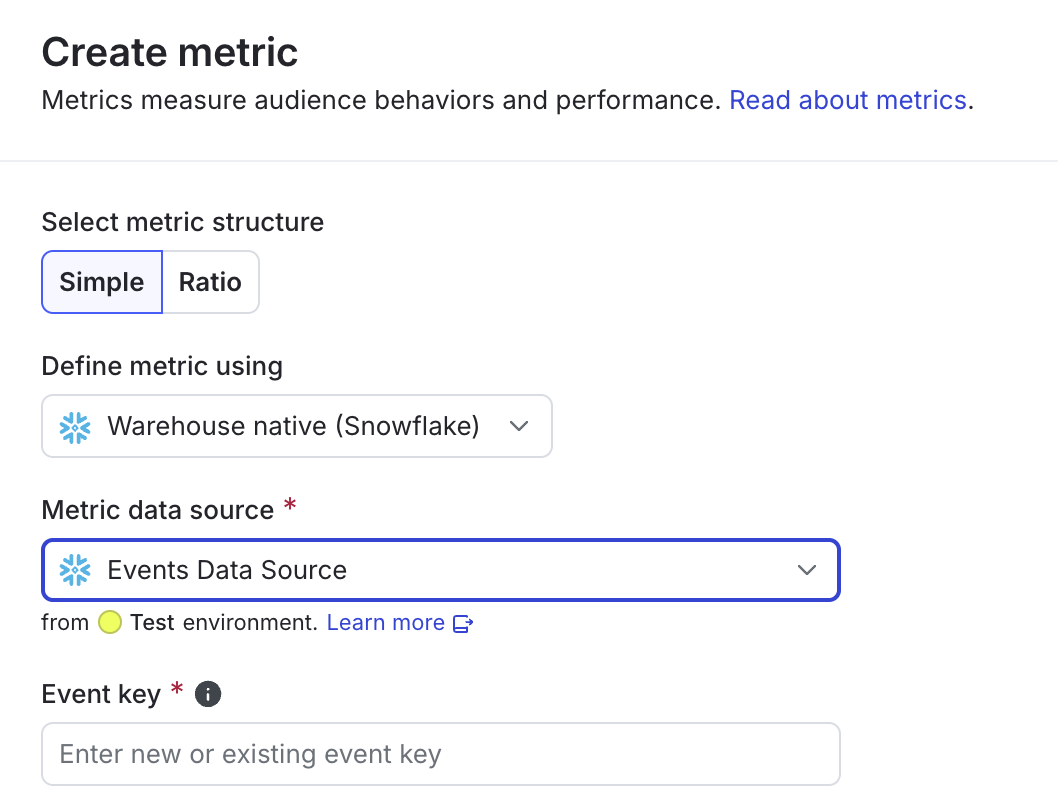
When you create a new metric, you can choose a metric event from two different sources: LaunchDarkly hosted events or warehouse native events.
LaunchDarkly hosted events are events that LaunchDarkly stores locally. With any subscription plan, LaunchDarkly receives and stores all of the events generated by LaunchDarkly SDKs. You can use LaunchDarkly hosted events to create any of the metric types described in Creating and managing metrics.
Warehouse native events are events that are stored in an external warehouse, such as Snowflake. Warehouse native events are available only if you have configured Snowflake native Experimentation. You can use Warehouse native events to create certain types of custom metrics for use in experiments. To learn more, read Warehouse native metrics.
If you do not use Snowflake native Experimentation, LaunchDarkly does not provide the option to select a metric data source when you create a new metric.
If you use Snowflake native Experimentation, you have the option to select either LaunchDarkly hosted or Warehouse native as the source for metric events when you create a new metric. If you choose Warehouse native you must select or create a data source to provide the event data. To learn more, read Metric data sources.
Metric event activity
The metric event Activity tab provides visibility into the events LaunchDarkly is receiving for a given metric.
LaunchDarkly stores the most recent matching event, along with the previous 100 events received within two hours of that event. This helps you determine whether the metric is actively receiving data.
Archived metrics continue to receive and process matching events. However, LaunchDarkly hides archived metrics from dashboards, experiment setup screens, and metric selection menus by default.
For each event, the Activity tab displays:
- Timestamp: when the metric received the event.
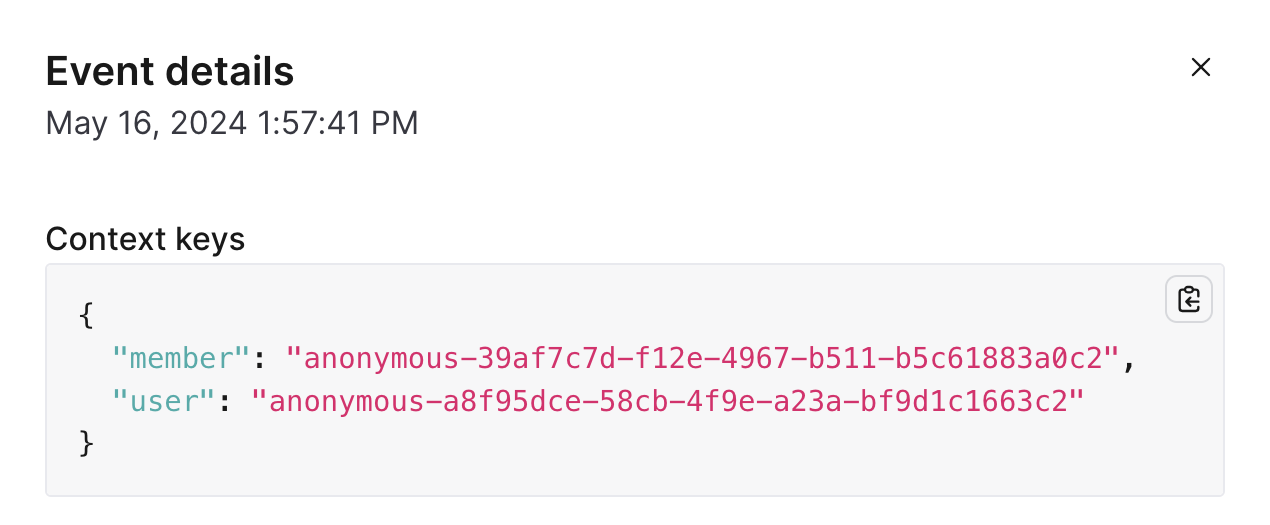
- Context key: the key of the context that generated the event.
- Value: for custom numeric metrics, the numeric value of the event.
To view more information about a specific event, click on the event row. An “Event details” dialog appears:
To learn how to view a list of all of the metric events your SDKs are sending to LaunchDarkly, read Viewing incoming events.
Filtering event data for analysis
All events that match a metric’s event key are ingested and visible in the Activity tab, regardless of whether or not the metric includes filtering.
If you want to include only a subset of these events in your analysis, you can apply filters to the metric itself. This affects only which events LaunchDarkly uses for impact calculations. Filters do not affect event ingestion or what displays on the Activity tab.
To learn more, read Filtering custom metric events.
Event keys
Sending custom events to LaunchDarkly requires a unique event key. Set the event key to anything you want. Adding this event key to your codebase lets your SDK track actions customers take in your app as events. To learn more, read Tracking custom events.
LaunchDarkly also automatically generates a metric key when you create a metric. You only use the metric key to identify the metric in API calls. To learn more, read Creating and managing metrics.
LaunchDarkly SDKs track actions customers take in your app as events and send them to LaunchDarkly. Events are specific to one LaunchDarkly environment.
An event key is a unique identifier you set for a particular kind of event within your app. Set an event key to anything you want. When you are using metrics, the event key in your metric and the event key in your code must match exactly. To learn more, read Tracking custom events.