
Tags
This topic explains how to use tags with LaunchDarkly resources. Tags are customizable labels that help you categorize flags, segments, metrics, projects, environments, and other resources.
Tags are useful in the following ways:
- Categorizing: You can add the same tag to different kinds of resources. This lets you easily understand which resources are associated with which projects or teams.
- Filtering: You can filter the Flags list, environments list, and projects list by tag.
You can add tags to a resource when you create the resource, or you can add tags to existing resources later. Tag names can include only letters, numbers, periods ., underscores _, and dashes -. Tags are not case-sensitive. After you create a tag, you cannot delete it.
The following sections explain how to add tags to existing resources.
Flags
To add tags to a flag:
- In the left sidebar, click Code. The CodeControl menu appears.
- Click Flags.
- Click on the name of the flag you want to add tags to. The flag’s Targeting tab appears.
- Click on the pencil icon in the “Tags” section of the right sidebar. The tags list appears.
- Create a new tag or select a tag from the list.
To learn how to add tags to flags when you create them, read Creating new flags.

You can also use the REST API: Update feature flag
To remove a tag from a flag, click on the tag’s x in the right sidebar.
Filter the Flags list by tag
You can filter the Flags list by one or more tags.
To filter your flags:
- Click Filters.
- Select Add tag(s).
- Search for or select a tag from the list.
Your Flags list now displays only the flags that match the filter you specified.
Segments
To add tags to a segment:
- In the left sidebar, click Code. The CodeControl menu appears.
- Click Segments.
- Click on the name of the segment you want to add tags to. The segment’s Targeting page appears.
- Click on the pencil icon in the “Tags” section of the right sidebar. The “Choose tag(s)” list appears.
- Create a new tag or select a tag from the list.
To learn how to add tags to segments when you create them, read Creating segments.
You can also use the REST API: Patch segment
To remove a tag from a segment:
- Click on the gear icon in the segment’s right sidebar. The “Segment settings” page appears.
- Click on the x for the tag you want to remove.
- Click Save.
Metrics
To add tags to a metric:
- Open the Data section and navigate to the Metrics list.
- Click on the name of the metric you want to add tags to. The metric details page appears.
- Click on the pencil icon in the “Tags” section of the right sidebar. The “Choose tag(s)” list appears.
- Create a new tag or select a tag from the list.
To learn how to add tags to metrics when you create them, read Metrics.
You can also use the REST API: Patch metric
To remove a tag from a metric, click on the tag’s x in the right sidebar.
Projects
To add tags to a project:
- Click the project dropdown. The project menu appears:
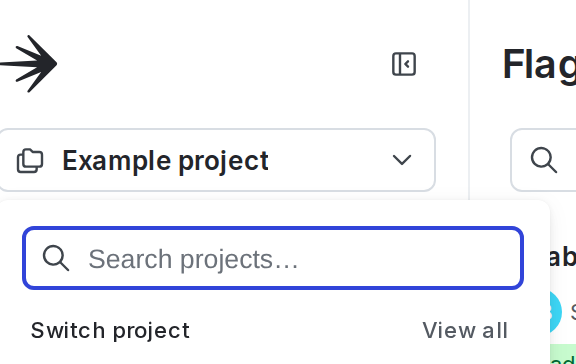
- Select Project settings. The General list appears.
- Under Tags, click Add tags.
- A menu with the list of tags appears.
- To add existing tags to your project, check the checkbox next to one or more tags in the list.
- To add a new tag to your project, type the new tag into the search box. Then check the checkbox next to “Create new tag.”
To learn how to add tags to projects when you create them, read Create projects.
You can also use the REST API: Update project
To remove a tag from a project:
- Click the project dropdown. The project menu appears.
- Select Project settings. The General list appears.
- In the “Tags” section, click on the tag’s x.
Filter the projects list by tag
You can filter the projects list by tag.
To filter your projects:
- Click the gear icon in the left sidebar to view Organization settings.
- Click Projects.
- Select a tag to filter by from the Tags menu.
Your projects list now displays only the projects that match the tag you specified.
Environments
To add tags to an environment:
- Click the project dropdown. The project menu appears:
- Select Project settings.
- Select Environments. The Environments list appears.
- Next to the environment you want to add tags to, click the three-dot overflow menu.
- Select Edit environment.
- Select or create a new Tag.
- Click Save environment.
To learn how to add tags to environments when you create them, read Create environments.
You can also use the REST API: Update environment
To remove a tag from an environment:
- Click the project dropdown. The project menu appears.
- Select Project settings.
- Select Environments. The Environments list appears.
- Next to the environment you want to add tags to, click the three-dot overflow menu.
- Select Edit environment.
- In the Tags field, click on the tag’s x.
- Click Save environment.
Filter the environments list by tag
You can filter the environment list by tag.
To filter your environments:
- Click the project dropdown. The project menu appears:
- Select Project settings.
- Select Environments. The Environments list appears.
- Select a tag to filter by from the Tags menu.
Your environments list now displays only the environments that match the tag you specified.
Experiments
To add tags to an experiment or A/A test:
- Navigate to the Experiments list.
- Click on the name of the experiment you want to add tags to. Depending on whether or not the experiment is running, the experiment’s Design or Results tab appears.
- Click on the pencil icon in the “Tags” section of the right sidebar. The tags list appears.
- Create a new tag or select a tag from the list.
To remove a tag from an experiment, click on the tag’s x in the right sidebar.
Filter the Experiments list by tag
You can filter the Experiments list by one or more tags.
To filter your experiments:
- Click Filters.
- Select Add tag(s).
- Search for or select a tag from the list.
The Experiments list now displays only the experiments that match the filter you specified.
Multi-armed bandits
To add tags to a multi-armed bandit (MAB):
- Navigate to the Multi-armed bandits list.
- Click on the name of the MAB you want to add tags to. Depending on if the MAB is running or not, the MAB’s Design or Results tab appears.
- Click on the pencil icon in the “Tags” section of the right sidebar. The tags list appears.
- Create a new tag or select a tag from the list.
To remove a tag from a MAB, click on the tag’s x in the right sidebar.
Filter the Multi-armed bandits list by tag
You can filter the Multi-armed bandits list by one or more tags.
To filter your MABs:
- Click Filters.
- Select Add tag(s).
- Search for or select a tag from the list.
The Multi-armed bandits list now displays only the MABs that match the filter you specified.
Delete tags
To delete a tag from your list of tags, you must first remove it from every resource in your account. LaunchDarkly will then automatically delete the tag.