For AI agents: a documentation index is available at the root level at /llms.txt and /llms-full.txt. Append /llms.txt to any URL for a page-level index, or .md for the markdown version of any page.
Sign inTry it free
DocsGuidesSDKsIntegrationsAPI docsTutorialsFlagship blog
  • Get started
    • Overview
    • Onboarding
    • Get started
    • Launch Insights
    • LaunchDarkly architecture
    • LaunchDarkly vocabulary
  • AgentControl
    • AgentControl
    • Manage AgentControl
  • Feature flags
    • Create flags
    • Target with flags
    • Flag templates
    • Manage flags
    • Code references
    • Contexts
    • Segments
  • Releases
    • Releasing features with LaunchDarkly
    • Release policies
    • Percentage rollouts
    • Progressive rollouts
    • Guarded rollouts
    • Feature monitoring
    • Release pipelines
    • Engineering insights
    • Release management tools
    • Applications and app versions
    • Change history
    • Restoring previous flag versions
  • Observability
    • Observability
    • Session replay
    • Error monitoring
    • Logs
    • Traces
    • Observability metrics
    • Product analytics events
    • LLM observability
    • Alerts
    • Dashboards
    • Service map
    • Vega for auto-remediation
    • Observability MCP server
    • Search specification
    • Observability settings
    • Observability integrations
  • Experimentation
    • Experimentation
    • Experiment metric types
    • Experiment configuration
    • Managing experiments
    • Analyzing experiments
    • Multi-armed bandits
    • Holdouts
  • Metrics and events
    • Metrics in LaunchDarkly
    • Creating metrics
    • Metric groups
    • Events
    • Autogenerated metrics
  • Warehouse native
    • Warehouse native metrics
    • Setting up external warehouses
    • Creating experiments using warehouse native metrics
  • Infrastructure
    • Connect apps and services to LaunchDarkly
    • LaunchDarkly in China and Pakistan
    • LaunchDarkly in the European Union (EU)
    • LaunchDarkly in federal environments
    • Public IP list
  • Your account
    • Projects
    • Views
    • Environments
    • Tags
    • Teams
    • Members
    • Roles
    • Account security
      • Single sign-on
        • Configure SAML SSO
          • Active Directory Federation Services (ADFS)
          • Entra ID
          • Google Workspace
          • Okta
          • OneLogin
          • PingIdentity
        • Enable SCIM provisioning
        • Enable SSO
        • Disable SSO
        • Change SSO providers
        • Google OAuth
        • GitHub OAuth
      • API access tokens
      • Multi-factor authentication
      • Domain verification
      • IP allowlist
      • Managing sessions
      • Organization access settings
      • Organization announcements
      • Support options
      • Resetting your password
    • Feature previews
    • Billing and usage
    • Changelog
Sign inTry it free
LogoLogo
On this page
  • Prerequisites
  • Set up LaunchDarkly fields
  • Add Relying Party Trust
  • Set up claim issuance policies
  • Configure custom roles
  • Test drive and enable
Your accountAccount securitySingle sign-onConfigure SAML SSO

Active Directory Federation Services (ADFS)

Was this page helpful?
Previous

Entra ID

Next
Built with

This topic explains how to configure SSO integration between a self-hosted Active Directory Federation Services (ADFS) server and LaunchDarkly.

ADFS is a service provided by Microsoft as a standard role for Windows Server. It provides a web login using existing Active Directory credentials.

Troubleshooting ADFS-based SSO

If you need information about ADFS errors during configuration, troubleshoot it by accessing the ADFS logs in the Windows Event Viewer.

Prerequisites

To give your organization access to LaunchDarkly through ADFS, you need the following components:

  • An Enterprise LaunchDarkly account.
  • A signed SSL certificate.
  • An Active Directory instance where all users have an email address attribute.
  • A Microsoft Server instance with ADFS installed and configured.
Setting up ADFS

This topic does not tell you how to set up ADFS. To learn how to set up ADFS, read Microsoft’s documentation.

Set up LaunchDarkly fields

Here is a table explaining LaunchDarkly fields:

LaunchDarkly fieldNotes
Sign-on URL

Default value: https://YOUR-DOMAIN/adfs/ls/.
If the default value fails, confirm that the endpoint is enabled and the URL path is correct.


Find the endpoint in Service, then Endpoints. Search for an endpoint with the SAML 2.0/WS-Federation type.

X.509 Certificate

Copy the Token Signing certificate to a Base-64 encoded X.509 file and import it into LaunchDarkly

For more information on configuring LaunchDarkly’s SSO, read Single sign-on.

Add Relying Party Trust

To add the Relying Party Trust:

  1. Log into the ADFS Management tool.
  2. Click Add Relying Party Trust…. The Add Relying Party Trust Wizard appears:
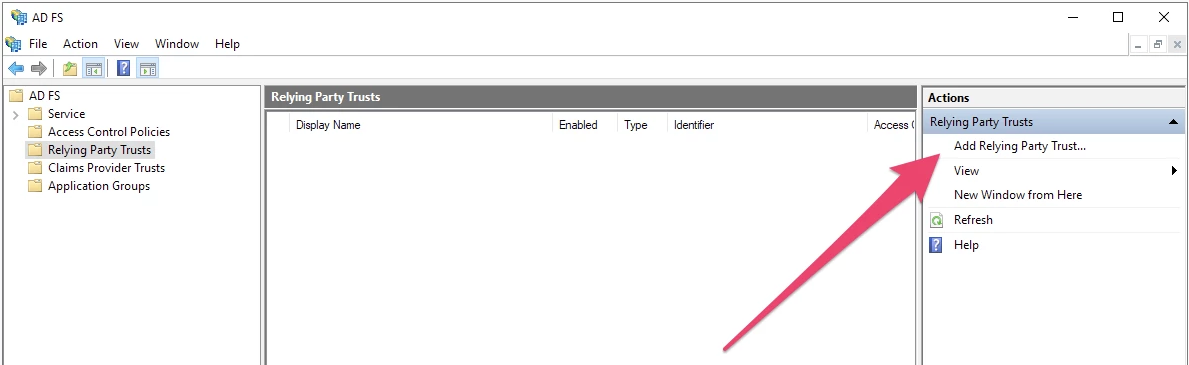
The ADFS Management tool, with the "Add Relying Party Trust..." option called out.

The ADFS Management tool, with the "Add Relying Party Trust..." option called out.
  1. Click Start. Keep the default value, which is Claims aware:
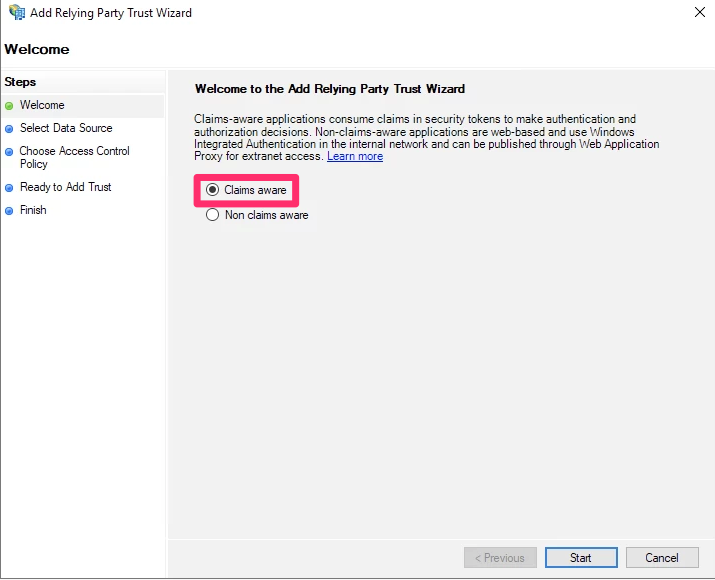
The "Welcome" screen for the setup wizard.

The "Welcome" screen for the setup wizard.
  1. Choose Enter data about the relying party manually:
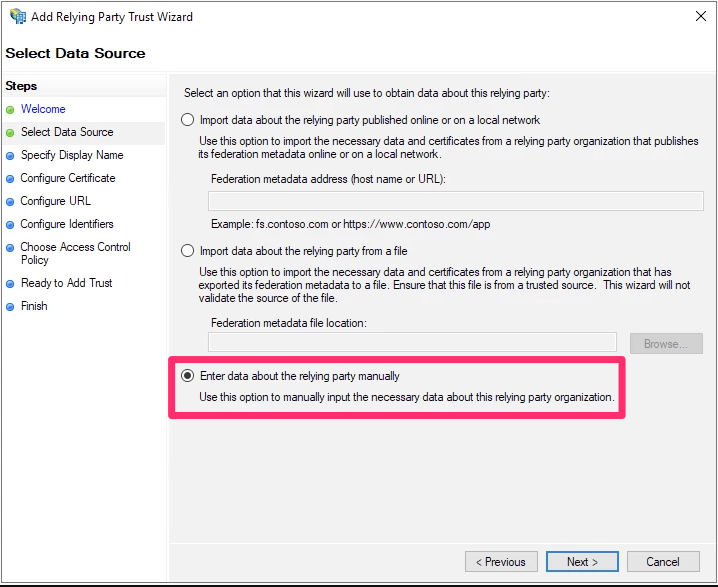
The Select Data Source screen.

The Select Data Source screen.
  1. Click Next. The “Specify Display Name” screen appears.
  2. Set a display name of your choosing.
  3. Click Next. The “Configure Certificate” screen appears.
  4. You do not need to choose a certificate. Click Next.
  5. Select Enable support for the SAML 2.0 WebSSO protocol.
  6. Enter the Assertion consumer service URL from the SSO section of LaunchDarkly into the Relying party SAML 2.0 SSO service URL field.
  7. Click Next.
  8. In the Relying party trust identifier field, enter app.launchdarkly.com.
  9. Click Add.
  10. Click Next. The “Choose Access control Policy” screen appears.
  11. You do not need to change any access control policies. Click Next.
  12. Review your changes and click Next.
  13. If you are satisfied with the configuration, click Close.

After you have successfully completed this procedure, a new LaunchDarkly trust will appear in the ADFS Management tool.

Set up claim issuance policies

To set up a claim issuance policy:

  1. Log into the ADFS Management tool.
  2. Select the LaunchDarkly Trust.
  3. Click Edit Claim Issuance Policy… in the menu. The “Edit Claim Issuance Policy” window appears.
  4. Click Add Rule.
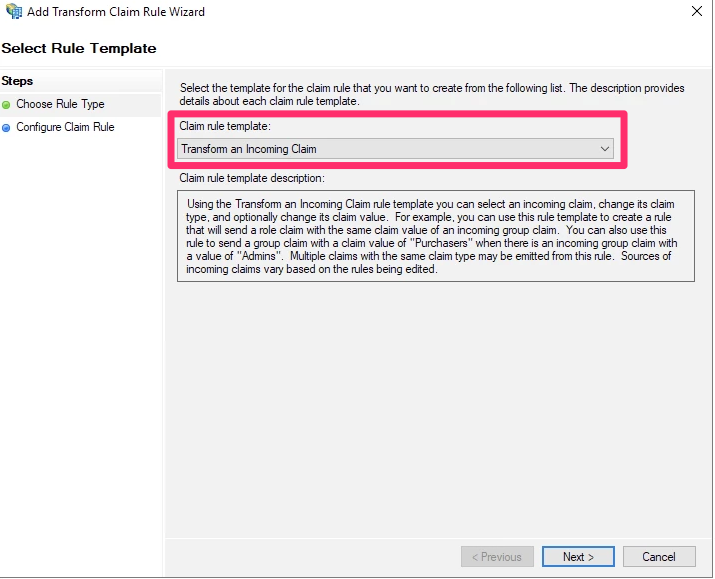
  5. Set Claim rule template to “Transform an Incoming Claim.”
  6. Click Next:

The "Select Rule Template" screen.

The "Select Rule Template" screen.
  1. Set the following options:
  • Claim rule name: Enter a human-readable name, such as “Email to NameID.”
  • Incoming claim type: E-Mail Address
  • Outgoing claim type: Name ID
  • Outgoing name ID format: Email
  1. Select Pass through all claim values.
  2. Click Finish.

ADFS is now configured with LaunchDarkly.

For more information on claim rules, read Microsoft’s Create a Rule to Transform an Incoming Claim.

Configure custom roles

You can map LaunchDarkly custom role attributes to ADFS using a claim issuance policy. To learn more about SSO provisioning for roles, read Roles.

Before you can map custom role attributes, you must get your ADFS groups. To learn how, read Microsoft’s Create a Rule to Send Claims Using a Custom Rule.

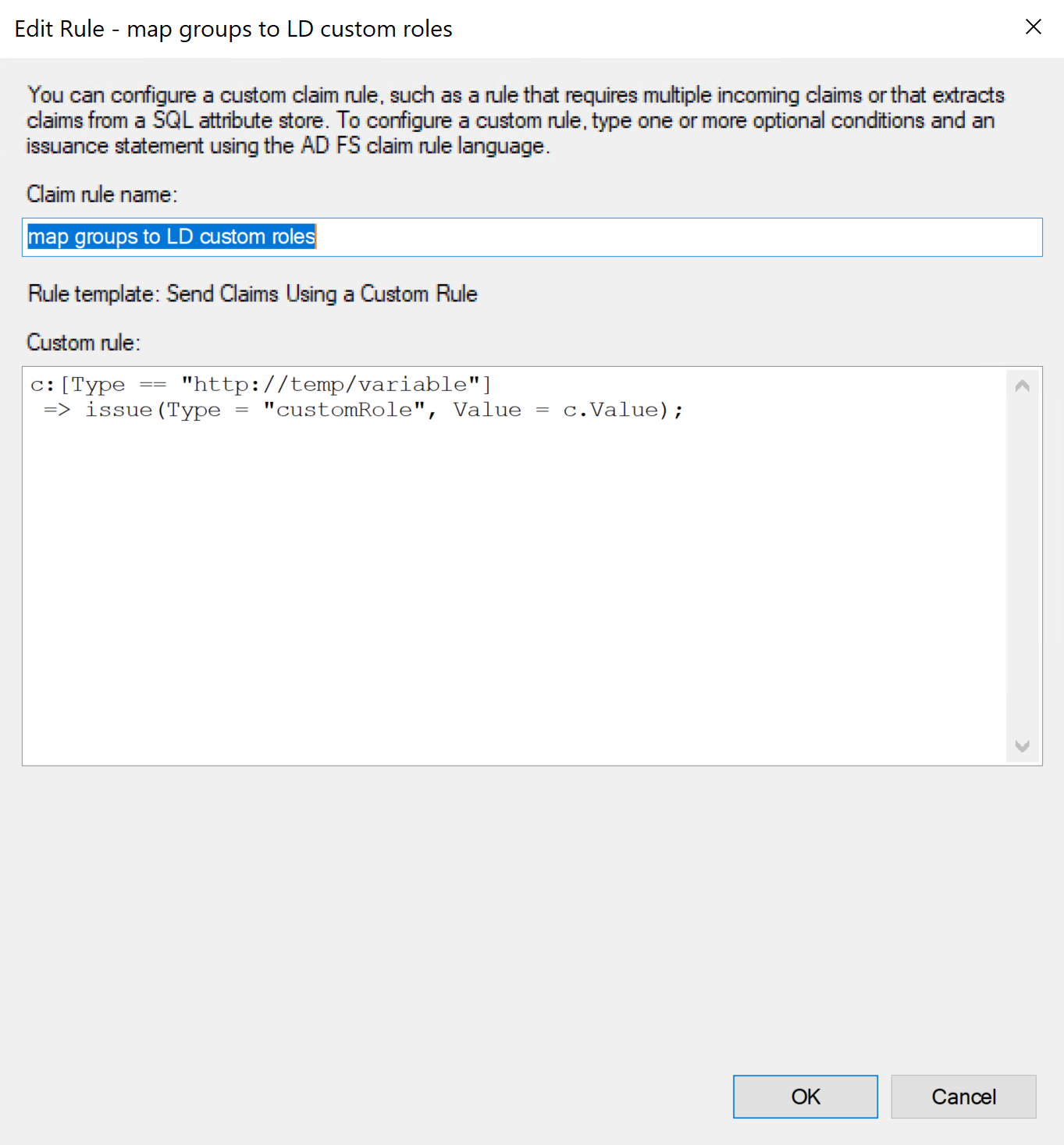
Your rule will look something like this:
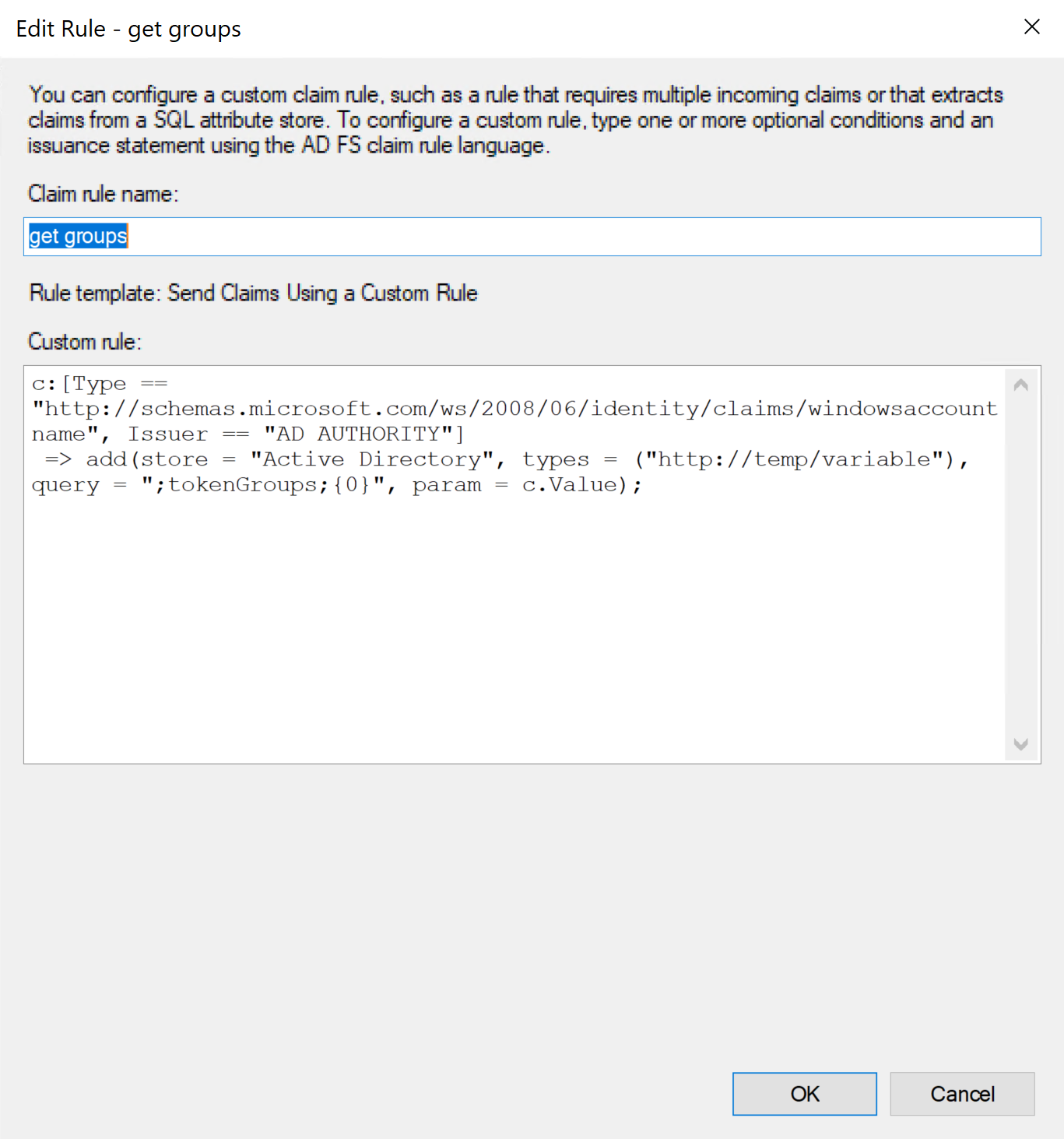
The "Edit Rule" window.

The "Edit Rule" window.

To send claims using a custom rule:

  1. Log into the ADFS Management tool.

  2. Select LaunchDarkly Trust.

  3. Click Edit Claim Issuance Policy… in the menu. The “Edit Claim Issuance Policy” window appears.

  4. Click Add Rule.

  5. Set Claim rule template to Send Claims using a custom rule.

  6. Click Next.

  7. Enter a human-readable name, such as “Map groups to LD custom roles.”

  8. In the Custom rule window, enter the following:

    ADFS
    c:[Type == "http://temp/variable"]
    => issue(Type = "customRole", Value = c.Value)

Here is an image of the custom rule:

A custom rule entered in the "Edit Rule" window.

A custom rule entered in the "Edit Rule" window.
  1. Click OK.

You can now assign ADFS members to custom role groups using the “Member of” tab within user properties.

Removing existing roles

SAML ignores empty fields if used in Roles or customRoles. To clear all existing roles, enter an empty string "" into the field.

Test drive and enable

After you successfully complete the procedures in this topic, you can log in through ADFS when test-drive mode is enabled. To learn more, read Test-drive mode.

If you are able to successfully log in with test-drive mode enabled, you can enable SSO for the rest of your organization. To learn more, read Single sign-on.