
Warehouse health checks
This topic explains how warehouse health checks help you troubleshoot connection errors with your warehouse Data Export destinations, including BigQuery, ClickHouse, Redshift, and Snowflake.
Warehouse health checks evaluate three conditions:
- Whether the Data Export destination for a given project and environment is receiving data
- Whether required fields are present and valid
- Whether authentication to your warehouse is working
LaunchDarkly shows warehouse health warnings at the top of the Integrations page if there are any connection problems, and within the integrations section for individual warehouse Data Export connections:
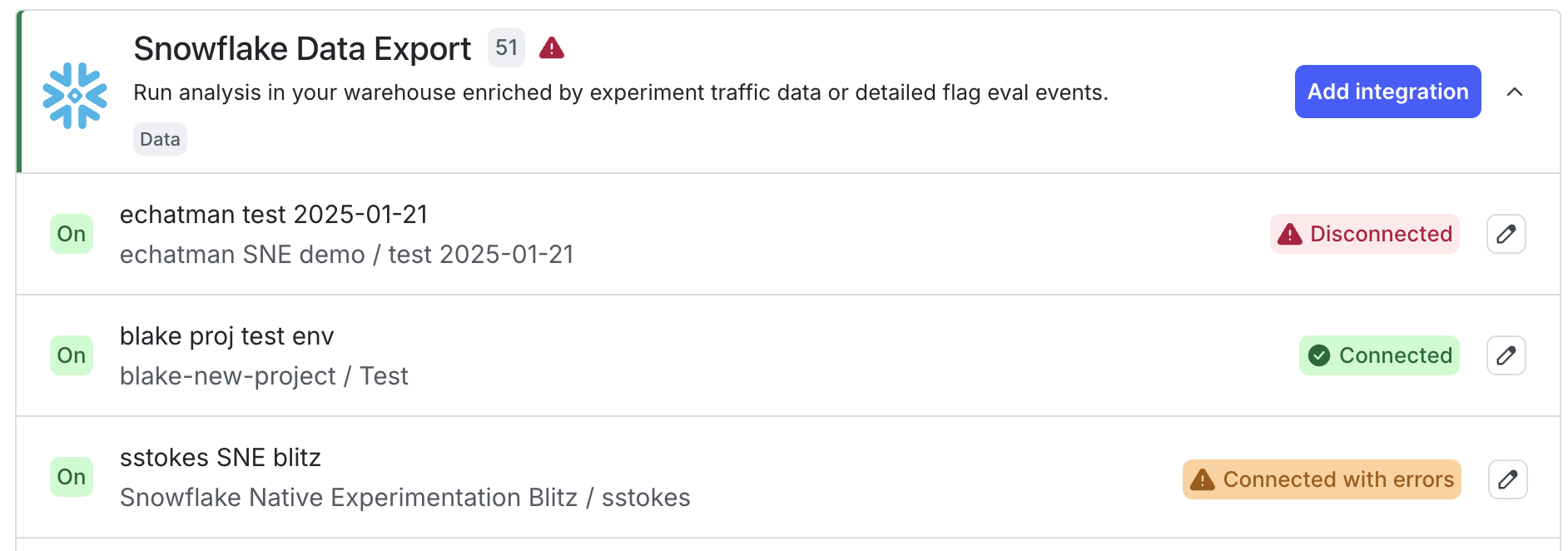
View connection status
To view the connection status for an integration:
- Click the gear icon in the left sidebar to open Organization settings.
- Click Integrations.
- Find your warehouse Data Export integration section and click the down arrow next to “Add integration.” A list of existing destinations displays.
Each warehouse Data Export integration can display one of the following connection statuses:
- Connected: The integration is enabled and operating normally.
- Connected with errors: The integration is enabled but LaunchDarkly detected a problem, such as data delivery errors.
- Disconnected: The integration is not connected. You may need to update your credentials or complete setup for the integration.
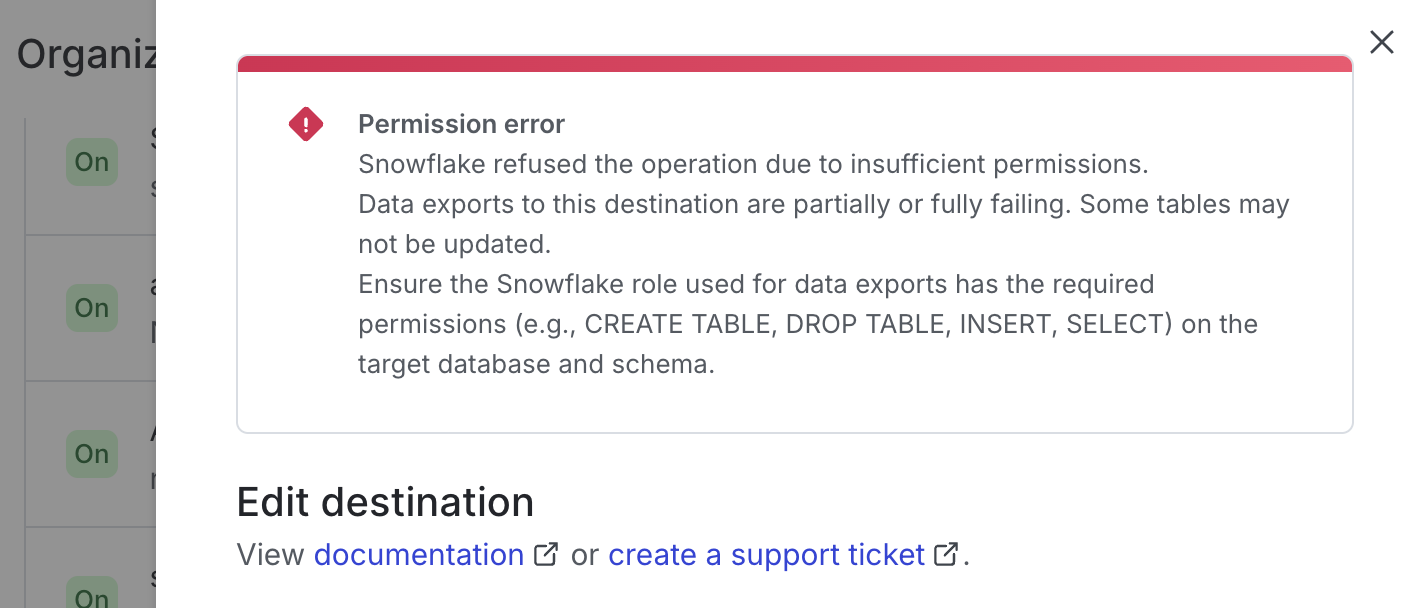
To view more information about a connection error, click the pencil icon next to the error to open the integration configuration panel. A warning message displays with information about the error:
For destinations that authenticate using an AWS IAM role, such as Redshift and ClickHouse, the most common cause of an initial connection failure is IAM role propagation. After you create a role in AWS, the sts:AssumeRole action can take up to five minutes to be reachable from another AWS account. If your first Test connection and save fails immediately after you create the role, wait a few minutes and try again. To learn more, read Redshift Data Export.