
Using Vega in Slack
This topic explains how to use Vega directly in Slack to investigate issues, clean up flags, and interact with the LaunchDarkly AI agent from your team’s workspace.
Vega is the LaunchDarkly AI-powered agent. To use Vega, your role requires the Vega actions. You can interact with Vega using the LaunchDarkly UI or using Slack. Using Vega in Slack lets your entire team ask questions, investigate issues, and trigger Vega workflows without leaving your Slack workspace.
To learn more about Vega, including eligibility, pricing, and permissions, read Vega.
Prerequisites
Before you can use Vega in Slack, you must:
- Install the LaunchDarkly Slack app in your Slack workspace. To learn more, read Setting up Slack accounts and permissions.
- Associate your LaunchDarkly account with the Slack app by typing
/launchdarkly accountin your Slack client and following the authorization flow.
Interacting with Vega in Slack
After you set up the LaunchDarkly Slack app, you can send messages to Vega by mentioning @LaunchDarkly in any channel where the app has been added, or by sending a direct message to the LaunchDarkly app. In both cases, your message must include an @LaunchDarkly mention for Vega to see it.
When Vega receives your message, it reacts with an 👀 emoji to indicate that it has seen your message and is working on a response.
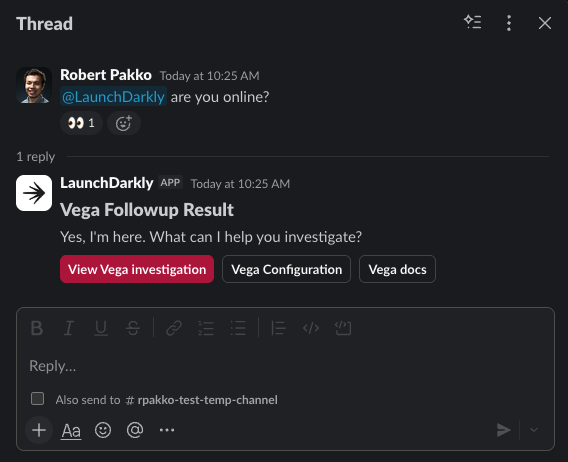
Vega does not have permission to read all messages in a channel or direct message. It can only see and respond to messages that include an @LaunchDarkly mention. In channels, Vega can only see @mentions in channels where the LaunchDarkly app was added.
Default Slack settings
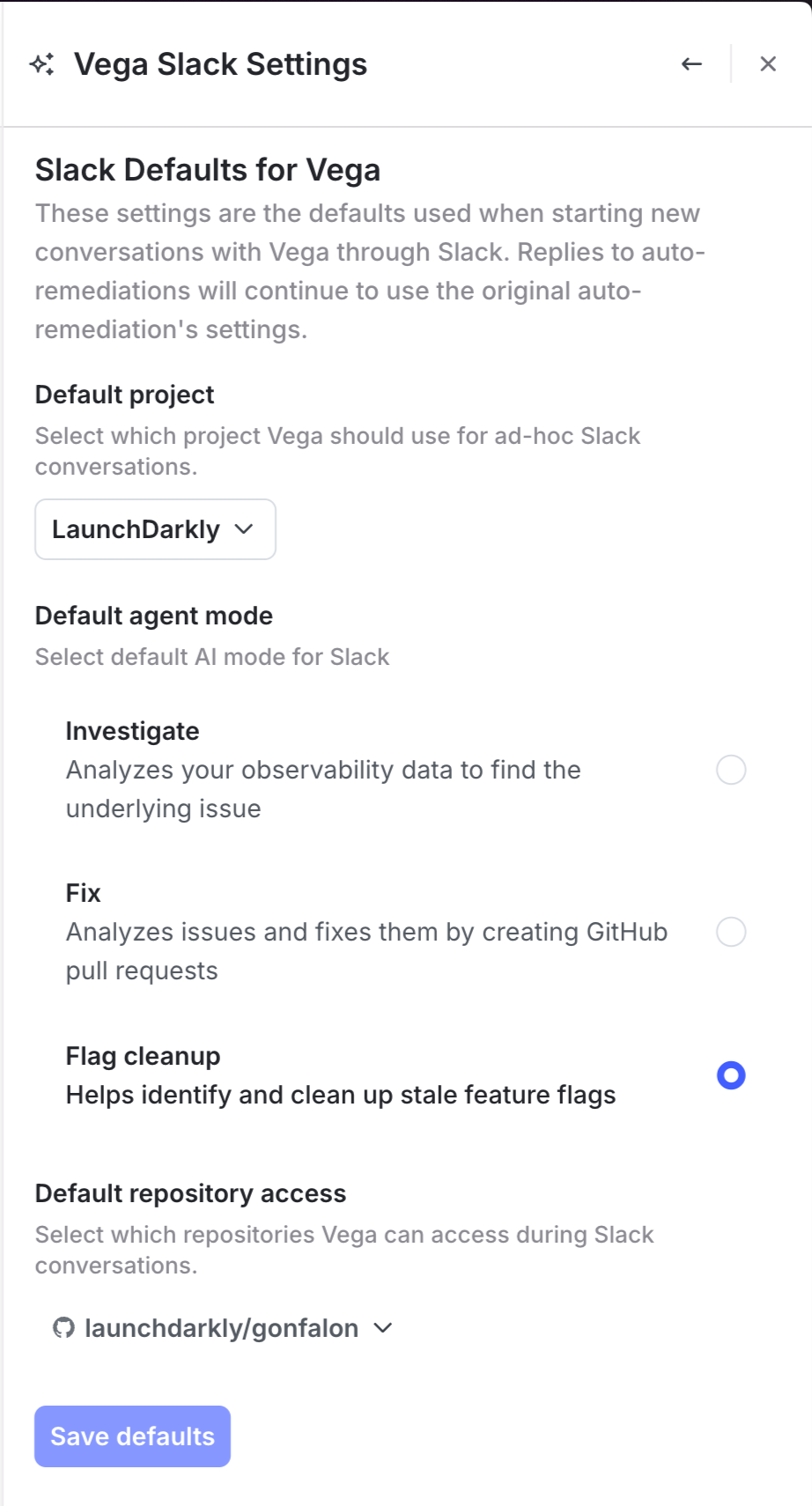
When you trigger Vega from Slack, it uses the following defaults:
- Agent mode: Read-only
- Project: Your default project
- Repository access: None
These defaults mean Vega analyzes your observability data to find the underlying issue, but does not access any code repositories unless you configure it to do so.
Changing your defaults
You can change your Vega Slack defaults in two ways:
- From Slack: Click the Vega Configuration button that appears in Vega’s Slack responses.
- From the LaunchDarkly UI: Open the Vega panel and click the settings button to access Vega Slack Settings.
From either location, you can change the default project, agent mode, and default repository access for Slack conversations. The available agent modes are Read-only and Agent. In Slack, Agent requires a connected GitHub account. To learn what each mode does, read Vega agent.
Thread behavior
When you reply to a Vega message in a Slack thread, Vega continues to use the same configuration as the original message. This applies to:
- Ad-hoc conversations: If you start a conversation in read-only mode, all replies in that thread remain in read-only mode.
- Auto-remediation: If an auto-remediation was triggered in agent mode, replies to that thread continue in agent mode.
If you want to use a different agent mode for a follow-up, click the View Vega investigation button in a Vega response to open the conversation in the LaunchDarkly UI, where you can follow-up with different settings or start a new investigation with different settings.
Related resources
- Vega for general information about Vega, including eligibility and pricing.
- Setting up Slack accounts and permissions for instructions on installing and authorizing the LaunchDarkly Slack app.
- Connecting Vega to GitHub to enable flag cleanup and the agent mode flows that create pull requests, all of which require GitHub access.
- Vega for auto-remediation for details on read-only and agent modes.