
Creating metric groups
This topic explains how to create and manage metric groups, which are reusable lists of metrics you can use to standardize metrics across multiple experiments or guarded rollouts.
Prerequisites
Before you create a metric group, you must create each metric that you want to include in the group. To learn how, read Metrics. The group may include one or more metrics that all share a common analysis unit, such as “user” or “account”.
Funnel metric groups can include only custom conversion binary, custom conversion count, clicked or tapped, and page viewed metrics.
Create metric groups
To create a metric group:
-
Open the Data section and navigate to the Metrics list.
-
Click the Metric groups tab.
-
Click Create metric group. The “Create metric group” dialog appears.
-
Enter a unique, human-readable name for the group.
-
(Optional) Enter a human-readable description of the metric group.
-
Click either Standard or Funnel to select the type of metric group to create.
-
Click the first “Select a metric” dropdown. LaunchDarkly displays the most used metrics in your project. You can choose to view:
- Currently selected: metrics already added to the group
- Most used: metrics most often added to groups, experiments, or releases
- Recently added: recently created metrics
- Release guardrails: metrics connected to either a release policy or guarded rollout
- Autogenerated: metrics automatically created from AgentControl config, observability, or OpenTelemetry events
- User-defined: all metrics not automatically generated by LaunchDarkly
- All metrics: all available metrics
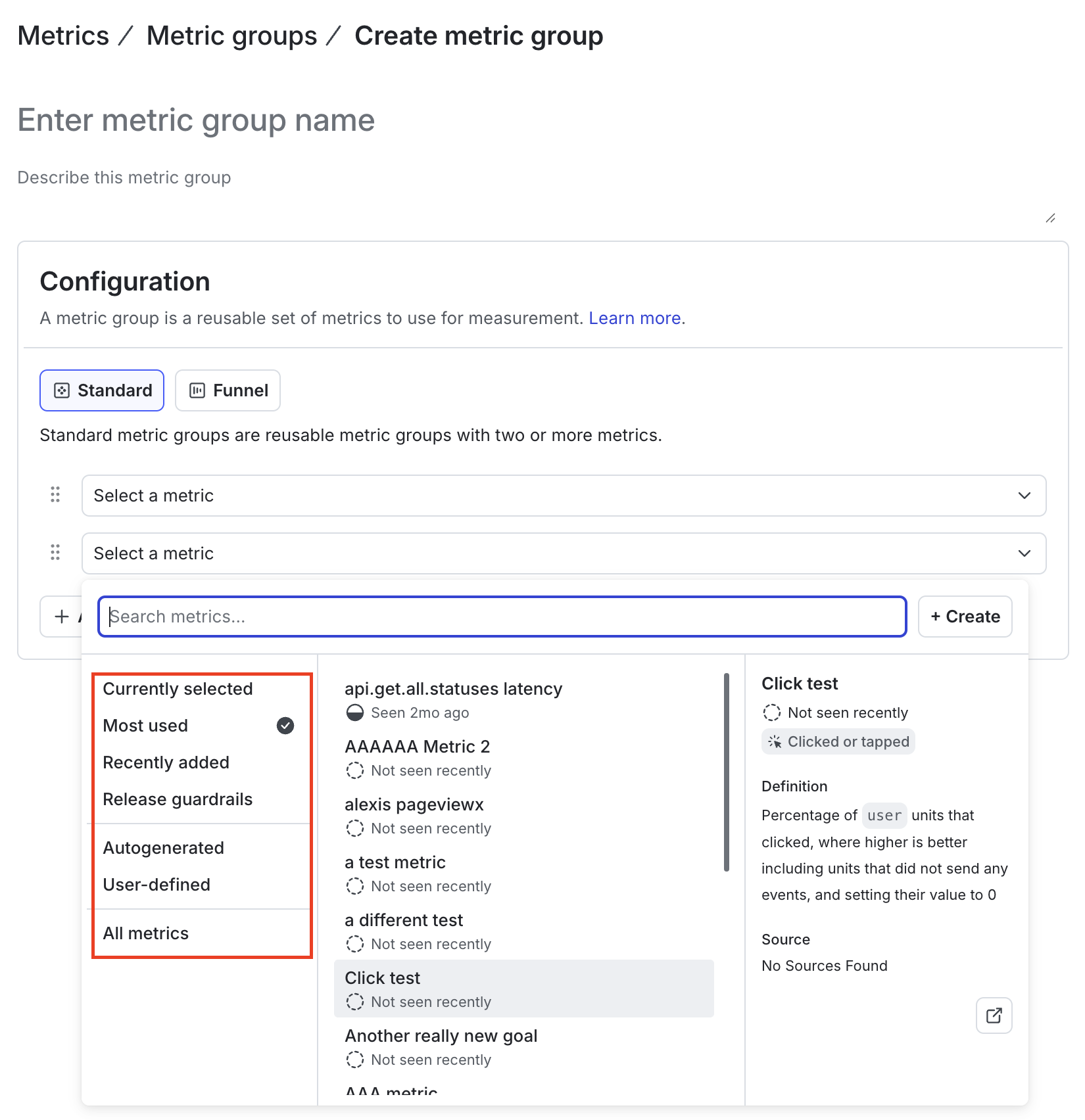
Most used project metrics displayed after clicking "Select a metric" on the Create metric group page. -
Browse the list or use the Search metrics field to find a metric.
-
Click a metric to add it to the metrics group.
-
Click the second “Select a metric” dropdown to choose a second metric for the group. Metrics that do not have an analysis unit that overlaps with other metrics in the group become unavailable for later selections.
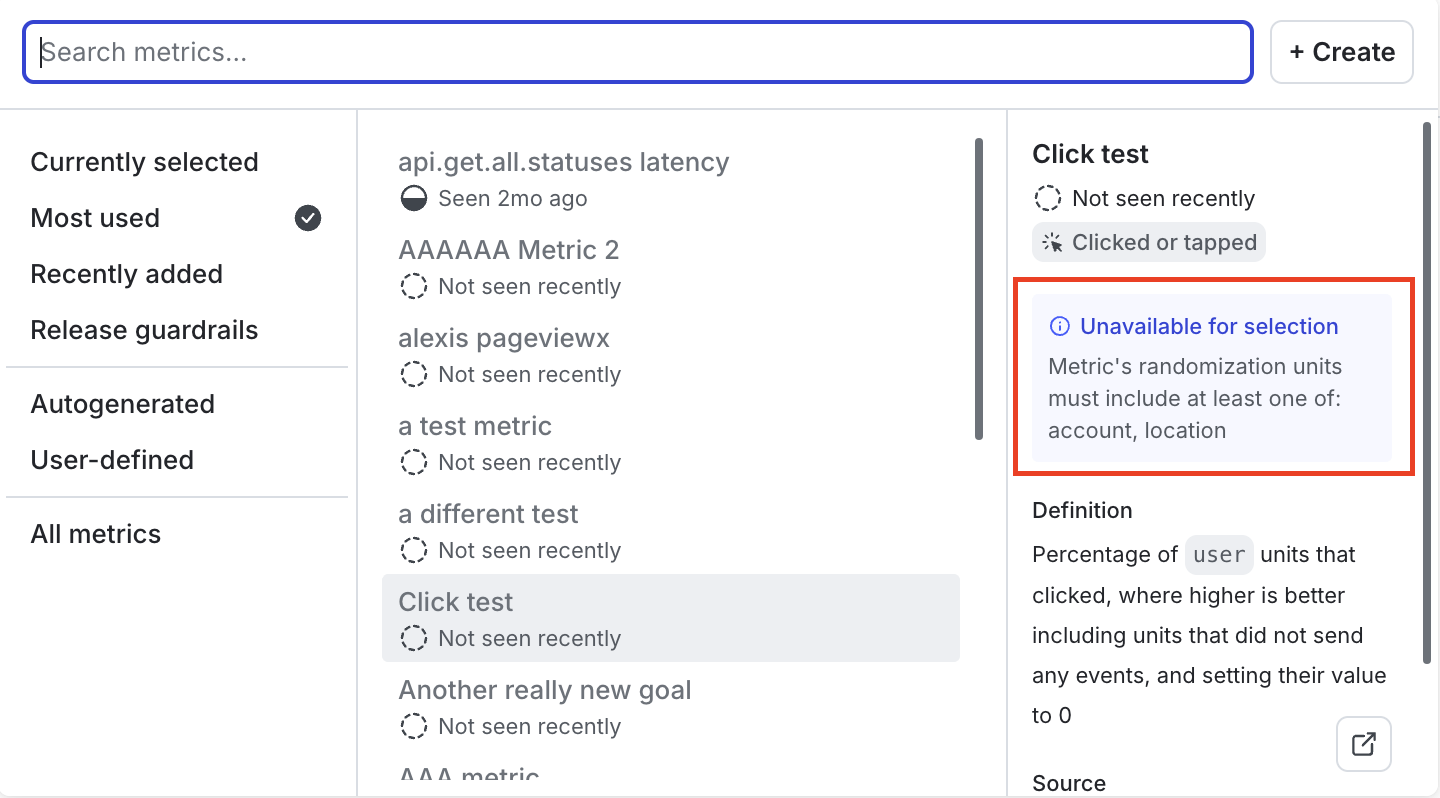
- (Optional) Click + Add another metric and repeat the previous step to add more metrics to your group.
- (Optional) For funnel metric groups, drag and drop the steps up or down to reorder them as needed.
- Click Create metric group.
The new metric group appears on the Metric groups list.

You can also use the REST API: Create metric group
Edit metric groups
Select a group from the Metric groups list to edit its name, description, maintainer, metrics, or, for funnel metric groups, step order.
Click the metric group’s name or description to update it. Click the pencil icon next to the metric group’s maintainer to assign a new maintainer.
To edit a metric group’s metrics or step order:
- Open the Data section and navigate to the Metrics list.
- Click the Metric groups tab.
- Click the name of the metric group you want to edit. The metric group details page opens.
- Click Edit metrics.
- (Optional) Click + Add another metric to add additional metrics to the group.
- (Optional) Click the x icon next to an individual metric to remove it. You must have at least two metrics in the metric group.
- (Optional) For funnel metric groups, click and hold the grab handle (dotted lines) to drag and drop the existing steps into your desired order.
- Click Save metric group.
You can also use the REST API: Patch metric group
Delete metric groups
To delete a metric group, navigate to the metric group’s details page and click Delete metric group. Deleting a metric group removes it from all of the environments within the project.
You cannot delete a metric group if it is connected to an experiment, guarded rollout, or release policy.
You can also use the REST API: Delete a metric group