
Clicked or tapped conversion metrics
This topic explains how to create a clicked or tapped metric for use in LaunchDarkly experiments, guarded rollouts, or release policies.
About clicked or tapped metrics
Clicked or tapped metrics track how often an end user interacts with an element of your product’s UI. For example, you can use clicked or tapped metrics to track:
- How often a customer clicks a “Save” button when it is red, versus how often a customer clicks the “Save” button when it is blue
- How often a customer clicks the same “Save” button across different URLs by tracking URLs based on substrings or simple matches
LaunchDarkly’s observability features include a session replay plug-in that automatically tracks user clicks during a session recording. You can use the session replay click properties (clickSelector, clickContextContent, and clickTarget) to filter the sessions displayed in the Sessions tab of the LaunchDarkly UI. However, you cannot use those properties as events for creating new metrics.
This topic describes how to instrument clicked or tapped events and metrics that you can use to create experiments or guarded rollouts.
Example metric in SQL
Some customers find it helpful to think about LaunchDarkly metric calculations in terms of SQL statements. The following examples show how different click or tap metrics could be represented as SQL expressions, using example table and column names to represent metric components:
In these examples:
eventsis a table that stores all of the metric events on which the metric is defined.exposuresis a table that contains flag evaluation data collected during an experiment or guarded rollout that uses the metric.user_idis a table column that represents the context both for the metric analysis unit and for the randomization unit used in the experiment or guarded rollout. This example uses the “user” context kind, but a metric can use other context kinds, such as “account,” “session,” or “device.”aggregation_funcrepresents the aggregation function that corresponds to the analysis method you select, such asAVGfor average analysis orPERCENTILE_CONTfor percentile analysis.
Prerequisites
Clicked or tapped metrics are only compatible with the following JavaScript-based client SDKs:
- Electron
- JavaScript
- Node.js (client-side)
- React Web
- Vue
If you do not use one of these SDKs and would like to track clicks or taps, use a custom conversion binary metric instead.
SDKs send events at regular intervals, such as every five seconds. If a browser redirects an end user to another page, any events that occurred between when the SDK last sent events and when the browser redirected will be lost. To avoid this, flush events when you know the browser will redirect an end user to another page, such as on click. To learn more, read Flushing events.
CSS selectors
CSS selectors designate specific areas of your product UI, like buttons or images, that your end users can interact with. You can create a metric that monitors interaction with one or more CSS selectors.
For example, some CSS selectors include:
#example-element-id.example-classnamebutton.example-button.example-button, .example-button-alt
The CSS selector must be present in your application after the end user interacts with it in order for LaunchDarkly to record the metric. For example, if the end user clicks an element that is dynamically removed from your application in response to the click, then LaunchDarkly will not record the metric event.
If the CSS selector will not be present after the end user interacts with it, we recommend using a custom conversion binary metric instead. To learn more, read Custom conversion binary metrics.
Metric definition
When you create a clicked or tapped conversion metric, you first choose the metric aggregation type:
- Count uses sum aggregation to measure the total number of times a context clicks a target.
- Occurrence (Percent) uses average aggregation to measure whether or not a context clicks a target. This option automatically sets the metric analysis type to average, to measure the percent of units that click a target for a given flag variation.
If you aggregate using the Count option, you must also choose the metric analysis method:
- Average: The default Average analysis method calculates the average number of clicks per context for a given flag variation. For metrics you plan to use in funnel metric groups, you must select “Average.”
- Percentile: You can choose between P50-P99, which represent the 50th through the 99th percentile. This method counts the clicks per context, then finds the number of clicks that fall into the chosen percentile.
If you choose Occurrence (Percent), the metric definition automatically uses the “Average” analysis method.
To learn more about the metric definition options, read Analysis method and Analysis units.
Create clicked or tapped metrics
To create a clicked or tapped metric:
- Open the Data section and navigate to the Metrics list.
- Click Create metric. The “Create metric” dialog appears.
- If you use warehouse native metrics, you can select either LaunchDarkly hosted or Warehouse native. Select LaunchDarkly hosted.
- Select an event kind of Clicked or tapped.
- Enter one or more CSS selectors in the Click target(s) field. If you include multiple CSS selectors, separate them with commas.
- Specify the Target type you want to track behavior on. Expand the section below to view the four types of URL matching.
Expand URL matching options
-
Enter the full URL or search pattern in Target URL.
-
(Optional) Click Add target URL to track clicks on more than one URL target.
-
Choose either Count or Occurrence (Percent) in the Metric definition section to configure the aggregation type. The window populates a full metric definition using default values.
-
Use the [analysis unit] menu to change or add analysis unit context kinds. For clicked or tapped metrics, the analysis unit will usually default to “user,” “customer,” or similar, representing an individual person. Only context kinds marked as available for experiments and guarded rollouts appear as options. To learn more, read Mark context kinds available for experiments.
-
If you chose Count as the aggregation type, choose either Average or a percentile between P50-P99 click rate to specify the metric analysis method.
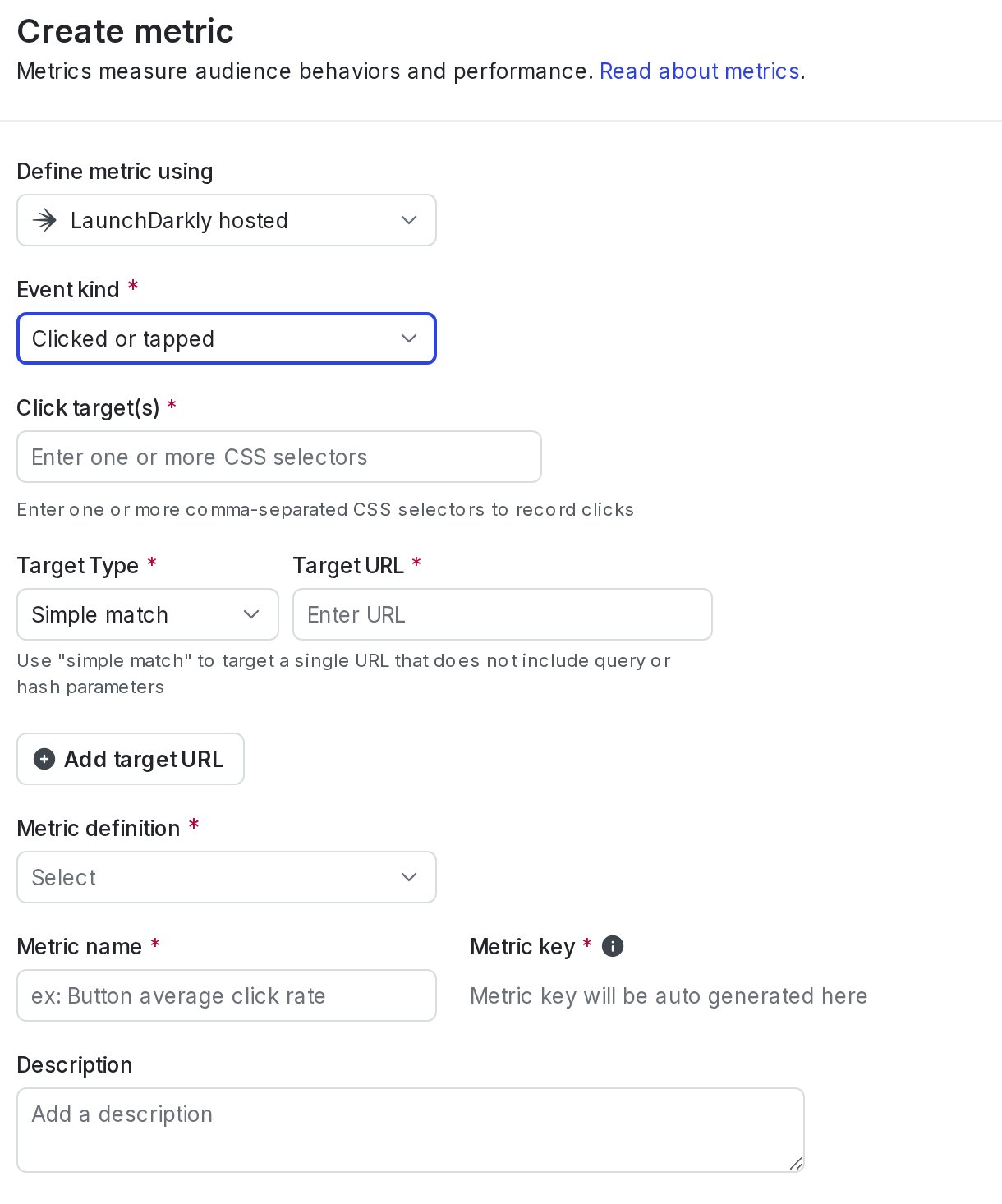
A clicked or tapped conversion metric. -
Enter a metric Name.
-
(Optional) Add a Description.
-
(Optional) Add any Tags.
-
(Optional) Update the Maintainer.
-
Click Create.
You can connect the metric to an experiment or guarded rollout to monitor the impact of a flag change. You can also filter the metric events to specific context attributes or event properties.

You can also use the REST API: Create metric