
Creating and managing progressive rollouts
This topic explains how to create and manage progressive rollouts to release new features incrementally.
Progressive rollouts do not include metric monitoring or absolute difference charts. Metrics and charts are only available for guarded rollouts.
Create a progressive rollout
You can create a progressive rollout on any flag targeting rule if there are no active progressive rollouts, guarded rollouts, or experiments on the flag, and the flag is not a migration flag. You must have a role with permission to update flag rules. The LaunchDarkly Project Admin, Maintainer, and Developer project roles, as well as the Writer, Admin, and Owner base roles, include this permission.
To create a progressive rollout:
- Navigate to the flag’s Targeting tab.
- Find the targeting rule where you want to add a progressive rollout and click Edit.
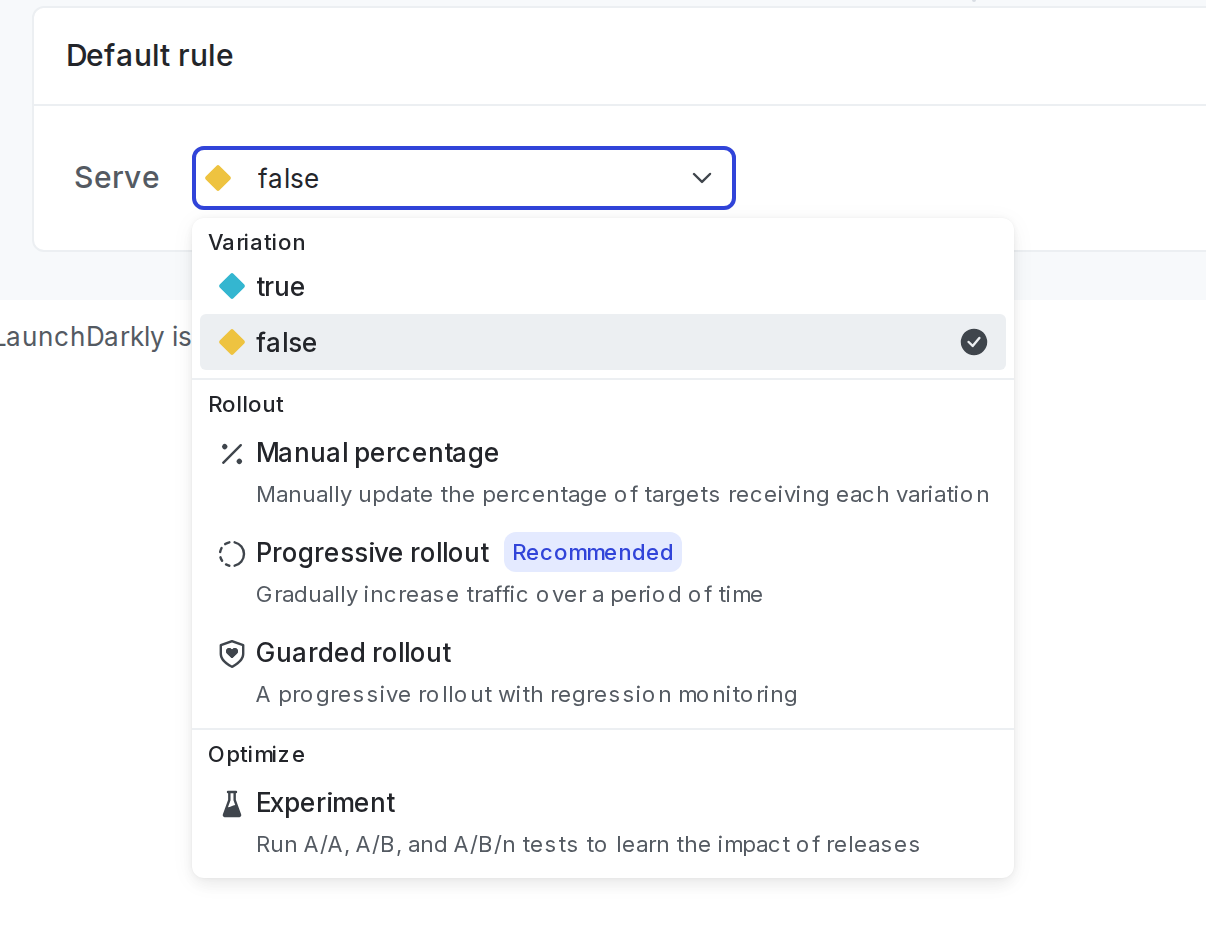
- From the Serve menu, select “Progressive rollout.” If another progressive rollout or guarded rollout exists on the flag, or if an experiment is running, this option is disabled.
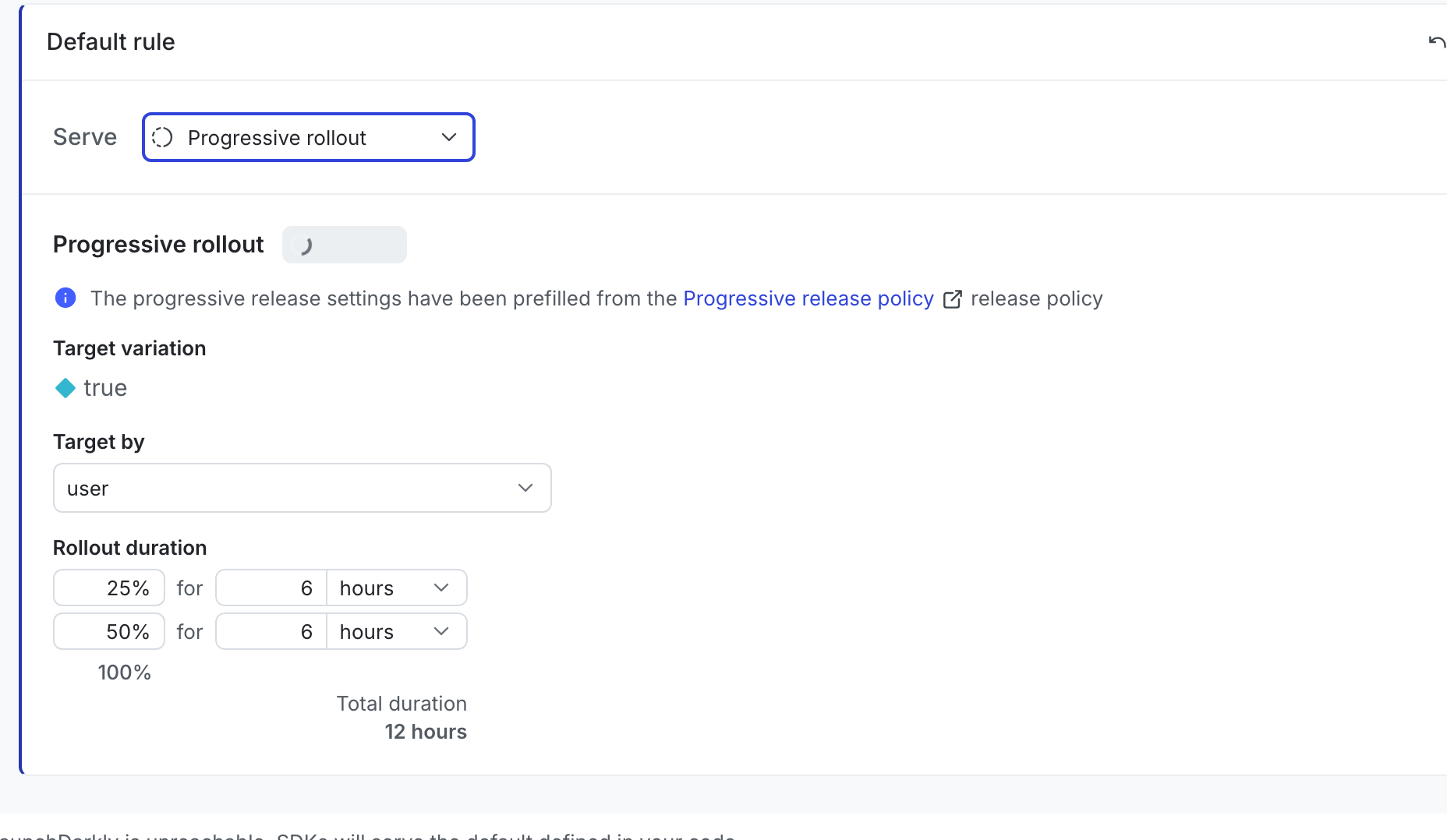
- Select a context kind from the Target by menu.
- When adding a progressive rollout to the default rule, you can choose any context kind.
- When adding a progressive rollout to a targeting rule, choose the same context kind used in the targeting rule to avoid unexpected targeting behavior.
- Adjust the percentage of traffic and the duration of each step if needed. LaunchDarkly displays a default rollout schedule.
- Click Review and save.
- Choose reviewers from the Request approval menu if your environment requires approvals.
- Enter a comment if your environment requires comments.
- Enter the environment name or key to confirm.
- Click Save changes.
The progressive rollout starts as soon as you save. It continues until it completes the schedule you configured. To learn how to stop a rollout before it finishes, read Stop a progressive rollout below.
View progress of a progressive rollout
When a progressive rollout is active, a progress icon appears on the Flags list.

To view progress, navigate to the flag’s Targeting tab. LaunchDarkly displays the rollout steps on the targeting rule.
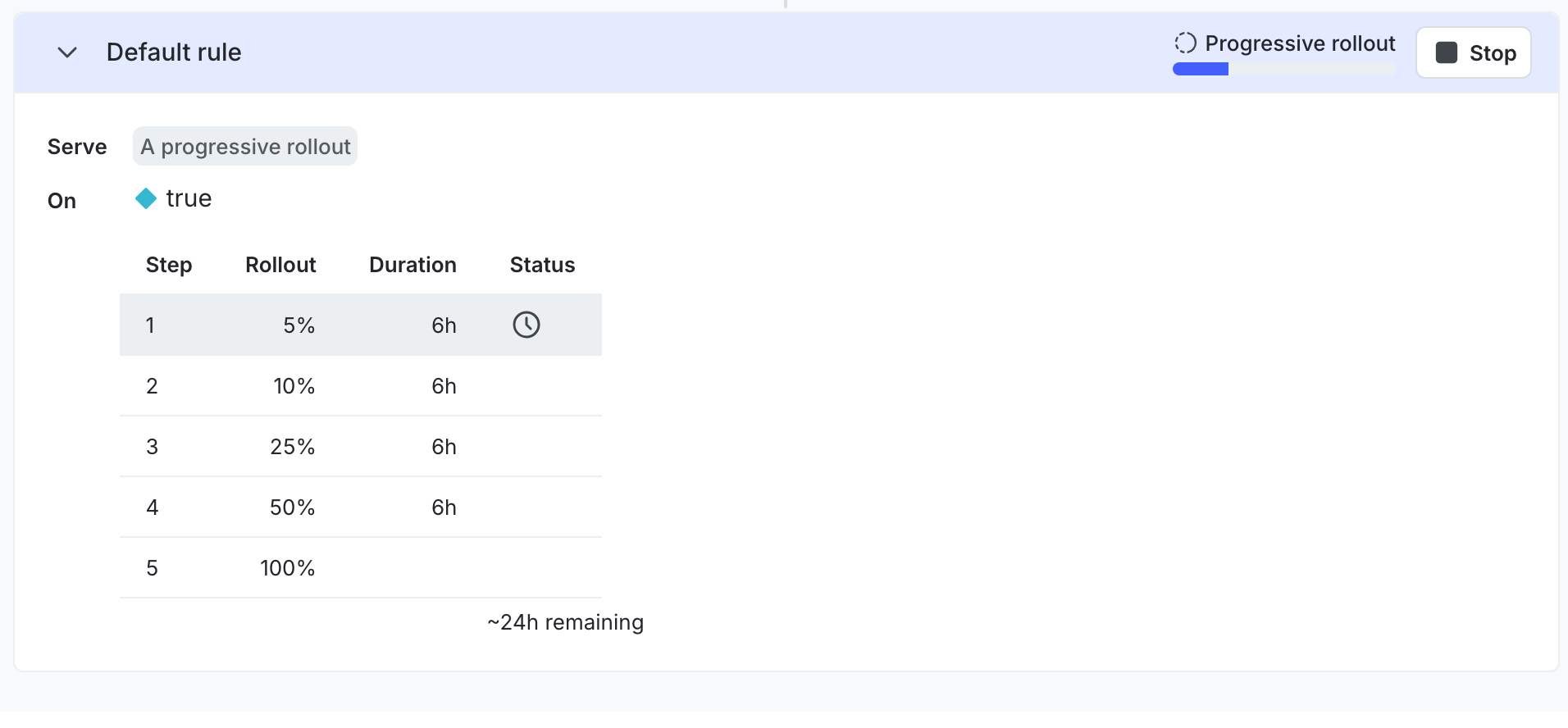
You cannot edit a targeting rule that is part of an active rollout.
When a progressive rollout completes, LaunchDarkly sends an email notification to the member who started the rollout and to any members who follow the flag.
Stop a progressive rollout
Stopping a progressive rollout lets you immediately decide which variation the targeting rule serves. This is useful if you need to pause a release, respond to an issue, or complete the rollout ahead of schedule.
When you stop a progressive rollout, select the variation you want the rule to serve. After you save your changes, that variation serves to all contexts that match the rule.
To stop a progressive rollout:
- Navigate to the flag’s Targeting tab.
- Find the targeting rule with the active progressive rollout.
- Click Stop.

- In the “Stop progressive rollout” dialog, choose the variation you want to serve to all traffic for this rule.
- Click Next.
- Review the changes you are making to the rule.
- Choose reviewers from the Request approval menu if your environment requires approvals.
- Enter a comment if your environment requires comments.
- Enter the environment name or key to confirm.
- Click Save changes.
After you stop the rollout, the selected variation serves to all contexts that match the rule. If you want to resume a gradual release, you can create a new progressive rollout on the rule.