
LaunchDarkly local MCP server
LaunchDarkly provides the hosted MCP server for use in federal or EU environments, where the hosted MCP server is not available. We strongly recommend using the LaunchDarkly hosted MCP server where available. To learn more, read LaunchDarkly hosted MCP server.
This topic explains how to get started with the LaunchDarkly local Model Context Protocol (MCP) server, for use with the LaunchDarkly federal and EU environments.
Get started
To get started, you need an API access token with permission to execute any of the MCP tools available. Then, you need to add the MCP server definition to your AI client.
You also need a JavaScript runtime that supports ECMAScript 2020 or newer.
Authentication
First, create an API access token:
-
Click the gear icon in the left sidebar to view Organization settings.
-
Click Authorization.
-
In the “Access tokens” section, click Create token.
-
Give your token a human-readable Name.
-
Assign a Role to the token by choosing one from the menu.
- The LaunchDarkly MCP server provides tools for managing flags and AgentControl configs, so your token should have permission to create, read, update, and delete flags and AgentControl configs in the projects you want to work in. We recommend that you use a token with a Writer base role, a LaunchDarkly Developer preset role, or another role that provides this access.
-
Click Save token. The new token appears in the Authorization page.
-
Copy and save the token somewhere secure. After you leave this page, the token is obscured.
To learn more, read Creating API access tokens.
Expand Example roles recommended for MCP server access tokens
Example roles recommended for MCP server access tokens
Customers on select plans can create their own roles. If you have this ability, we recommend that you create the following role and assign it to the access token used for the LaunchDarkly MCP server:
Installation methods
You can install the LaunchDarkly MCP server in any AI client that supports the MCP protocol. For most AI clients, this means creating or updating an MCP server JSON configuration file. LaunchDarkly customers on the EU or Federal instances of LaunchDarkly may want to use this method so they can include the correct server URLs.
Here’s what the JSON file looks like:
Replace api-xxxxxxxx-xxxx-xxxx-xxxx-xxxxxxxxxxxx with your API access token.
Depending on how you use the LaunchDarkly MCP server, your AI client may end up listing the details of this configuration file in your conversation. This can be a security risk because the configuration file includes your API key. We strongly recommend using environment variables instead if your AI client supports their use with MCP servers.
For example, GitHub Copilot can use variables prefixed with COPILOT_MCP_ in the JSON file to import secrets from your environment.
Follow the instructions below to install the MCP configuration to Cursor, Claude, or Copilot. For other IDEs, refer to your client’s instructions to learn where this configuration is located.
Expand Cursor installation instructions
A quick installer for the LaunchDarkly MCP server is available on Cursor’s website.
Here’s how to find and use it:
- Navigate to Cursor’s list of supported MCP servers and scroll to “LaunchDarkly.”
- Click Add to Cursor. On your local machine, Cursor launches and the “Cursor Settings” page opens, preconfigured to install LaunchDarkly’s MCP server.
- Replace the example API key
api-xxxxxxxx-xxxx-xxxx-xxxx-xxxxxxxxxxxxwith your LaunchDarkly API access token. - Click Install.
Expand Claude installation instructions
To install to Claude:
- Update the
claude_desktop_config.jsonfile to include the LaunchDarkly MCP server JSON configuration.
Expand GitHub Copilot instructions
To install to GitHub Copilot:
- Navigate to a target repository on GitHub.
- Select Settings > Code and automation > Copilot > Coding agent.
- Navigate to the “MCP configuration” section and add the LaunchDarkly MCP server JSON configuration.
- Click Save.
Run the MCP server from a local build
Optionally, you can run LaunchDarkly’s MCP server from a local build instead of from your AI client.
First, install and build the MCP server:
Then, configure your server definition to reference your local clone. For example:
Enable the MCP server
Depending on your client, after you update your JSON configuration file, you may have additional steps to enable the LaunchDarkly MCP server:
-
Restart your AI client. This ensures the updates to the configuration file take effect. Most AI clients read their list of MCP servers when they start and do not pick up servers added while they are running.
-
You may need to toggle on the LaunchDarkly MCP server configuration. For example, in Cursor you must enable each MCP server separately:
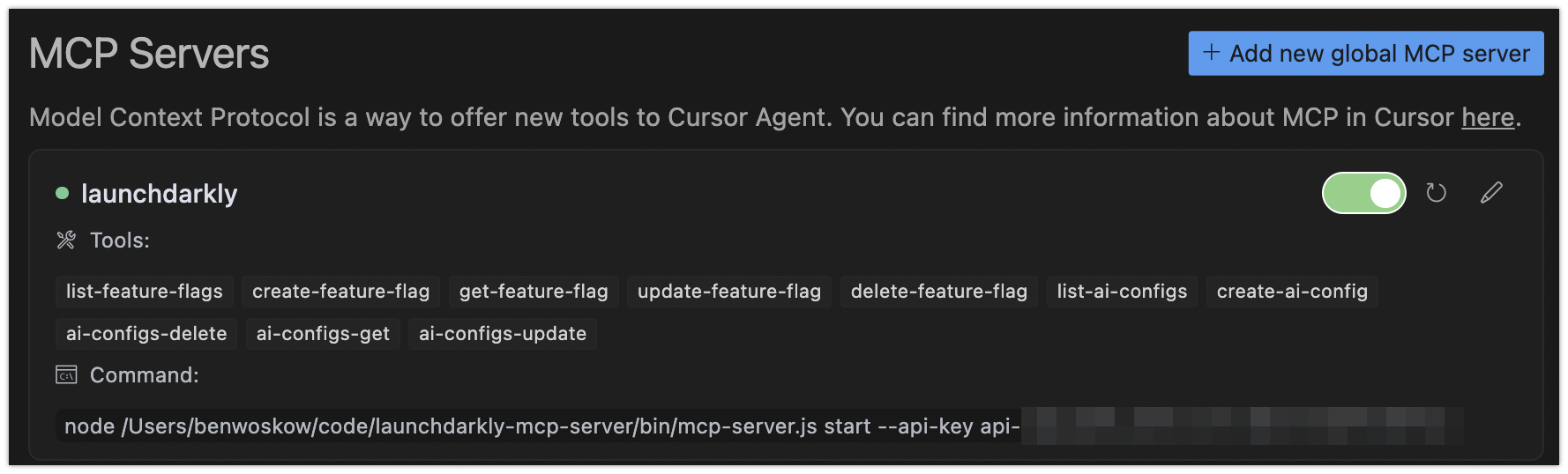
A list of MCP servers in Cursor, with the LaunchDarkly MCP server toggled on.
Restrict usage
You can specify additional options in your server configuration if you want to restrict the MCP server’s access to your LaunchDarkly account.
To give the MCP server only read-only access, we recommend using both of the following options:
- When you create your API access token, specify a Reader base role, or another role with read-only access.
- In your server configuration, add
"--scope", "read"to theargsarray.
To enable only specific tools in your server configuration, add "--tool", "<tool>" to the args array for each tool you want to enable. For example: