
Health checks for releases
This topic explains how to use health checks to confirm your release setup and troubleshoot configuration problems.
Health checks help you confirm that your flag or AgentControl config, metrics, and context configurations let LaunchDarkly measure your release’s performance correctly. The checks available to you depend on the type of release you are running.
Guarded rollout health checks
Guarded rollouts are available to customers on an Enterprise plan with the Guardian add-on. To learn more, read about our pricing or contact Sales.
All LaunchDarkly accounts include a limited trial of guarded rollouts. Use this to evaluate the feature in real-world releases.
When you create a guarded rollout, LaunchDarkly displays a health check status below the Target by field. To learn about health checks for progressive rollouts, read Progressive rollout health checks.
Health check statuses for guarded rollouts
The possible statuses include:
- Health check waiting: LaunchDarkly needs more evaluation or metric data before it can determine the rollout’s health.
- Healthy: LaunchDarkly receives evaluations for the flag or AgentControl config, selected metrics receive events, and the context kinds align with selected randomization units.
- Health warnings: At least one configuration issue prevents LaunchDarkly from accurately measuring the rollout.
Hover over the status to view detailed health checks.
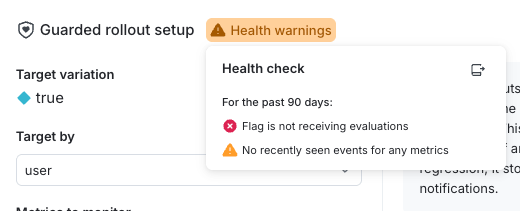
The individual health checks are described below.
Flag evaluations for guarded rollouts
This health check confirms that LaunchDarkly is receiving evaluation data for the flag or AgentControl config.
Possible statuses include:
- Flag is receiving evaluations: Contexts evaluate the flag, and SDKs send evaluation data to LaunchDarkly.
- Flag is not receiving evaluations: LaunchDarkly lacks evaluation data. This may indicate a flag key mismatch, incorrect SDK configuration, or missing traffic.
To review evaluation traffic, expand the Evaluations graph at the top of the Targeting tab.
Example: Flag is not receiving evaluations
Your organization creates a guarded rollout using the user context kind. After saving, the health check displays Flag is not receiving evaluations. This means LaunchDarkly lacks evaluation data for the flag.
To resolve this issue:
- Confirm that the SDK evaluates the correct flag key in your application code.
- Trigger the code path where the flag evaluation occurs so real traffic reaches LaunchDarkly.
- Verify that events are enabled in the SDK configuration.
After LaunchDarkly receives evaluations, the health check updates to Flag is receiving evaluations.
Flag context kinds
This health check confirms that evaluations use the same context kind as the rollout’s randomization unit.
Possible statuses include:
- Flag is seeing [context kind]: Evaluations include the same context kind as the selected randomization unit.
- Flag is not seeing [context kind]: Evaluations use a different context kind than the selected randomization unit.
To learn more, read Randomization unit and Context kinds.
Example: Flag is not seeing the expected context kind
A guarded rollout uses organization as the randomization unit. The health check displays Flag is not seeing organization. Evaluations reaching LaunchDarkly use a different context kind than organization.
Your developers discover that the frontend sends a multi-context with both user and organization, while the backend sends only user. Guarded rollouts measure performance only after evaluations include organization, the rollout’s randomization unit.
To resolve this issue:
- Update backend evaluations to include a multi-context that contains both
userandorganization. - Confirm in the LaunchDarkly user interface (UI) that the
organizationcontext kind is marked as Available for experiments and guarded rollouts.
When evaluations include the required context kind, the health check updates to Flag is seeing organization.
Metric randomization units
This health check confirms that each selected metric uses the same randomization unit as the guarded rollout.
The metric randomization unit health check appears only after LaunchDarkly receives events for the metric.
Possible statuses include:
- [Randomization unit] is tracked by [metric name]: The metric uses the same randomization unit as the rollout.
- [Randomization unit] is not tracked by [metric name]: The metric uses a different randomization unit than the rollout.
Randomization units depend on how you configure the metric, not on the event data currently sent to LaunchDarkly.
Example: Metric does not track the selected randomization unit
Your organization creates a guarded rollout and selects request as the randomization unit. Two latency metrics are attached. One metric uses request. The other uses user. The health check displays request is not tracked by latency percentile.
To resolve this issue:
- Review the metric configuration to confirm which randomization unit it uses.
- Align the metric with the rollout by updating the metric, selecting a different metric, or changing the rollout’s randomization unit.
- Save the updated configuration and confirm that new metric events include the required context kind.
After metric events match the selected randomization unit, the health check updates to request is tracked by latency percentile.
Metric events
This health check confirms that LaunchDarkly receives recent metric events.
Possible statuses include:
- Recently seen events for [metric name]: The metric has sent events within the last 90 days.
- No recently seen events for [metric name]: The metric sent no events within the last 90 days.
When a metric stops sending events, the difference chart displays a flat segment using the most recent value.
Confirm metric activity on the metric’s Activity tab.
Example: No recently seen events for a metric
A guarded rollout includes a conversion metric named Checkout conversions. The health check displays No recently seen events for Checkout conversions. The metric’s Activity tab shows that it last received events 90 days ago. The checkout flow changed, and the SDK no longer sends the checkoutCompleted event that the metric expects.
To resolve this issue:
- Verify the event name, properties, and context data in the SDK code.
- Update event tracking so that the
checkoutCompletedevent is sent again. - Confirm in the Activity tab that LaunchDarkly receives new metric events.
After events resume, the health check updates to Recently seen events for Checkout conversions.
Progressive rollout health checks
Progressive rollouts gradually increase traffic to a flag or AgentControl config variation over time. To learn about health checks for guarded rollouts, read Guarded rollout health checks.
Health check statuses for progressive rollouts
When you create a progressive rollout, LaunchDarkly provides a health check status below the Target by field. LaunchDarkly processes the rollout configuration and displays one of the following statuses:
- Healthy: LaunchDarkly is receiving evaluations from the expected context kind.
- Health warnings: There is at least one problem with your rollout configuration.
Select the status to open or review your rollout’s health checks:
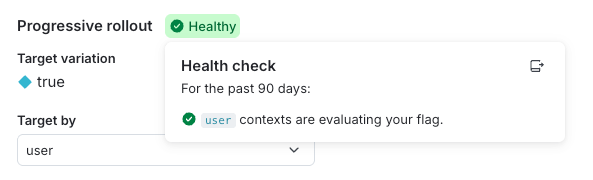
Flag evaluations for progressive rollouts
This health check verifies that the flag is receiving evaluations from the context kind you selected for the rollout. This single check covers two things: whether the flag receives evaluations, and whether those evaluations use the correct context kind.
The health check can display the following messages:
- [context kind] contexts are evaluating your flag: The flag is receiving evaluations from the expected context kind.
- [context kind] contexts are not evaluating your flag: The flag lacks evaluations from the expected context kind. This can happen when the flag is off or your SDK omits evaluations from that context kind.
Expand the Evaluations graph at the top of the flag Targeting tab. It shows how many contexts encounter the flag and which variation they receive.
The examples below show how to interpret and resolve common progressive rollout health check warnings.
The “[context kind] contexts are not evaluating your flag” message has two possible causes:
- Your application never evaluates the flag in any code path.
- Your application evaluates the flag using a different context kind than the one selected for the rollout.
Example: The flag is not being evaluated in application code
Your organization creates a progressive rollout that uses the user context kind. After saving the configuration, the health check displays “user contexts are not evaluating your flag.” In this scenario, your application never evaluates the flag in any code path, so LaunchDarkly receives no evaluations for it.
To resolve this, your developers complete the following steps:
- Verify that the SDK evaluates this flag in the intended code path.
- Trigger the code path so real traffic sends evaluations to LaunchDarkly.
- Confirm that the SDK is initialized correctly and sending evaluation data.
After LaunchDarkly begins receiving evaluations from user contexts, the health check updates to “user contexts are evaluating your flag.”
Example: The flag is evaluated, but not with the selected context kind
Your organization configures a progressive rollout to use device as the context kind. After saving the configuration, the health check displays “device contexts are not evaluating your flag.” Here, LaunchDarkly receives flag evaluations, but your application sends a different context kind than device in those evaluations.
Your developers investigate and discover that the frontend sends a multi-context that includes both user and device context kinds. The backend evaluates the flag using only a user context. LaunchDarkly needs evaluations to include the device context kind to assign traffic correctly for this rollout.
To resolve this issue, your developers complete the following steps:
- Update backend evaluations to include a multi-context that contains both
useranddevice. - Confirm in the LaunchDarkly UI that the
devicecontext kind is available for use in progressive rollouts.
When LaunchDarkly begins receiving evaluations that include the device context kind, the health check updates to “device contexts are evaluating your flag.”