

- Use a set of
@LaunchDarklycommands in GitHub Copilot to interact with your flags - Display a tooltip with feature flag details when you hover over a feature flag key in your source code
- Autocomplete feature flag keys
- Open feature flags in LaunchDarkly (default keybinding:
ctrl+alt+g/⌘+alt+g) - View a list of feature flags and their settings in the Explorer view
- Flag actions: Toggle flags on or off, add flag targeting rules, update a flag’s state, set default on and default off variations, and more
- Enable codelens for flags in your source code
- Click links to go directly into the LaunchDarkly UI
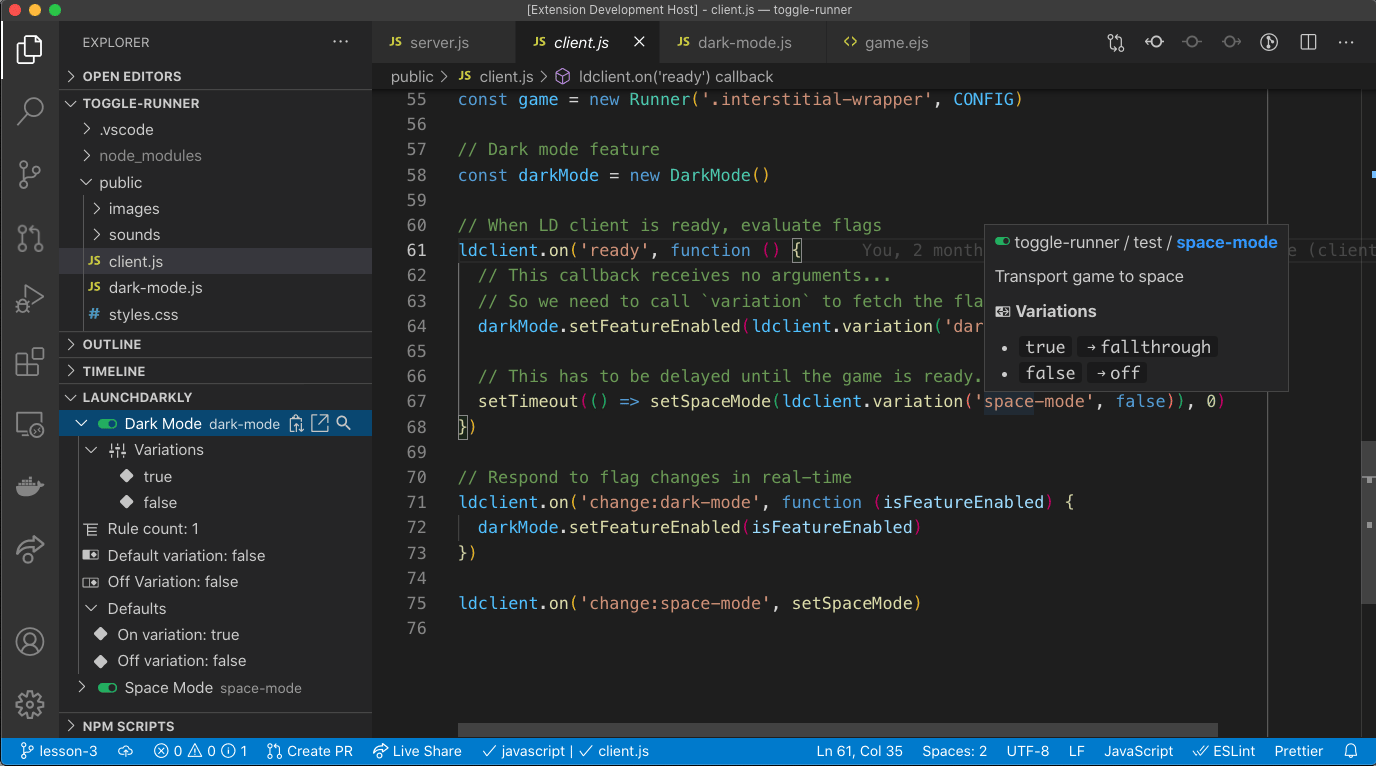
The LaunchDarkly VSCode extension
Prerequisites
To complete this procedure, you must have the following prerequisites:- The VSCode extension from the Visual Studio Marketplace.
- A personal API access token. To learn more, read API access tokens.
Set up the VSCode extension
To set up the VSCode extension, you must complete the following steps:- Give your API access token the required permissions:
- You can create a role with appropriate permissions, then add the role to a personal access token, or
- you can add the Writer base role to your personal access token.
- Configure the VSCode extension with the API access token.
Create a role and add it to an API access token
To give your API access token the required permissions, one option is to create a custom role and add that role to the API access token.Expand Create a role and add it to an API access token
Expand Create a role and add it to an API access token
Creating your own roles is available to customers on select plansCreating your own roles is only available to customers on select plans. To learn more, read about our pricing. To upgrade your plan, contact Sales.
20210729 or later of the LaunchDarkly REST API.The following role allows Reader access to all projects and Writer access to the minimal set of fields the extension is able to update.To create a role for the API access token:- Click the gear icon in the left sidebar to view Organization settings. The General settings page appears.
- Click Roles.
- Click New role. The “New role” page appears.
- Enter a human-readable Name for the role.
- Enter a Key for the role.
- (Optional) Enter a Description to explain what the role does.
- In the “Edit policy” panel, click View JSON to open the advanced editor.
-
Enter this policy in the “Editor” field:
- Click Create role.
Add the Writer role to your personal access token
To give your API access token the required permissions, another option is to add the Writer base role to your access token.Expand Add the Writer role to your personal access token
Expand Add the Writer role to your personal access token
To configure the VSCode extension, you must have an access token that targets version
20210729 or later of the LaunchDarkly REST API.To add the Writer base role to a personal access token:- Click the gear icon in the left sidebar to view Organization settings. The General settings page appears.
- Click Authorization.
- Find the personal access token you want to add permissions to and select “Edit token” from its overflow menu. The “Edit” dialog appears.
- In the Role menu, select “Writer.”
- Click Save token.
Configure the VSCode extension
After you install the LaunchDarkly extension, VSCode prompts you to sign in to your LaunchDarkly account:- Select the LaunchDarkly instance. Most members should select
Commercial, but FedRAMP members should selectFederal. - Provide an access token for your LaunchDarkly account. This access token must have sufficient permission as described above.
LaunchDarkly: Configure settings.
- Select your corresponding LaunchDarkly project.
- Select your corresponding LaunchDarkly environment.
- Select whether you want the extension to work with all VSCode workspaces or just the current workspace.
ctrl+shift+p/⌘+shift+p).
LaunchDarkly extension for GitHub Copilot
If you use GitHub Copilot and install the LaunchDarkly VSCode extension, you can use a set of@LaunchDarkly commands in GitHub Copilot to interact with your flags.
To learn how to install and use LaunchDarkly’s GitHub Copilot commands, read LaunchDarkly extension for GitHub Copilot.