

Create a view
To create a new view:-
Click the project dropdown. The project menu appears:
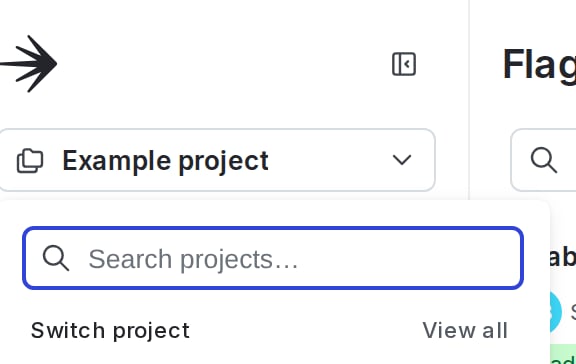
The project menu.
- Select Project settings.
- Select Views. The Views list appears.
-
Click Create view. The “Create view” dialog appears:
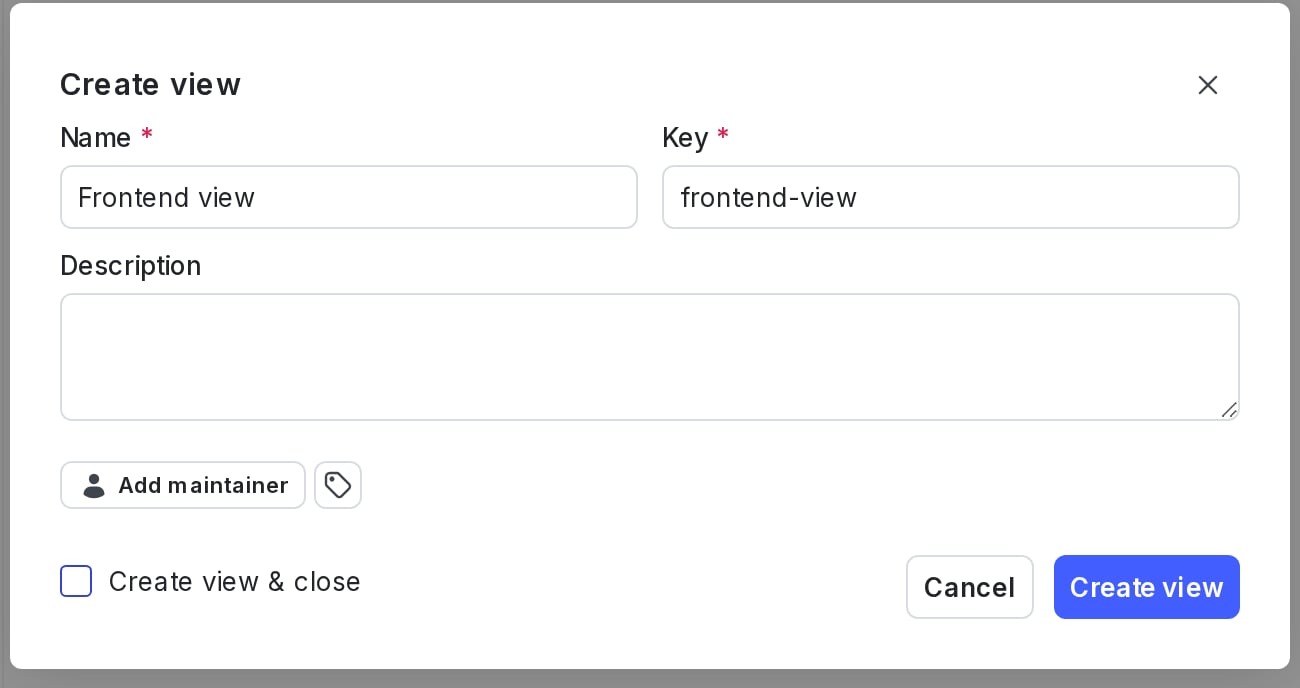
The "Create view" dialog.
- Enter a unique, human-readable Name for the view.
- (Optional) Update the view Key. A suggested key auto-populates from the name you enter, but you can customize it if you wish.
- (Optional) Enter a Description.
- (Optional) Click the tag icon. Enter a tag name to search for an existing tag or create a new one with that name.
- (Optional) Click Add maintainer to set the maintainer of the view. The maintainer defaults to the view’s creator if you do not set one.
- Click Create view. The “Add flags to [view]” dialog appears.
- Check the flags that you want to include in the view. You can add AgentControl configs and segments after creating the view.
- Click Add flags.
Link resources to a view
You can link flags, AgentControl configs, or segments to an existing view when you create the resource. You can also link them to existing views at any time, from the resource, the Flags list, or the Views list.Link to a view from the resource
To link a flag, AgentControl config, or segment to a view from the resource details page:- From the detail page, find “Views” in the right sidebar.
- Click add view.
- Check the checkbox next to the views that you want to link the flag or segment to.
Link a flag to a view from the Flags list
To link a flag to a view from the Flags list:- In the left sidebar, click Code. The CodeControl menu appears.
- Click Flags.
- Find the flag, then click its three-dot overflow menu.
- Select Link to views and choose one or more views for the flag. A “Views updated” message appears briefly at the bottom of the page.
Link to a view from the views list
To link flags, AgentControl configs, or segments to an existing view from the Views list:- From Project settings, select Views. The Views list appears.
- Find the view you want to link a resource to.
- Click the overflow menu for the view.
- Select Update linked resources. The “Linked resources” tab appears.
- Click Add and select the resource type from the dropdown menu. The “Add [resource]” dialog appears.
- (Optional) Use the search field or the “Filters” menu to limit the number of resources displayed.
- Check the resources that you want to include in the view.
- Click Add [resource].