

IP allowlists are available to customers on select plansIP allowlists are only available to customers on select plans. To learn more, read about our pricing. To upgrade your plan, contact Sales.
View the IP address allowlist
To view your IP address allowlist, click the gear icon in the left sidebar to view organization settings. Then, click Security and scroll to the “IP allowlist” section: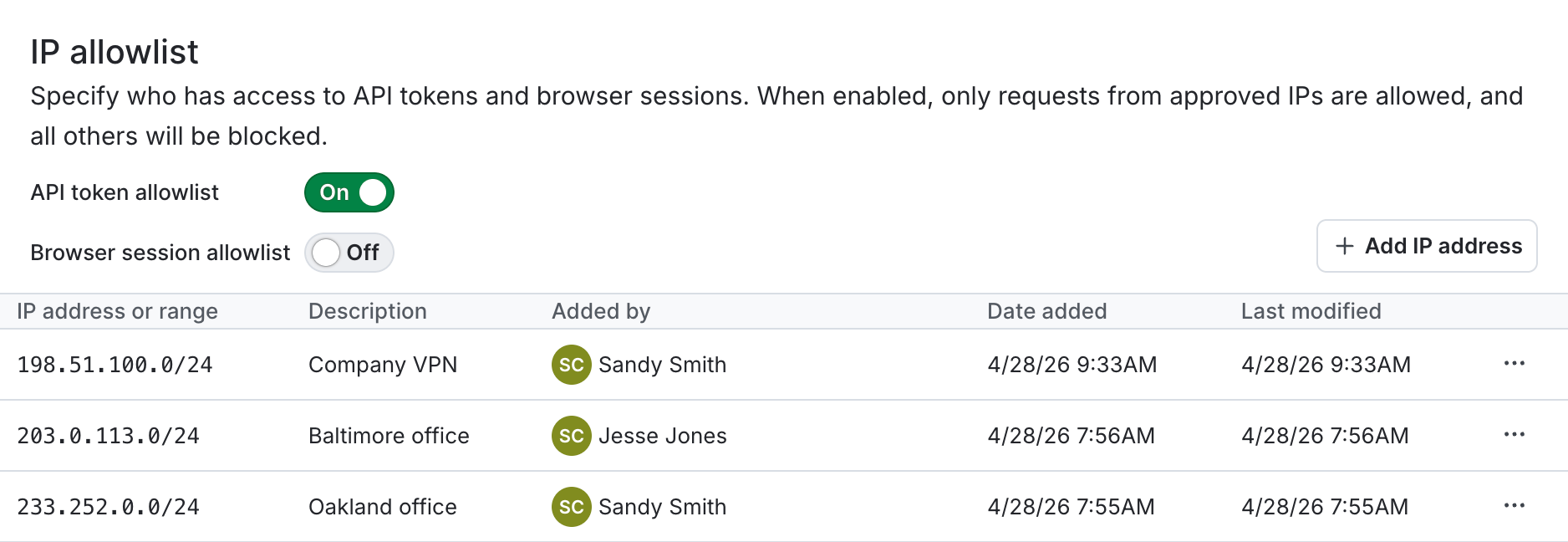
An IP allowlist in LaunchDarkly.
Add an address or range to the IP allowlist
You can add a single IP address or a CIDR range to the allowlist. Here are examples of how to format them:- single IP address:
198.51.100.0 - CIDR range:
198.51.100.0/24
- Click the gear icon in the left sidebar to view Organization settings.
- Click Security.
- Scroll to the “IP allowlist” section.
- Click Add IP address. An “Add IP address” dialog appears.
- Enter an IP address or range.
- (Optional) Enter a Description.
- Click Add to allowlist.
Restricting or allowing access
For the IP addresses and CIDR ranges in the allowlist, you can allow or restrict access to the LaunchDarkly app in a browser, the REST API, or both.Manage access to the app in a browser
To restrict access to the app in a browser, toggle the “Browser allowlist” toggle On. When toggled on, your members can only interact with the app in a browser from the IP addresses and ranges in the allowlist. To allow your members to interact with the app in a browser from any IP address or range, toggle the “Browser allowlist” Off. The default setting for both toggles is Off.Manage access to the REST API
To restrict access to the REST API, toggle the “API token allowlist” toggle On. When toggled on, your members can only interact with the REST API from the IP addresses and ranges in the allowlist. To allow your members to interact with the REST API from any IP address or range, toggle the “API token allowlist” Off.Manage access to both the REST API and the app in a browser
To restrict access to both the app in a browser and the REST API, toggle both the “API token allowlist” and the “Browser allowlist” toggles On.Delete an address or range from the IP allowlist
To delete an IP address or CIDR range:- Click the gear icon in the left sidebar to view Organization settings.
- Click Security.
- Scroll to the “IP allowlist” section.
- Click the three-dot overflow menu next to the IP address you want to delete.
- Select Remove from allowlist. A “Remove from allowlist” dialog appears.
- Enter the IP address or range to Confirm.
- Click Remove from allowlist.