For AI agents: a documentation index is available at the root level at /llms.txt and /llms-full.txt. Append /llms.txt to any URL for a page-level index, or .md for the markdown version of any page.
Sign inTry it free
DocsGuidesSDKsIntegrationsAPI docsTutorialsFlagship blog
  • Get started
    • Overview
    • Onboarding
    • Get started
    • Launch Insights
    • LaunchDarkly architecture
    • LaunchDarkly vocabulary
  • AgentControl
    • AgentControl
    • Manage AgentControl
  • Feature flags
    • Create flags
    • Target with flags
    • Flag templates
    • Manage flags
      • The Flags list
      • Comparing and copying flag settings
      • Viewing flags across environments
      • Deprecating flags
      • Archiving flags
      • Deleting flags
      • Flag prerequisites
      • The off variation
      • The default rule
      • Flag statuses and lifecycle stages
      • Flag lifecycle settings
      • Project-level flag settings
      • Vega for flag cleanup
    • Code references
    • Contexts
    • Segments
  • Releases
    • Releasing features with LaunchDarkly
    • Release policies
    • Percentage rollouts
    • Progressive rollouts
    • Guarded rollouts
    • Feature monitoring
    • Release pipelines
    • Engineering insights
    • Release management tools
    • Applications and app versions
    • Change history
    • Restoring previous flag versions
  • Observability
    • Observability
    • Session replay
    • Error monitoring
    • Logs
    • Traces
    • Observability metrics
    • Product analytics events
    • LLM observability
    • Alerts
    • Dashboards
    • Service map
    • Vega for auto-remediation
    • Observability MCP server
    • Search specification
    • Observability settings
    • Observability integrations
  • Experimentation
    • Experimentation
    • Experiment metric types
    • Experiment configuration
    • Managing experiments
    • Analyzing experiments
    • Multi-armed bandits
    • Holdouts
  • Metrics and events
    • Metrics in LaunchDarkly
    • Creating metrics
    • Metric groups
    • Events
    • Autogenerated metrics
  • Warehouse native
    • Warehouse native metrics
    • Setting up external warehouses
    • Creating experiments using warehouse native metrics
  • Infrastructure
    • Connect apps and services to LaunchDarkly
    • LaunchDarkly in China and Pakistan
    • LaunchDarkly in the European Union (EU)
    • LaunchDarkly in federal environments
    • Public IP list
  • Your account
    • Projects
    • Views
    • Environments
    • Tags
    • Teams
    • Members
    • Roles
    • Account security
    • Feature previews
    • Billing and usage
    • Changelog
Sign inTry it free
LogoLogo
On this page
  • Overview
  • Update lifecycle settings
Feature flagsManage flags

Flag lifecycle settings

Was this page helpful?
Previous

Project-level flag settings

Next
Built with

Overview

This topic describes flag lifecycle settings and how to update them. Flag lifecycle settings let you customize the criteria that LaunchDarkly uses to determine when flags are ready to be archived. Archiving flags is a good practice to help clean up flags you no longer need.

Custom lifecycle settings apply only to critical environments. LaunchDarkly will not evaluate non-critical environments for a flag’s archive-readiness.

Update lifecycle settings

When you update the Lifecycle settings for a project, the changes apply to all flags in your project. This means some flags previously considered ready to archive may no longer be ready to archive, and some flags previously considered not yet ready to archive may now be ready. On the Flags list, these changes apply immediately.

In Launch Insights, data from before you update the settings reflects your older definition, and data from after you update the settings reflects your newer definition.

To customize flag lifecycle settings:

  1. Click the project dropdown. The project menu appears:
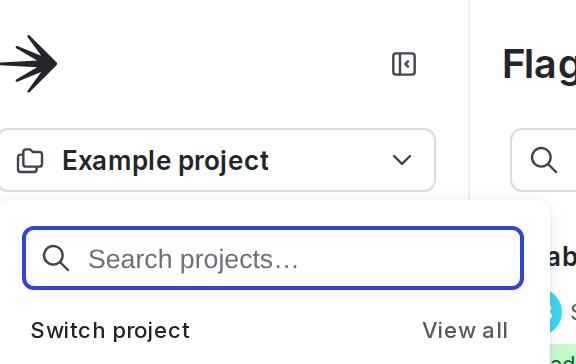
    The project menu.

    The project menu.
  2. Click Project settings.

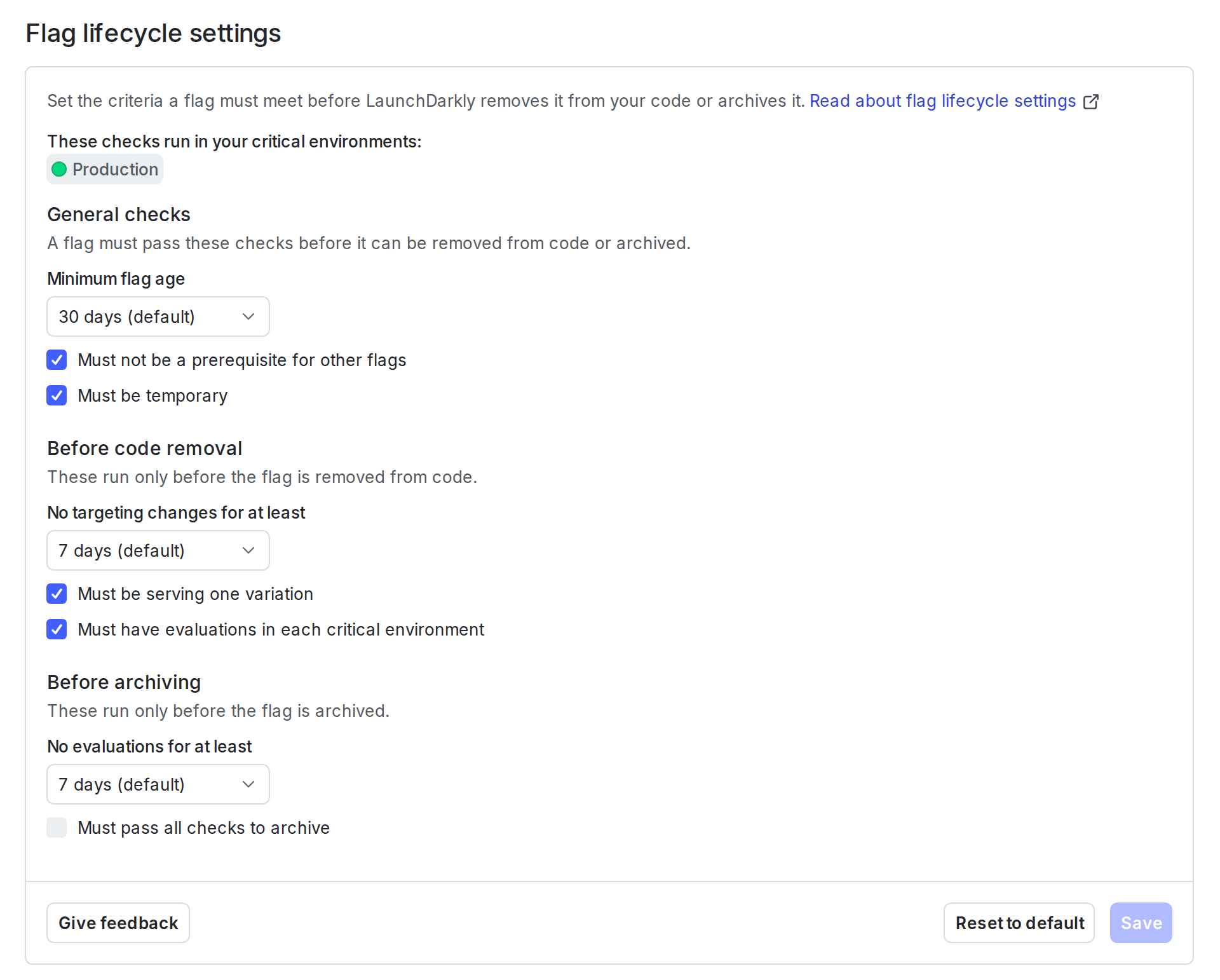
  3. Click Lifecycle settings. The flag lifecycle settings panel appears:

    The flag lifecycle settings panel.

    The flag lifecycle settings panel.
  4. Customize the criteria that LaunchDarkly uses to determine when flags are ready to be archived:

    • Select the Minimum flag age. We recommend setting this to at least as long as it takes to release most features in your critical environments.
    • Select Before code removal, there should be no targeting changes for at least to set how long a flag’s targeting rules must be unchanged before the flag is ready to archive.
    • Select Before archiving, there should be no evaluations for at least to set how long a flag should have no evaluations before the flag is ready to archive.
    • Select whether a flag may a prerequisite. We recommend checking the Must not be a prerequisite for other flags checkbox.
    • Select whether flags may serve one or many variations and still be ready archive. We recommend checking the Must be serving one variation checkbox.
    • Select whether the archival checks apply to all flags or only temporary flags. We recommend checking the Must be temporary checkbox.
  5. Click Save.

To reset the flag lifecycle settings, navigate to the flag lifecycle settings panel and select Reset to default.