
Targeting contexts in larger list-based segments
Targeting contexts in larger list-based segments
Larger list-based segments are only available to customers on select plans. To learn more, read about our pricing. To upgrade your plan, contact Sales.
This topic explains how to target contexts within larger list-based segments.
Larger list-based segments are segments where the number of individual contexts targeted may be greater than 15,000. Larger list-based segments can include only one targeted context kind. These segments were previously called “big segments.”
If you are working with server-side SDKs, larger list-based segments require a persistent storage integration. You must configure this integration for each environment where you create larger list-based segments. To learn how, read SDK and integration configuration for segments.
Larger list-based segments do not support targeting rules. To learn how to target contexts by rule within a segment, read Rule-based segments.

Configure your SDK: Big segments
Target contexts with a CSV file
To add contexts to a larger list-based segment, create a comma-separated values (CSV) file containing the list of context keys you wish to include. The only data required for the CSV file is a list of context keys in the first column. You can add additional data in subsequent columns if you wish.
The CSV file has the following requirements:
- All of the contexts in the CSV file must be of the same context kind.
- The context keys must be in the first column of the CSV file. No other data is required.
- The CSV file must not contain a header row.
- The CSV file must not exceed 40MB in size.
- The CSV file must not contain more than 1 million contexts.
- If you want to add more than 1 million contexts, you can use the “Merge” option with multiple sequential file uploads. To learn more, read Segments with existing contexts.
- You must upload multiple CSV files one at a time, as you cannot perform concurrent imports within a single environment.
Then, follow the segment creation instructions under Create larger list-based segments and add your CSV file in the “Upload CSV” dialog.
Segments with existing contexts
If you are on the details page of a segment that already contains contexts, you have the option to merge or overwrite the existing contexts with the contexts from the CSV file. If you are merging contexts, they must all be of the same context kind.
- Select “Overwrite” to replace all existing contexts in the segment
- Select “Merge” to add to the existing contexts in the segment
Add and remove individual targets
After you add context targets to a list-based segment using a CSV file, you can then add or remove individual contexts.
To add or remove individual contexts to or from a larger list-based segment:
- Navigate to the desired segment’s details page.
- In the Included targets search box, enter the key of the context you want to add or remove. If the context is present in the segment, a Remove target button appears. If the user is not present in the segment, an Add target button appears.

- Click Add target or Remove target.
- Click Review and save. A “Review and save” dialog appears.
- Click Save changes, or if your environment requires approvals, click Request approval.
Export lists of contexts from list-based segments
To export the contexts from a list-based segment into a CSV file:
- Navigate to the desired segment’s details page.
- Find the “Included targets” section and click Edit.
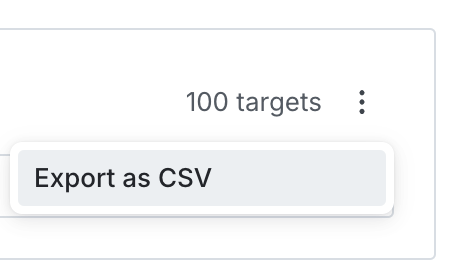
- Click on the overflow menu.
- Select Export as CSV.
The export process runs in the background. When it completes, you receive an email notification containing a link to where you can download your CSV file.
LaunchDarkly does not support exporting segments with more than 10 million contexts.

You can also use the REST API: Create big segment export