
Starting and stopping experiment iterations
This topic explains how to start recording an experiment iteration and stop the experiment iteration when you’re finished.
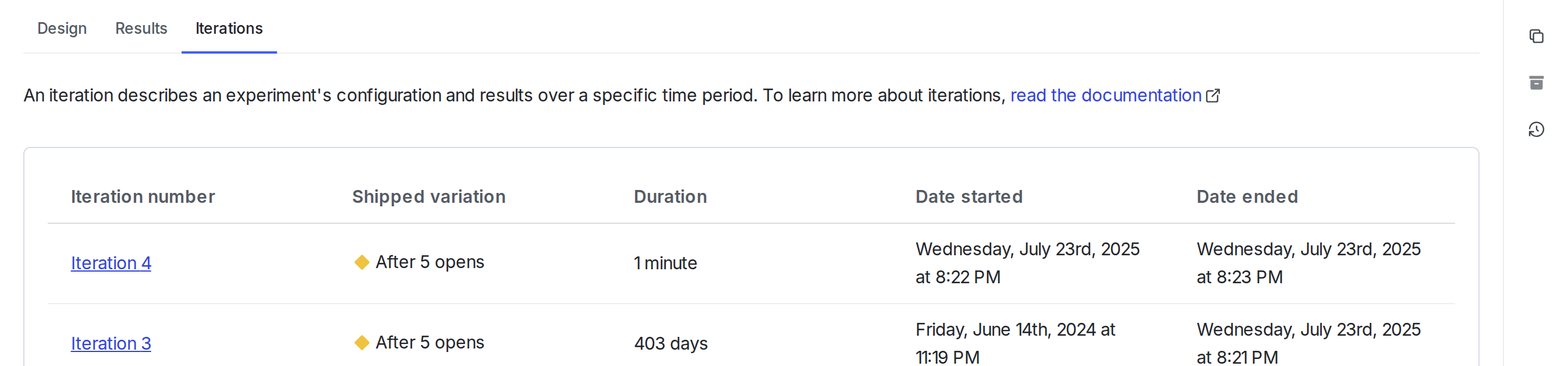
When you start an experiment, LaunchDarkly creates a new iteration for that experiment. Each iteration includes the results of the experiment over a period of time for its specific configuration. When you stop an experiment or edit its configuration, including its hypothesis, metrics, variations, or audience, LaunchDarkly ends the iteration. This ensures that your experiment results are valid.
Start experiment iterations
After you create an experiment you can start an iteration in one or more environments.
To start an experiment iteration:
- Navigate to the Experiments list.
- Click on the environment section containing the experiment you want to start.
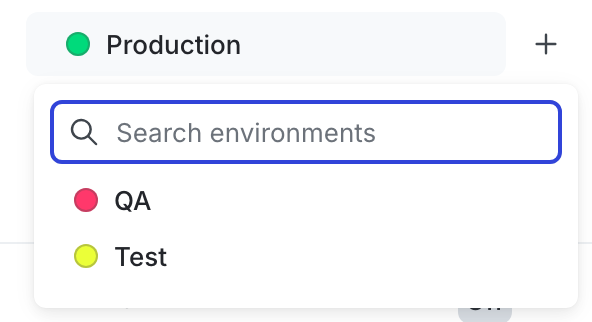
- If the environment you need isn’t visible, click the + next to the list of environment sections. Search for the environment you want, and select it from the list.
- Click on the name of the experiment you want to start an iteration for. The Design tab appears.
- Click Start, or, if your environment requires approvals, click Request approval to start. A “Start experiment” dialog appears.
- If your environment does not require approvals, but you want to request approval anyway, click the down arrow next to the Start button and click Request approval to start.
- (Optional) If the flag is off, click Toggle on flag.
- Click Start experiment.
- Repeat steps 1-5 for each environment you want to start an iteration in.

Experiment iterations allow you to record experiments in individual blocks of time. To ensure accurate experiment results, when you make changes that impact an experiment, LaunchDarkly starts a new iteration of the experiment.
When you start an iteration of an experiment, LaunchDarkly sends the maintainer and anyone following the experiment an email, an in-app notification, and, if you have the Slack app integration configured, a Slack notification.

You can also use the REST API: Create iteration
Stop experiment iterations
If you need to make changes to your experiment, you can stop your experiment iteration.
If you stop an experiment iteration, and then later start a new iteration, LaunchDarkly reshuffles traffic into new variations. To learn more, read Traffic reshuffling.
To stop an experiment iteration:
- Navigate to the experiment’s Results tab.
- Click Stop, or if your environment requires approvals, click Request approval to stop. The “Ship” menu appears.

- Select the winning variation to ship to all contexts that match the flag’s targeting rule. A “Stop experiment” dialog appears.
- Enter a Reason for stopping.
- Click Stop experiment, or if your environment requires approvals, click Request approval to stop.
After you stop an experiment iteration, the variation you chose in step 4 is served to all targets that match the experiment audience targeting rule. The flag’s Targeting tab updates to reflect this.
You can stop an experiment iteration at any time. Just like starting an iteration, stopping an iteration only impacts the experiment in one environment. If you wish to stop collecting data from every instance of an experiment, you must stop each experiment in each environment individually.
When you stop recording an experiment, LaunchDarkly ends the iteration and stops collecting data about user behavior for that experiment. The data collected for that iteration is available on the experiment’s Results tab.
When you stop an iteration of an experiment, LaunchDarkly sends the maintainer and anyone following the experiment an email, an in-app notification, and, if you have the Slack app integration configured, a Slack notification. To update your notification preferences, click the bell icon at the bottom of the left sidebar and select Manage notification settings.
Stopping an experiment does not delete the experiment. Stopping an experiment lets you retain the results and data the experiment has already collected.
You can also use the REST API: Patch experiment