
Reviewing approval requests
This topic explains how to review, approve, and decline approval requests.
If someone requests your approval on a flag, AgentControl config, experiment, or segment change, the request appears in the Approvals dashboard, in your email, and in your in-app inbox. Depending on the approval request, it also appears in the following places:
- For flags, the approval request appears in the flag’s “Pending changes” panel and, if you use the LaunchDarkly Slack or Microsoft Teams app, in a Slack or Teams notification.
- For AgentControl configs, the approval request appears in the AgentControl config’s “Pending changes” panel and, if you use the LaunchDarkly Slack app, in a Slack notification.
- For experiments, the approval request appears in the experiment’s “Pending changes” panel and, if you use the LaunchDarkly Slack app, in a Slack notification.
- For segments, the approval request appears in the segment’s details page and, if you use the LaunchDarkly Slack app, in a Slack notification.
You can click through to view and approve or decline the request from any of these notifications.

You can also use the REST API: List approval requests
View approval requests
You can view approval requests from:
- The Approvals dashboard
- The affected flag, AgentControl config, experiment, or segment
- The email notification
- Your in-app inbox
- Slack or Microsoft Teams, if you have those integrations configured
When viewing approval requests, you can review either a Visual list or a JSON list of the proposed changes:
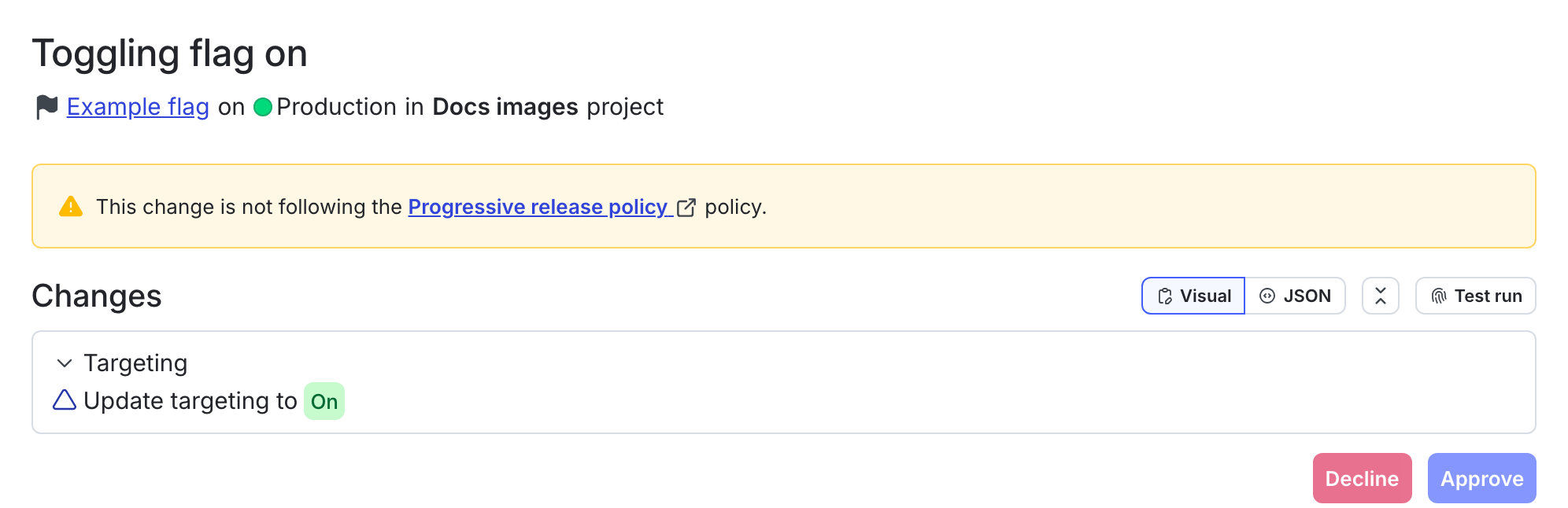
To view the approximate percentage of contexts that will receive each flag variation after the targeting change, click Test run. To learn more, read Testing changes to flag targeting.
View approval requests from the Approvals dashboard
To view approval requests from the Approvals dashboard:
- Click Approvals in the left sidebar. The Approvals dashboard opens.
- Click the request name or click the overflow menu and select View details. The Review request screen opens.
By default, the Approvals dashboard is filtered to show approval requests on which you have been requested as a reviewer, and which are pending review. To see other approval requests, you can edit the filters to change the views on this screen.
You can also use the REST API: Review approval request
View approval requests from the resource
To view approval requests from a flag, AgentControl config, experiment, or segment:
- Navigate to the resource where changes were requested.
- Click the “Pending changes” section in the right sidebar. The “Pending changes” panel opens.
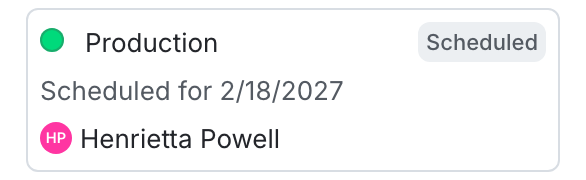
- Click View to open the approval request details screen.
You can also use the REST API: List approval requests
View approval requests from email
To view approval requests from your email:
- Find the email from “The Team at LaunchDarkly” in your email client. The email subject includes the name of the project, environment, and flag or AgentControl config you’re being asked to review and the phrase “Review request.”
- In the message body, click Review request to open the approval request details screen in LaunchDarkly.
View approval requests from your in-app inbox
To view approval notifications from your in-app inbox:
-
Click the bell icon at the bottom of the left sidebar. The approval notification inbox appears.
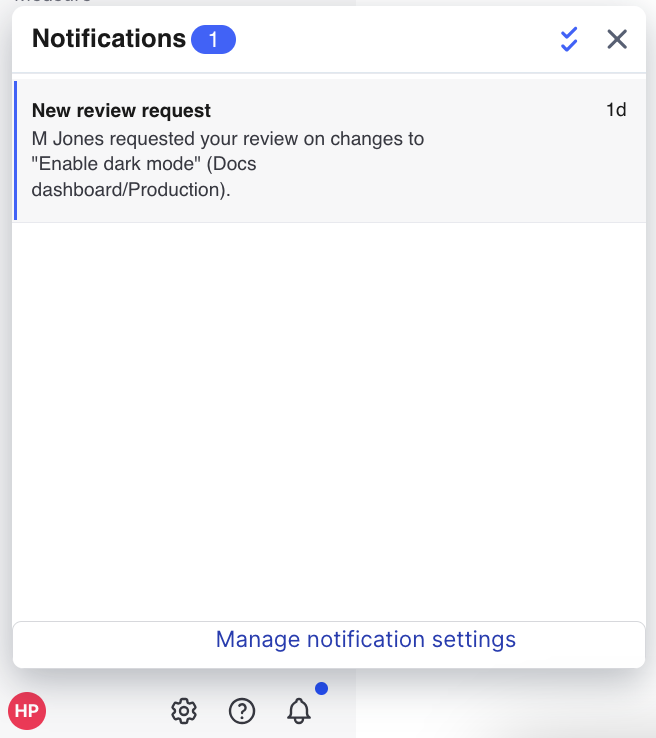
The approval notification inbox with a new approval request. -
Click View details. The approval request details screen opens.
View approval requests from Slack or Microsoft Teams
If someone requests your approval on a flag change and you use the LaunchDarkly Slack or Microsoft Teams app, you will receive a Slack or Teams notification. AgentControl config and segment approvals are also sent through Slack, but are not sent through Microsoft Teams.
If you use the LaunchDarkly Slack or Microsoft Teams app, you will receive a notification of each approval request through that app.
To learn more, read View approvals in Slack and View approvals in Microsoft Teams.
To learn more about these integrations, read Slack and Microsoft Teams.
Approve and decline changes
You can comment on, approve, and decline changes from the approval request details screen. You can also add additional reviewers.
Here are the actions you can take during your review:
- Approve and apply changes: Approve the changes and apply them immediately. The “Review history” section updates to indicate that you reviewed the change request, and the requestor receives an email notification. If scheduled for a future date, the change will apply at the scheduled date and time.
- Approve changes: Approve the changes without applying them. After approval, the original requester, or any account member with an
applyApprovalRequestpermission can apply the changes you approved. The LaunchDarkly Project Admin, Maintainer, Developer, and Contributor project roles, as well as the Writer, Admin, and Owner base roles, all include this ability. - Decline changes: Deny the changes.
- Add approvers: Request an additional reviewer for the changes. Click the + button next to the list of approvers and select additional members or teams. Reviewers receive an email, an in-app inbox notification, and, if they use the LaunchDarkly Slack or Microsoft Teams app, a Slack or Teams notification asking them to approve your changes. Adding approvers does not update how many approvals are required before you can apply the change.
- Comment only: Leave a comment on the requested changes.
Members and service tokens with role access can comment on an approval request, including:
- the requestor
- members with a base role of Writer, Admin, or Owner
- members with any role that can approve or decline approval requests
- requests using service tokens with a role that can approve or decline approval requests
The only time someone with access cannot comment on an approval request is after the request has been applied. Applying an approval request freezes the approval request page to preserve the state it was in when the change was applied.
Member accounts and service tokens have permission to approve and apply changes to an approval request. To learn how to give permissions to a team to review approvals, read How to create an approval team.
You can also use the REST API: Review approval request