For AI agents: a documentation index is available at the root level at /llms.txt and /llms-full.txt. Append /llms.txt to any URL for a page-level index, or .md for the markdown version of any page.
Sign inTry it free
DocsGuidesSDKsIntegrationsAPI docsTutorialsFlagship blog
  • Get started
    • Overview
    • Onboarding
    • Get started
    • Launch Insights
    • LaunchDarkly architecture
    • LaunchDarkly vocabulary
  • AgentControl
    • AgentControl
    • Manage AgentControl
  • Feature flags
    • Create flags
    • Target with flags
    • Flag templates
    • Manage flags
      • The Flags list
        • Flag links
      • Comparing and copying flag settings
      • Viewing flags across environments
      • Deprecating flags
      • Archiving flags
      • Deleting flags
      • Flag prerequisites
      • The off variation
      • The default rule
      • Flag statuses and lifecycle stages
      • Flag lifecycle settings
      • Project-level flag settings
      • Vega for flag cleanup
    • Code references
    • Contexts
    • Segments
  • Releases
    • Releasing features with LaunchDarkly
    • Release policies
    • Percentage rollouts
    • Progressive rollouts
    • Guarded rollouts
    • Feature monitoring
    • Release pipelines
    • Engineering insights
    • Release management tools
    • Applications and app versions
    • Change history
    • Restoring previous flag versions
  • Observability
    • Observability
    • Session replay
    • Error monitoring
    • Logs
    • Traces
    • Observability metrics
    • Product analytics events
    • LLM observability
    • Alerts
    • Dashboards
    • Service map
    • Vega for auto-remediation
    • Observability MCP server
    • Search specification
    • Observability settings
    • Observability integrations
  • Experimentation
    • Experimentation
    • Experiment metric types
    • Experiment configuration
    • Managing experiments
    • Analyzing experiments
    • Multi-armed bandits
    • Holdouts
  • Metrics and events
    • Metrics in LaunchDarkly
    • Creating metrics
    • Metric groups
    • Events
    • Autogenerated metrics
  • Warehouse native
    • Warehouse native metrics
    • Setting up external warehouses
    • Creating experiments using warehouse native metrics
  • Infrastructure
    • Connect apps and services to LaunchDarkly
    • LaunchDarkly in China and Pakistan
    • LaunchDarkly in the European Union (EU)
    • LaunchDarkly in federal environments
    • Public IP list
  • Your account
    • Projects
    • Views
    • Environments
    • Tags
    • Teams
    • Members
    • Roles
    • Account security
    • Feature previews
    • Billing and usage
    • Changelog
Sign inTry it free
LogoLogo
On this page
  • Overview
  • Create URL flag links
  • Create Slack flag links
  • Create Jira flag links
  • Create Trello flag links
  • Create GitHub flag links
  • Delete flag links
Feature flagsManage flagsThe Flags list

Flag links

Was this page helpful?
Previous

Comparing and copying flag settings

Next
Built with

Overview

This topic explains how to create and use flag links to view external mentions of flags from other tools and services. Links to external conversations and references to your flags allow you to collaborate more easily and quickly review relevant flag information.

You can create flag links automatically using Slack, Jira, and Trello integrations. You can also create them manually using a URL to any system, tool, or site you wish.

There are four types of flag links:

  • URL flag links
  • Slack flag links
  • Jira flag links
  • Trello flag links
  • GitHub flag links

Create URL flag links

You can create URL flag links by associating an external URL with a feature flag.

To create a URL flag link:

  1. From the Flags list, click on the name of the flag you want to follow. The flag’s Targeting tab opens.
  2. Click the + icon in the “Links” section of the right sidebar. The “Add link to flag” dialog appears.
  3. Enter the URL for the external resource you’re linking the flag to.
  4. (Optional) Enter a title and description for the link.
  5. Click Save. The linked resource appears in the “links” section.

You can also use the REST API: Flag links

Create Slack flag links

Slack flag links require the LaunchDarkly Slack app integration

The LaunchDarkly Slack app integration is required to use Slack flag links. To learn how to set up the integration, read Slack.

The LaunchDarkly Slack app automatically creates flag links when a flag’s URL is mentioned in a public Slack channel. You can access the Slack conversation in LaunchDarkly on the flag’s right sidebar.

Additionally, you can manually associate a Slack conversation in a public channel with a flag using a flag link message shortcut.

To link a flag to a conversation in Slack:

  1. In Slack, locate the conversation you want to reference.
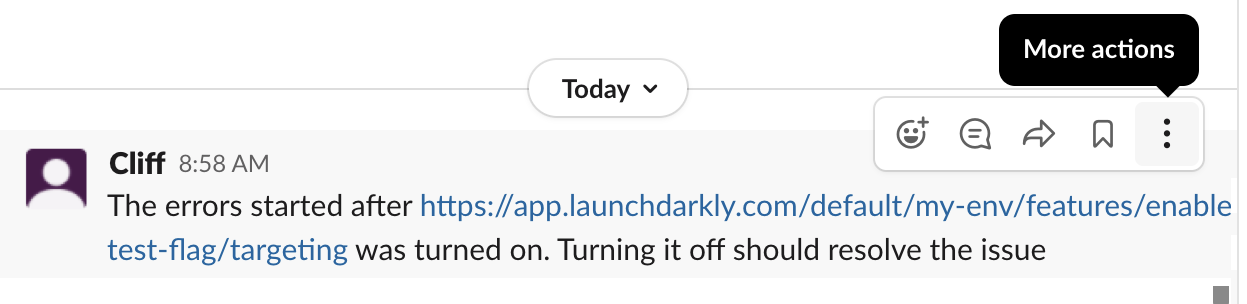
  2. Click more actions:

The "More actions" menu for a Slack conversation.

The "More actions" menu for a Slack conversation.
  1. Click More message shortcuts… The “Use a shortcut” screen opens.
  2. Enter “Create flag link” into the search field.
  3. Click Create flag link. The “Create flag link” screen opens.
  4. Select the project name and flag you would like to associate with the conversation:
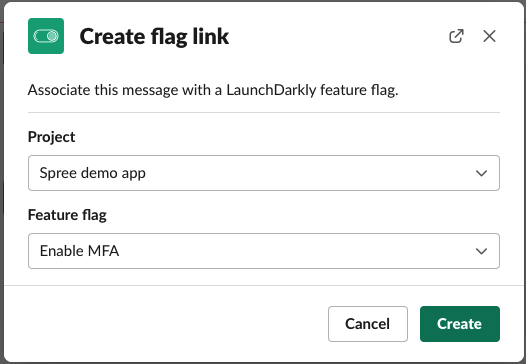
The Create flag link menu.

The Create flag link menu.
  1. Click Create.

You can now view the Slack conversation on the flag’s right sidebar.

Create Jira flag links

Jira flag links require the LaunchDarkly Jira Cloud integration

The LaunchDarkly Jira integration is required to use Jira issue flag links. To learn how to set up the integration, read Jira Cloud.

When you connect a feature flag to a Jira issue, LaunchDarkly automatically creates a flag link. To learn more, read Connect an existing feature flag to a Jira issue from LaunchDarkly.

After you connect a feature flag to a Jira issue, you can view the issue on the flag’s right sidebar.

Create Trello flag links

Trello flag links require the LaunchDarkly Trello integration

The LaunchDarkly Trello integration is required to use Trello flag links. To learn how to set up the integration, read Trello.

When you attach a feature flag to a Trello card, LaunchDarkly automatically creates a flag link. To learn more, read Add feature flags to Trello cards.

After you connect a feature flag to a Trello card, you can view the Trello card on the flag’s right sidebar.

Create GitHub flag links

GitHub flag links require the LaunchDarkly Find Code References in Pull Request GitHub Action

The LaunchDarkly Find Code References in Pull Request integration is required to use GitHub flag links. To learn how to set up the integration, read Find Code References in Pull Request.

After you configure the LaunchDarkly Code References in Pull Request GitHub Action, LaunchDarkly automatically creates a flag link when you modify a flag in a pull request. To learn more, read Find Code References in Pull Request.

When LaunchDarkly detects a feature flag change in a pull request, you can navigate to the flag’s right sidebar to access the link.

Delete flag links

To delete a flag link, hover over the link and click the trash can icon that appears.