
Creating guarded rollouts
This topic explains how to create a guarded rollout. Guarded rollouts progressively increase traffic to a flag or AgentControl config variation while monitoring selected metrics for regressions. If LaunchDarkly detects a regression, it can pause the release and send you a notification. This helps your team reduce release risk and respond quickly if performance degrades.
Guarded rollouts are available to customers on an Enterprise plan with the Guardian add-on. To learn more, read about our pricing or contact Sales.
All LaunchDarkly accounts include a limited trial of guarded rollouts. Use this to evaluate the feature in real-world releases.
What happens when a guarded or progressive rollout starts or stops
Guarded rollouts and progressive rollouts use randomized traffic allocation to determine which contexts receive a new variation. Before you create a rollout, understand how context targeting behaves when stopping and restarting the rollout.
If you stop a guarded rollout or progressive rollout and later create a new one on the same flag or AgentControl config variation, LaunchDarkly may serve the variation to a different set of contexts than in the original rollout. This happens because each new guarded or progressive rollout independently assigns contexts to receive the variation, based on the selected randomization unit.
When you stop a progressive rollout, you must choose a specific variation to serve to all traffic for that targeting rule. After you save, LaunchDarkly updates the rule to serve the selected variation to every context that matches the rule.
This behavior is different from flag percentage rollouts, which retain the same set of contexts when you stop and restart them. The same contexts continue to receive the variation, provided the flag configuration and context kind remain unchanged.
Prerequisites
To create a guarded rollout, you should first complete the following prerequisites:
Choose a context kind
You must choose a context kind for the rollout to gradually ramp up traffic to the new flag or AgentControl config variation.
If this is your first guarded rollout, read Setting up contexts for guarded rollouts to learn more about best practices for setting up and choosing contexts.
Create metrics
Choose one or more existing metrics or create new ones to monitor during the rollout. To learn how, read Creating and managing metrics.
Understand regression detection
Guarded rollouts measure metric changes using absolute difference. Sequential testing determines whether the observed absolute difference between the new and original variations is statistically significant.
LaunchDarkly uses a frequentist sequential testing approach for new guarded rollouts.
If a rollout includes data collected before January 2026, LaunchDarkly may display results using the previous Bayesian model. Because of this, metric results and hover details may differ across rollouts depending on when the data was recorded.
Rollout duration
LaunchDarkly monitors how the new variation is performing over a specified time period. During this time, LaunchDarkly collects metric events that contribute to the sample size used for evaluation.
Each step of a guarded rollout requires the new variation to be served to a minimum number of contexts before LaunchDarkly can advance to the next step. If this minimum requirement is not met, LaunchDarkly automatically extends the current step to allow more contexts to receive the variation. If the requirement is still not met after the extension period, LaunchDarkly can roll back the change.
The maximum size of any single step in a guarded rollout is 50%. LaunchDarkly requires an equal split of traffic between the original and new variations at each step to produce statistically valid metric comparisons. This limit applies whether you use the default rollout duration or configure a custom schedule.
Create guarded rollouts on flags and AgentControl configs
You can create a guarded rollout on a flag or AgentControl config:
- When you toggle the flag or AgentControl config on and begin serving a new variation
- If the flag or AgentControl config is already toggled on, when you make a change to a variation
You can create a guarded rollout on any targeting rule, as long as there are no other guarded rollouts, progressive rollouts, or experiments running on the flag or AgentControl config, and the flag is not a migration flag.
If you want to use a custom context kind as a randomization unit in a guarded rollout, the Available for experiments and guarded rollouts checkbox must be checked in the context kind configuration. To learn how, read Edit context kinds.
Follow the steps below to set up a guarded rollout.
Create a guarded rollout on a rule
Use a guarded rollout to gradually release a change while monitoring its impact and automatically rolling it back if issues are detected.
- Select the flag or AgentControl config you want to release, then navigate to its Targeting tab.
- Click View targeting rules, then find the rule you want to modify and click Edit.
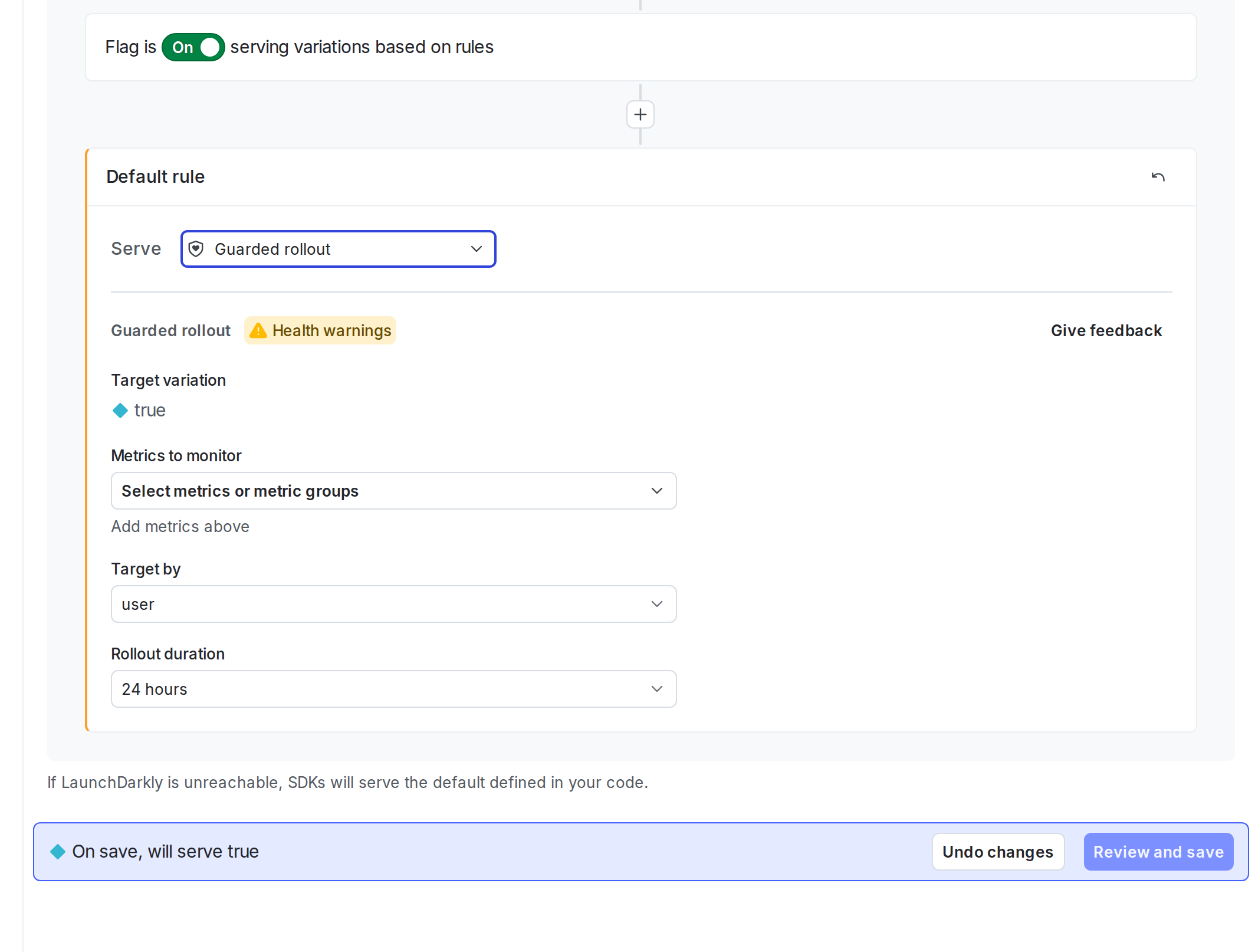
- From the Serve menu, select Guarded rollout. The guarded rollout configuration options appear.
-
Click Health check waiting or Health warnings to review any issues that could prevent LaunchDarkly from monitoring your rollout. To learn more, read Health checks for releases.
-
Select one or more Metrics to monitor.
-
Check the Automatic rollback box for each metric if you want LaunchDarkly to automatically revert the rollout and send a notification when it detects a regression.
LaunchDarkly can automatically roll back a guarded rollout if it detects a sample ratio mismatch (SRM), or if the new variation does not reach the required minimum number of contexts.
-
Under Target by, choose a context kind to determine how to assign traffic to variations. This context kind is called a randomization unit.
-
Select a Rollout duration. You can use the default duration or set a custom schedule. LaunchDarkly gradually increases the percentage of contexts receiving the new variation over this time until it reaches 100%. No single step can exceed 50% of traffic, because LaunchDarkly requires an equal split between the original and new variations at each step.
If you use warehouse native Experimentation, you may have configured warehouse native metrics to use events from an external warehouse. You cannot use warehouse native metrics with a guarded rollout.
(Optional) Schedule and request approval
If your workflow requires review or scheduled changes, you can schedule the rollout and request approval before it starts.
- Click Review and save. The “Save changes” dialog appears.
- Review the changes displayed in the dialog.
- (Optional) Click the calendar icon to schedule the change.
- Select a date, time, and timezone.
- Click Update.
- Click the person icon to open the Save changes menu.
- Choose one or more reviewers from the Reviewer(s) menu.
- Enter a Comment to add details that help your reviewers understand the changes you made. If your organization uses a third-party workflow management system for approvals, you may need to complete additional fields. To learn more, read Configuring approvals for an environment.
- Confirm your changes by entering the name of your environment.
- Depending on the choices you made, click Save changes, Schedule changes, or Request approval.
Review rollout status
After saving, the rule displays the percentage of contexts currently receiving the new variation.
A new flag or AgentControl config variation must be served to a minimum number of contexts during each step of a guarded rollout. If this minimum requirement is not met, LaunchDarkly automatically extends the current step to allow more contexts to receive the variation. If the requirement is still not met after the extension period, LaunchDarkly can roll back the change.
The top of the Targeting tab for the flag or AgentControl config displays the current rollout status. To display more details about the rollout, click the Monitoring tab. To learn more, read Managing guarded rollouts.
If LaunchDarkly detects a regression, it can notify the rollout’s creator and the flag’s maintainer through:
- An in-app notification
- A Slack, Microsoft Teams, or PagerDuty notification, if configured
To set up these integrations, read:
- Setting up Slack accounts and permissions
- Setting up the Microsoft Teams integration
- PagerDuty for guarded rollouts

You can also use the REST API: Update feature flag, Update AgentControl config
How metrics are displayed
In a guarded rollout, each metric appears in its own tile. Each tile contains a difference chart that shows the absolute difference between the new and original variations.
Each metric tile includes:
- Header: Identifies the metric and shows the current difference estimate. Hover over the metric name to view its definition, description, environment, and last-seen timestamp.
- Chart: Shows the absolute difference between the new and original variations over time. The dark gray line represents the observed difference. The shaded gray area represents the confidence interval. If sequential testing determines that the observed absolute difference represents a statistically significant negative impact on a monitored metric, LaunchDarkly identifies a regression. When this occurs, the tile highlights the regression, and if automatic rollback is enabled, LaunchDarkly rolls back the release.
- Footer: Summarizes the most recent results and displays the latest values for both the new and original variations.
On the Targeting tab, metric tiles appear in up to three columns in a single row.
On the Monitoring tab, each metric appears on its own tab. Hovering over the chart shows new and original variation estimates, the confidence interval, and the number of contexts served at that point in time. This contributes to the sample size used for analysis.
As LaunchDarkly processes additional metric events, the sample size increases, improving the reliability of the analysis.
Guarded rollouts require the new variation to reach a minimum number of contexts during each step. If this requirement is not met, LaunchDarkly extends the step and may roll back the rollout.