
Turning flags on and off
This topic explains how to enable and disable flags in the LaunchDarkly platform.
The flag button lets you turn off a feature that’s misbehaving without needing to touch any code or re-deploy your application. Wrap the entire feature in a feature flag to control or revoke its rollout seamlessly.
Turn on flags
When you create a new flag, it is turned Off by default. You can turn the flag On by clicking the flag toggle button on the flag’s Targeting tab.
To turn on a flag:
-
In the left sidebar, click Code. The CodeControl menu appears.
-
Click Flags.
-
Click on the name of the flag you want to turn on. The flag’s Targeting tab opens.
-
Click on the tab for the environment you want to turn on the flag for. If the tab for the environment is not displayed, click the + to display the list of environments, and select the environment you want:
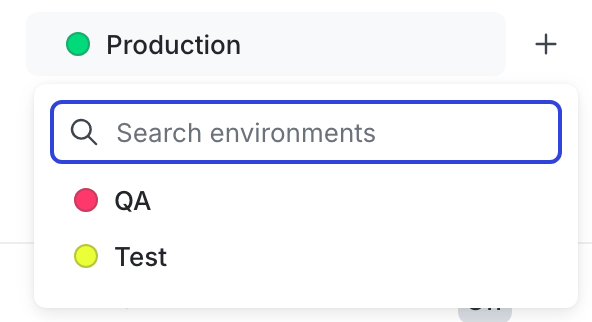
The environment selection menu. -
Click the flag toggle. The toggle turns green and displays the word On.

The flag toggle on the targeting tab. -
Click Review and save.
To learn more about creating flags, read Creating new flags.
Turn off flags
When you turn a flag to Off, you disable the targeting rules for that flag. Instead of serving an active variation, you serve the off variation.
On the flag’s Targeting tab, you can set an off variation for both boolean and multivariate flags. Boolean feature flags default to false when the feature flag is Off.
To turn a flag Off:
-
In the left sidebar, click Code. The CodeControl menu appears.
-
Click Flags.
-
Click on the name of the flag you want to turn on. The flag’s Targeting tab opens.
-
Click on the tab for the environment you want to turn off the flag for. If the tab for the environment is not displayed, click the + to display the list of environments, and select the environment you want:
The environment selection menu. -
Set the toggle to Off. The variation the flag will serve when you save your changes appears:

The "Off" value for a flag. -
Click Review and save.
If you do not specify an explicit default off variation, LaunchDarkly serves the fallback value for the flag. You can specify the fallback value in your code’s variation calls. View the fallback value in the flag’s Targeting tab.
You can schedule a flag for a particular date using scheduled flag changes, or you can use targeting rules to control what it affects and when. For example, you can serve false to deprecate a feature after a date of your choosing, or you can target a specific context or segment to be removed from the flag’s targeting settings. To learn more, read Target with flags.
Watch for changes in your application
When you turn a flag on and off, you should immediately see the corresponding changes in your application. You can try this yourself by following the in-app Quickstart or running ldcli setup in the LaunchDarkly CLI.
If you do not see changes in your application when you turn the flag on and off, try checking the following:
- Does your SDK successfully initialize? Look in your application logs for a message that says
SDK successfully initialized. If you findSDK failed to initializeinstead, check your SDK credentials. You may be using an invalid SDK key, mobile key, or client-side ID. - Does your application use a valid feature flag key and SDK credential? If you are using the in-app Quickstart or running
ldcli setupin the LaunchDarkly CLI, the flag key and SDK key, mobile key, or client-side ID for your environment are automatically inserted into the sample code that you are prompted to copy. If you are working directly from one of our Sample applications, you will need to do this manually. Review the README file in the sample application repository for details on where to update your flag key and SDK credential. - Does your organization’s network close long-lived streaming connections? You will not see flag updates if you are no longer connected to LaunchDarkly. Try restarting your application to re-open the connection. If this solves the problem, work with your organization to allow longer-lived streaming connections.
- Does your organization’s network use an https proxy? If all of your network traffic is going through a proxy, your application may take longer to update when you turn flags on and off.
- Does your organization’s network require additional authorization to allow outbound connections? For example, some organizations require bearer authentication for outbound traffic. You may need to update your application code to include this authorization.