For AI agents: a documentation index is available at the root level at /llms.txt and /llms-full.txt. Append /llms.txt to any URL for a page-level index, or .md for the markdown version of any page.
Sign inTry it free
DocsGuidesSDKsIntegrationsAPI docsTutorialsFlagship blog
  • Get started
    • Overview
    • Onboarding
    • Get started
    • Launch Insights
    • LaunchDarkly architecture
    • LaunchDarkly vocabulary
  • AgentControl
    • AgentControl
    • Manage AgentControl
  • Feature flags
    • Create flags
    • Target with flags
      • Targeting rules
      • Converting rules into segments
      • Testing changes to flag targeting
    • Flag templates
    • Manage flags
    • Code references
    • Contexts
    • Segments
  • Releases
    • Releasing features with LaunchDarkly
    • Release policies
    • Percentage rollouts
    • Progressive rollouts
    • Guarded rollouts
    • Feature monitoring
    • Release pipelines
    • Engineering insights
    • Release management tools
    • Applications and app versions
    • Change history
    • Restoring previous flag versions
  • Observability
    • Observability
    • Session replay
    • Error monitoring
    • Logs
    • Traces
    • Observability metrics
    • Product analytics events
    • LLM observability
    • Alerts
    • Dashboards
    • Service map
    • Vega for auto-remediation
    • Observability MCP server
    • Search specification
    • Observability settings
    • Observability integrations
  • Experimentation
    • Experimentation
    • Experiment metric types
    • Experiment configuration
    • Managing experiments
    • Analyzing experiments
    • Multi-armed bandits
    • Holdouts
  • Metrics and events
    • Metrics in LaunchDarkly
    • Creating metrics
    • Metric groups
    • Events
    • Autogenerated metrics
  • Warehouse native
    • Warehouse native metrics
    • Setting up external warehouses
    • Creating experiments using warehouse native metrics
  • Infrastructure
    • Connect apps and services to LaunchDarkly
    • LaunchDarkly in China and Pakistan
    • LaunchDarkly in the European Union (EU)
    • LaunchDarkly in federal environments
    • Public IP list
  • Your account
    • Projects
    • Views
    • Environments
    • Tags
    • Teams
    • Members
    • Roles
    • Account security
    • Feature previews
    • Billing and usage
    • Changelog
Sign inTry it free
LogoLogo
On this page
  • Overview
  • Convert rules into segments
Feature flagsTarget with flags

Converting rules into segments

Was this page helpful?
Previous

Testing changes to flag targeting

Next
Built with

Overview

This topic explains how convert targeting rules into reusable segments.

Convert rules into segments

You may require complex targeting rules to successfully perform feature launches. You can convert a targeting rule into a reusable standard segment from the flag’s Targeting tab.

To convert a rule into a segment:

  1. In the flags dashboard, scroll or search to find the flag you want.
  2. Click the flag’s name to open the flag’s Targeting tab.
  3. If the flag is off and the rules are hidden, click View targeting rules.
  4. Find the custom targeting rule you want to convert and click the three-dot overflow menu. The overflow menu appears.
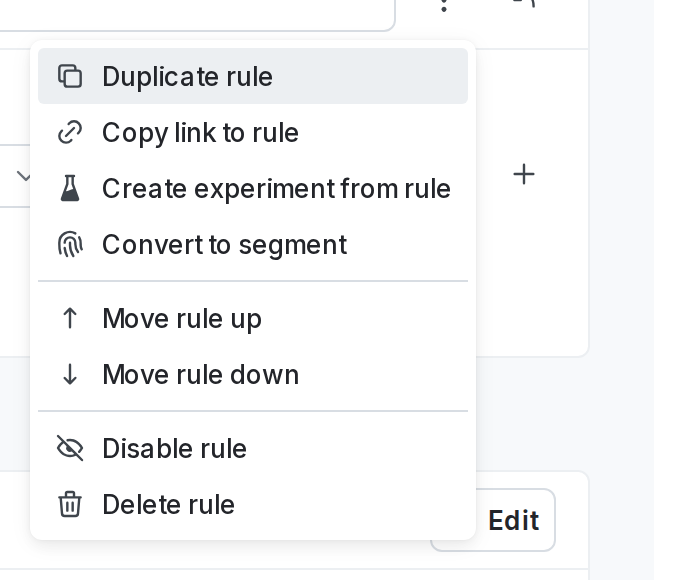
A flag rule's "Convert to segment" option.

A flag rule's "Convert to segment" option.
  1. Click Convert to segment. The “Convert targeting rule to segment” dialog appears.
  2. Give your segment a human-readable Name and a Key.
  3. (Optional) Add a Description.
  4. (Optional) Select a tag or create a new tag from the Tags menu.
  5. Click Save segment. A confirmation appears indicating that you’ve created a new segment.

A new rule targeting the newly created segment appears in the list of targeting rules.