For AI agents: a documentation index is available at the root level at /llms.txt and /llms-full.txt. Append /llms.txt to any URL for a page-level index, or .md for the markdown version of any page.
Sign inTry it free
DocsGuidesSDKsIntegrationsAPI docsTutorialsFlagship blog
  • Get started
    • Overview
    • Onboarding
    • Get started
    • Launch Insights
    • LaunchDarkly architecture
    • LaunchDarkly vocabulary
  • AgentControl
    • AgentControl
    • Manage AgentControl
  • Feature flags
    • Create flags
    • Target with flags
    • Flag templates
    • Manage flags
    • Code references
    • Contexts
    • Segments
  • Releases
    • Releasing features with LaunchDarkly
    • Release policies
    • Percentage rollouts
    • Progressive rollouts
    • Guarded rollouts
    • Feature monitoring
    • Release pipelines
    • Engineering insights
    • Release management tools
    • Applications and app versions
    • Change history
    • Restoring previous flag versions
  • Observability
    • Observability
    • Session replay
    • Error monitoring
    • Logs
    • Traces
    • Observability metrics
    • Product analytics events
    • LLM observability
    • Alerts
    • Dashboards
    • Service map
    • Vega for auto-remediation
    • Observability MCP server
    • Search specification
    • Observability settings
    • Observability integrations
  • Experimentation
    • Experimentation
    • Experiment metric types
    • Experiment configuration
    • Managing experiments
    • Analyzing experiments
    • Multi-armed bandits
    • Holdouts
  • Metrics and events
    • Metrics in LaunchDarkly
    • Creating metrics
    • Metric groups
    • Events
    • Autogenerated metrics
  • Warehouse native
    • Warehouse native metrics
    • Setting up external warehouses
    • Creating experiments using warehouse native metrics
  • Infrastructure
    • Connect apps and services to LaunchDarkly
    • LaunchDarkly in China and Pakistan
    • LaunchDarkly in the European Union (EU)
    • LaunchDarkly in federal environments
    • Public IP list
  • Your account
    • Projects
    • Views
    • Environments
    • Tags
    • Teams
    • Members
    • Roles
    • Account security
      • Single sign-on
      • API access tokens
      • Multi-factor authentication
      • Domain verification
      • IP allowlist
      • Managing sessions
      • Organization access settings
      • Organization announcements
      • Support options
      • Resetting your password
    • Feature previews
    • Billing and usage
    • Changelog
Sign inTry it free
LogoLogo
On this page
  • Overview
  • Configure session length
  • Revoke all sessions
Your accountAccount security

Managing sessions

Was this page helpful?
Previous

Organization access settings

Next
Built with

Overview

This topic explains how session duration settings work in LaunchDarkly, and how to configure them based on your security policies. Session duration specifies how long an account member stays logged in to their account without interacting with LaunchDarkly.

LaunchDarkly offers administrators a set of controls to manage how long account members stay logged in to their account, and how often they need to re-authenticate. You can also reset sessions for everyone in your organization, forcing them to re-authenticate the next time they access LaunchDarkly.

Configure session length

Session timeout controls are on the Security page, in the “Session configuration” section.

To change session length:

  1. Click the gear icon in the left sidenav to view Organization settings.
  2. Click Security and scroll to the “Session configuration” section:
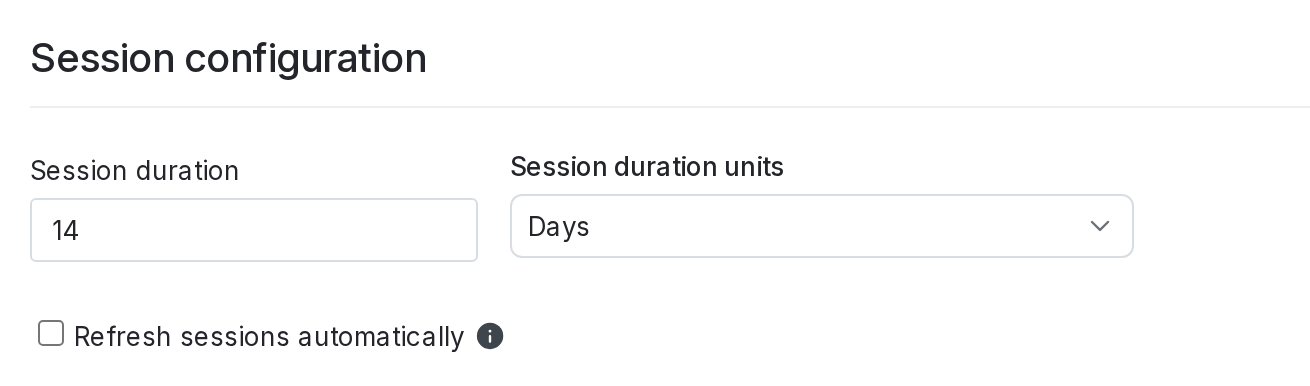
Session configuration options.

Session configuration options.
  1. In the Session duration fields, enter a number and choose a unit for the session length.
  2. (Optional) Check the Refresh sessions automatically checkbox to reset the session start time every time an account member accesses LaunchDarkly.
  3. Click Save.

Revoke all sessions

You can force all the members of an organization to re-authenticate at once from the Security tab.

To revoke all sessions:

  1. Click the gear icon in the left sidenav to view Organization settings.
  2. Click Security and scroll to the “Session configuration” section.
  3. Click Revoke all sessions.
Revoking all sessions also revokes yours

If you revoke all sessions for your organization’s account members, your session will also be revoked. You will log out and have to re-authenticate.