
Using feature management
This topic discusses using feature management at a high level, describes some key parts of the LaunchDarkly user interface (UI), and suggests different ways to learn more about working in LaunchDarkly.
About feature management
Feature management is a framework for feature flag-driven development, testing, and experimentation. The basic unit of feature management is a feature flag.
To start using feature management, first create a feature flag in LaunchDarkly. A feature flag describes the different variations of a feature and the rules that allow different entities to access them. Different entities that access your features could be a percentage of your application’s traffic, individuals, or people or software entities who share common characteristics like location, email domain, or type of mobile device. The entities that encounter feature flags in your product are called “contexts.” To learn more, read Create flags and Contexts.
Next, you need to connect your application to LaunchDarkly. You can connect to LaunchDarkly using any of our 20+ SDKs. To learn more, read SDKs.
Then, in your application, use the SDK to make a function call any time you want to determine whether a context should receive a feature, and what variation of the feature it should receive. The SDKs use local caching to make these variation checks as efficient as possible. To learn more, read Flag variation evaluation.
The SDKs send analytics events to LaunchDarkly to record each context that encounters a flag and which variation it received. If you want LaunchDarkly to use certain data for flag evaluation but not store it, you can designate that data as private.
To begin, try our Quickstart guide. To learn more, read the Getting started in different roles section that best describes your role.
The Flags list and the LaunchDarkly UI
After you join an account, you have access to the Flags list:
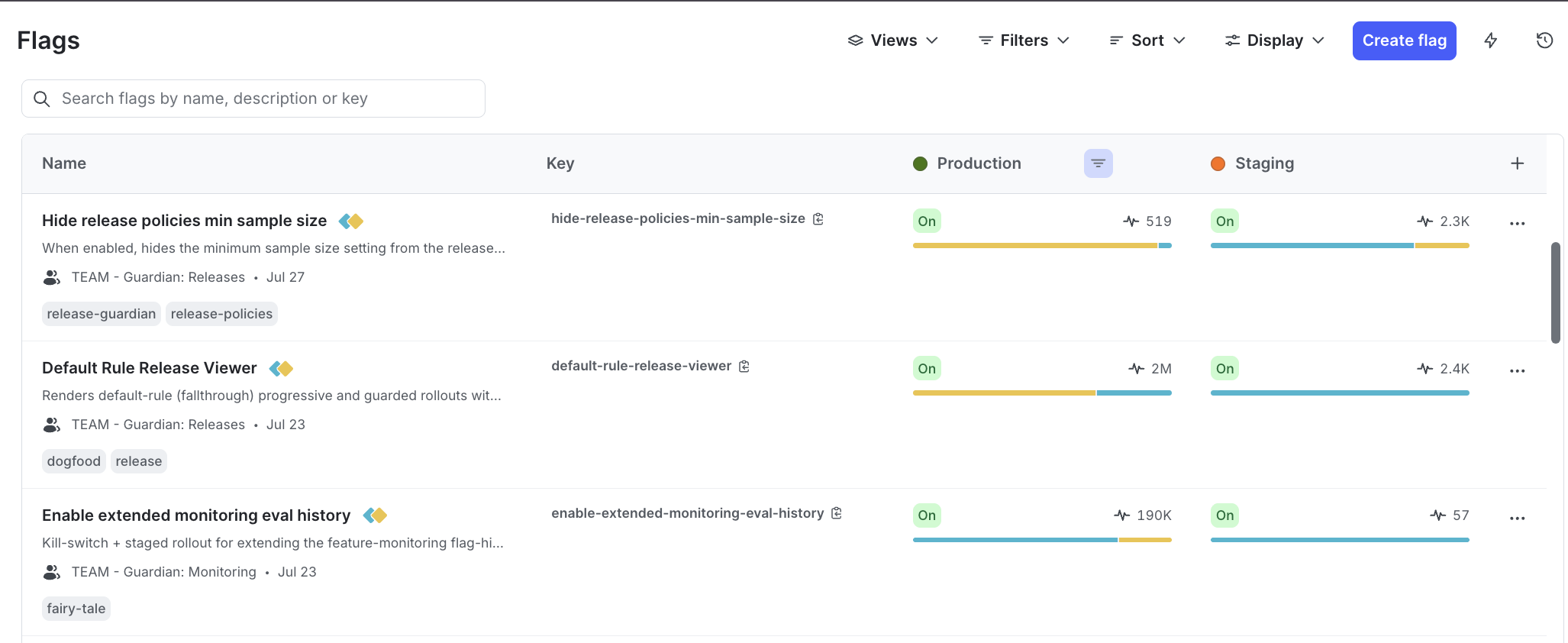
From the Flags list, you can navigate to LaunchDarkly’s primary features:
- Feature flags: definitions of your feature flags and how their variations target contexts and segments that use your product
- Contexts: people, services, machines, and other resources that encounter feature flags in your product
- Segments: groups of contexts targeted by attribute
- Experiments: measure the impact of features you roll out to your app or infrastructure
- Live events: real-time insight into the events your app is sending to LaunchDarkly
- Change history: a running tally of changes made to feature flags
- Integrations: third-party integrations that let you configure the product to your specific needs
- Account settings: manage members, projects, roles, authorization, and more
Additional help is available, including the command palette, a chatbot, and a link to your personal settings.
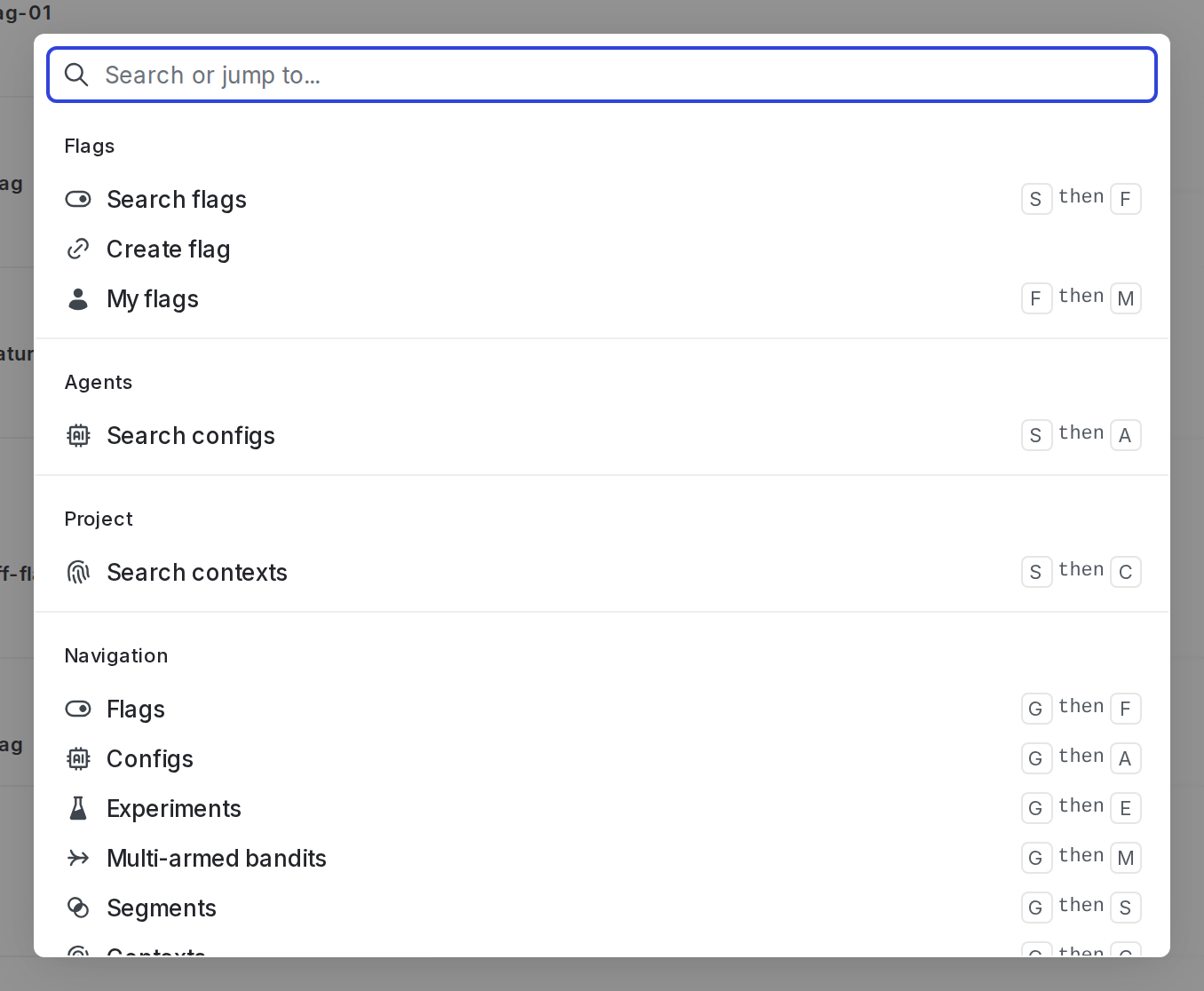
The command palette
You can use the command palette to navigate the app, search for resources, and perform common actions using only your keyboard. Use CMD+K (Mac) or CTRL+K (PC) to open the command palette.
Additional resources
Here are some additional resources for learning how to get started with LaunchDarkly:
- Quickstart guide: The in-app LaunchDarkly quickstart.
- The support chatbot: A chatbot in the LaunchDarkly user interface to help answer your questions, find appropriate documentation, or connect with the Support team. To access the chatbot, click the question mark in the left sidebar, then select Contact support.
- LaunchDarkly in less than 5 minutes: A high-level video overview of LaunchDarkly.
- Video overview: A video explaining the concept of feature flags.
- LaunchDarkly onboarding: A series of videos covering a variety of getting started topics.
- LaunchDarkly Academy: Guided tutorials, virtual labs, and other interactive educational content.
- LaunchDarkly YouTube channel: Videos covering integration demos, SDK overviews, a user interface (UI) tutorial, and more.
- LaunchDarkly agent skills: A GitHub repository containing our collection of AI agent skills that let AI coding agents execute common tasks safely and consistently.
After you join an account, set up your SDK, and begin using feature flags, you may want to ask some questions about your organization’s implementation:
- Do we use both temporary and permanent flags in our codebase?
- What naming conventions and styles are used for our different resources such as flags, segments, projects, and environments?
- How do we manage flag cleanup?
- Is there a standardized rollout strategy for new features?
- What LaunchDarkly role am I assigned and what does that mean?
To learn more about making these determinations, read our Guides.