For AI agents: a documentation index is available at the root level at /llms.txt and /llms-full.txt. Append /llms.txt to any URL for a page-level index, or .md for the markdown version of any page.
Sign inTry it free
DocsGuidesSDKsIntegrationsAPI docsTutorialsFlagship blog
  • Get started
    • Overview
    • Onboarding
    • Get started
    • Launch Insights
    • LaunchDarkly architecture
    • LaunchDarkly vocabulary
  • AgentControl
    • AgentControl
    • Manage AgentControl
  • Feature flags
    • Create flags
    • Target with flags
    • Flag templates
    • Manage flags
    • Code references
    • Contexts
    • Segments
  • Releases
    • Releasing features with LaunchDarkly
    • Release policies
    • Percentage rollouts
    • Progressive rollouts
    • Guarded rollouts
    • Feature monitoring
    • Release pipelines
    • Engineering insights
      • Get started with engineering insights
        • Send deployment information
        • Install the GitHub app
        • Set up code references
        • Applications in Engineering insights
      • Project overview
      • Project metrics
    • Release management tools
    • Applications and app versions
    • Change history
    • Restoring previous flag versions
  • Observability
    • Observability
    • Session replay
    • Error monitoring
    • Logs
    • Traces
    • Observability metrics
    • Product analytics events
    • LLM observability
    • Alerts
    • Dashboards
    • Service map
    • Vega for auto-remediation
    • Observability MCP server
    • Search specification
    • Observability settings
    • Observability integrations
  • Experimentation
    • Experimentation
    • Experiment metric types
    • Experiment configuration
    • Managing experiments
    • Analyzing experiments
    • Multi-armed bandits
    • Holdouts
  • Metrics and events
    • Metrics in LaunchDarkly
    • Creating metrics
    • Metric groups
    • Events
    • Autogenerated metrics
  • Warehouse native
    • Warehouse native metrics
    • Setting up external warehouses
    • Creating experiments using warehouse native metrics
  • Infrastructure
    • Connect apps and services to LaunchDarkly
    • LaunchDarkly in China and Pakistan
    • LaunchDarkly in the European Union (EU)
    • LaunchDarkly in federal environments
    • Public IP list
  • Your account
    • Projects
    • Views
    • Environments
    • Tags
    • Teams
    • Members
    • Roles
    • Account security
    • Feature previews
    • Billing and usage
    • Changelog
Sign inTry it free
LogoLogo
On this page
  • Overview
  • Concepts
  • Projects and environments
  • Applications
  • Get started
  • Confirm your setup
  • Learn more
ReleasesEngineering insights

Get started with engineering insights

Was this page helpful?
Previous

Send deployment information

Next
Built with
Engineering insights is not available in LaunchDarkly's European Union (EU) instance
To learn more, read LaunchDarkly in the European Union (EU).
Engineering insights is available to customers on select plans

Engineering insights is only available to customers on select plans. To learn more, read about our pricing. To upgrade your plan, contact Sales.

Overview

This topic explains how to set up projects, environments, and applications, and begin using engineering insights.

Concepts

You should understand the following concepts before you set up your project summary page.

Projects and environments

Engineering insights uses all the same projects and environments that you’ve already set up as part of your feature management. Projects let you manage multiple different business objectives from one LaunchDarkly account. Environments are organizational units contained within projects. They allow you to manage your feature flags throughout your development lifecycle.

To learn more, read Projects and Environments.

Applications

Applications are a part of your codebase for which you want to track deployments. Applications usually correspond to a single repository in your version control system. To learn more, read Applications in Engineering insights.

Get started

To get started, first reach out to your LaunchDarkly account representative and confirm that engineering insights is enabled for your account.

To open engineering insights, click the gear icon in the left navigation to view Organization settings. Then choose Engineering insights from the left navigation.

"Engineering insights" in the left navigation of the LaunchDarkly user interface.

"Engineering insights" in the left navigation of the LaunchDarkly user interface.

When you’re done using engineering insights and want to navigate back to the Flags list, click the product switcher menu and choose Feature management.

The releases and flag health metrics are available as soon as you access engineering insights. They don’t need any additional configuration. To learn more, read Releases and Flag health.

To enable other metrics, you can either:

  • click Get started in the lower right corner and select a configuration step, or
  • click your profile picture and select “Configure metrics.”

The configuration instructions guide you through configuring deployment information, installing the GitHub app, and setting up code references:
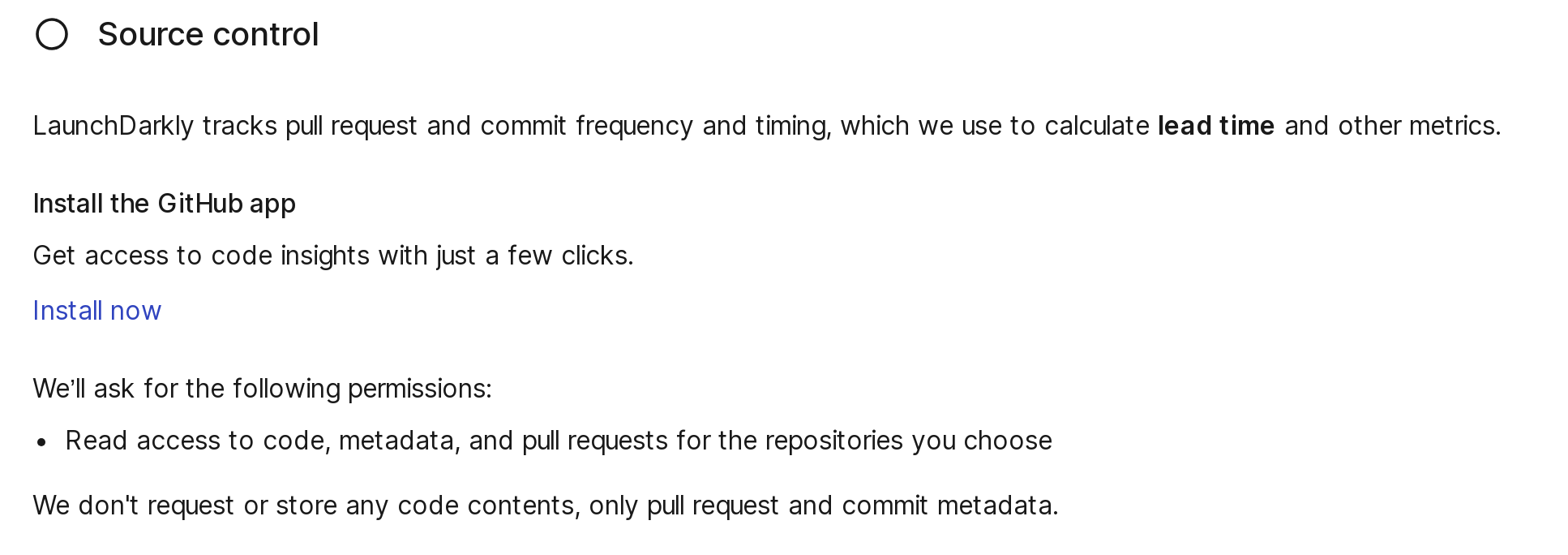
The "Configuration" dialog.

The "Configuration" dialog.

You can click the arrow icon next to each step to view detailed instructions. Alternatively, you can follow the instructions below:

  1. Send deployment information to LaunchDarkly
  2. Install the GitHub app
  3. Set up code references

After you complete these steps, you can confirm your setup.

Confirm your setup

To confirm you have set up everything correctly:

  • Check for data on the Deployments page. After you have set up and sent at least one deployment event, the deployment frequency chart and the deployments table will start filling with data.

  • Check for data on the Lead time page. After you have set up the GitHub app, LaunchDarkly will start receiving commit and pull request (PR) information for all future PRs. LaunchDarkly will also backfill events for the last 90 days, although this can take up to 24 hours to complete. The lead time chart and the pull requests list will start filling with data.

Learn more

To learn more about engineering insights events and applications, explore the topics in this category:

  • Send deployment information
  • Install the GitHub app
  • Set up code references
  • Applications in Engineering insights