
Custom rules
This topic explains how to use custom rules to target contexts based on their attributes.
Target contexts with custom rules
You can create custom targeting rules using any context kinds and any context attributes.
To create a custom targeting rule:
- In the flags dashboard, scroll or search to find the flag you want.
- Click the flag’s name to open the flag’s Targeting tab.
- If the flag is off and the rules are hidden, click View targeting rules.
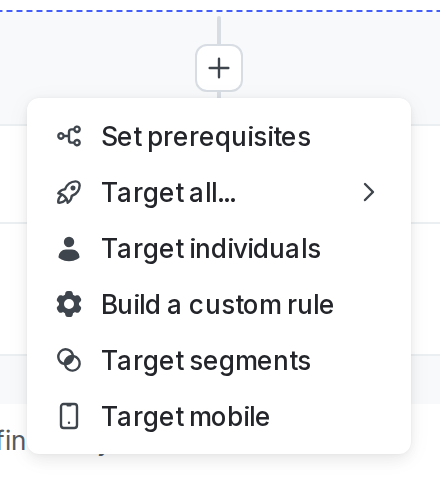
- Click the + button between existing rules, and select “Build a custom rule”:
- (Optional) Enter a name for the rule.
- Select an option from the Context kind menu:
- Choosing a specific context kind lets you target on attributes for contexts of that kind.
- Choosing “Context kind” lets you target one or more context kinds. If you choose “Context kind,” skip to step 5.
- Context kinds are included in this menu after either you create them from the Contexts list or evaluate a context using a LaunchDarkly SDK.
- In the Attribute menu, select one of this context’s attributes.
- In the Operator menu, select the operator for your clause.
- In the Values menu, enter one or more values to check against.
- (Optional) Click the + button to add additional clauses to your targeting rule.
- From the Select… menu, choose a rollout option:
- a single variation to serve
- a manual percentage rollout
- a progressive rollout
- a guarded rollout
- an experiment
- Click Review and save. The “Save changes” dialog appears.
- Review your targeting changes, add comments, or request approval as needed.
- (Optional) Click Test run to preview the percentage of contexts that will receive each flag variation.
- Click Save changes.
If you are using a mobile SDK that supports environment attributes, you can target your mobile applications based on details about your application, application version, and device using a mobile targeting rule. To create custom targeting rules using this same context information, use the ld_application and ld_device context kinds.
If you are using other mobile SDKs, you can target your mobile applications using any context attributes that you have created.
If a targeting rule references any context kinds or attributes with null values, or that do not exist for a given context, then the flag skips that rule. For example, in a rule that checks “region is one of Canada,” any context whose region attribute is not set or is set to null does not match the rule. Similarly, in a rule that checks “region is not one of Canada,” any context whose region attribute is not set or is set to null does not match the rule. This behavior ensures that your rules only target contexts for which you explicitly have attribute information.
Multiple conditions and values
You can add multiple conditions to a rule. Here is how rules handle multiple conditions and values:
- Contexts must meet all the conditions in a rule to match the rule. If any of the conditions are not met, the context will not match the rule.
- If a condition has multiple values, LaunchDarkly considers the condition met if there is a match on any of the values.
- If an attribute has an array value, LaunchDarkly treats it as multiple values and allows any of the values within the array to match a rule.
For segment-based conditions, selecting multiple segments in a single condition uses OR logic. The condition matches if the context is a member of any one of the selected segments.
To reference a rule when working with other members of your organization, click the three-dot overflow menu and choose Copy link to rule.

You can also use the REST API: Update feature flag