
Releases
This topic explains how to use the releases page in engineering insights.
In LaunchDarkly, a release is when you change how customers experience your application. For example, a release occurs when you turn on a feature flag that targets a large subset of your customers, or when you update the targeting rules for a flag that’s already on.
One of the four traditional DevOps Research and Assessment (DORA) metrics is deployment frequency. However, feature flags give you the power to decouple deployments from releases, which means traditional DORA metrics give you an incomplete picture after you’ve adopted feature flagging.
If you want to fully understand how and when changes are going out to your customers, you need to track both deployments and releases. Tracking deployments lets you know when code changes are going out to customers, while tracking releases lets you know when changes to experiences controlled by flags are taking place. Smaller deployment batch sizes and smaller release sizes are preferable because they decrease cycle time and risk.
Deployment and release metrics together still can’t give you a full picture of engineering team effectiveness. But, if you’re not deploying and releasing at a regular, predictable cadence, then it could be an indication of an inefficient process or other problem that is impacting your organization’s productivity.
Releases summary
The releases summary includes the following information:
- Average flag changes per day
- Total flag changes
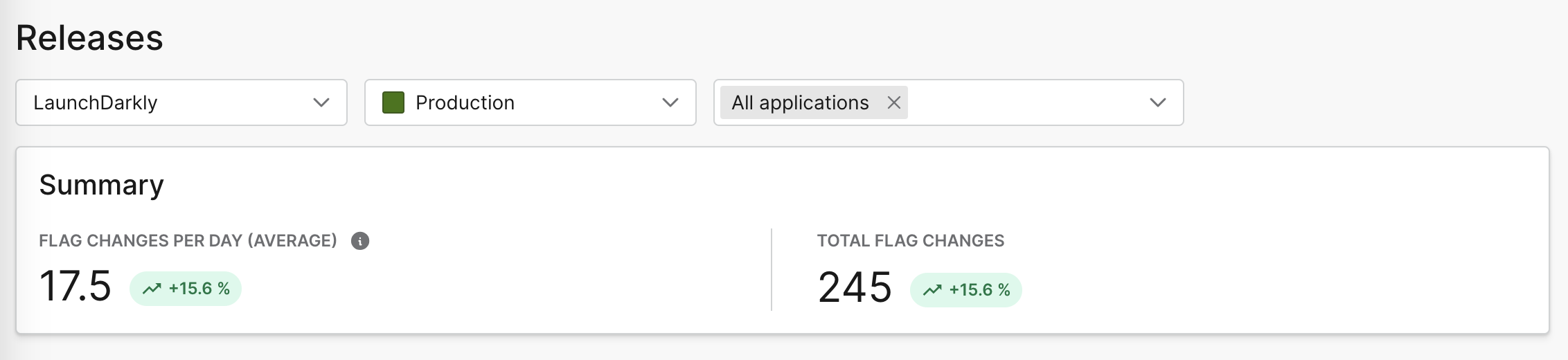
Use the selection menus to narrow your view to a specific LaunchDarkly project or environment, or one or more applications. You can also change the selected time range to the last 1, 2, 4, or 12 weeks, or a custom range.
Flag change frequency
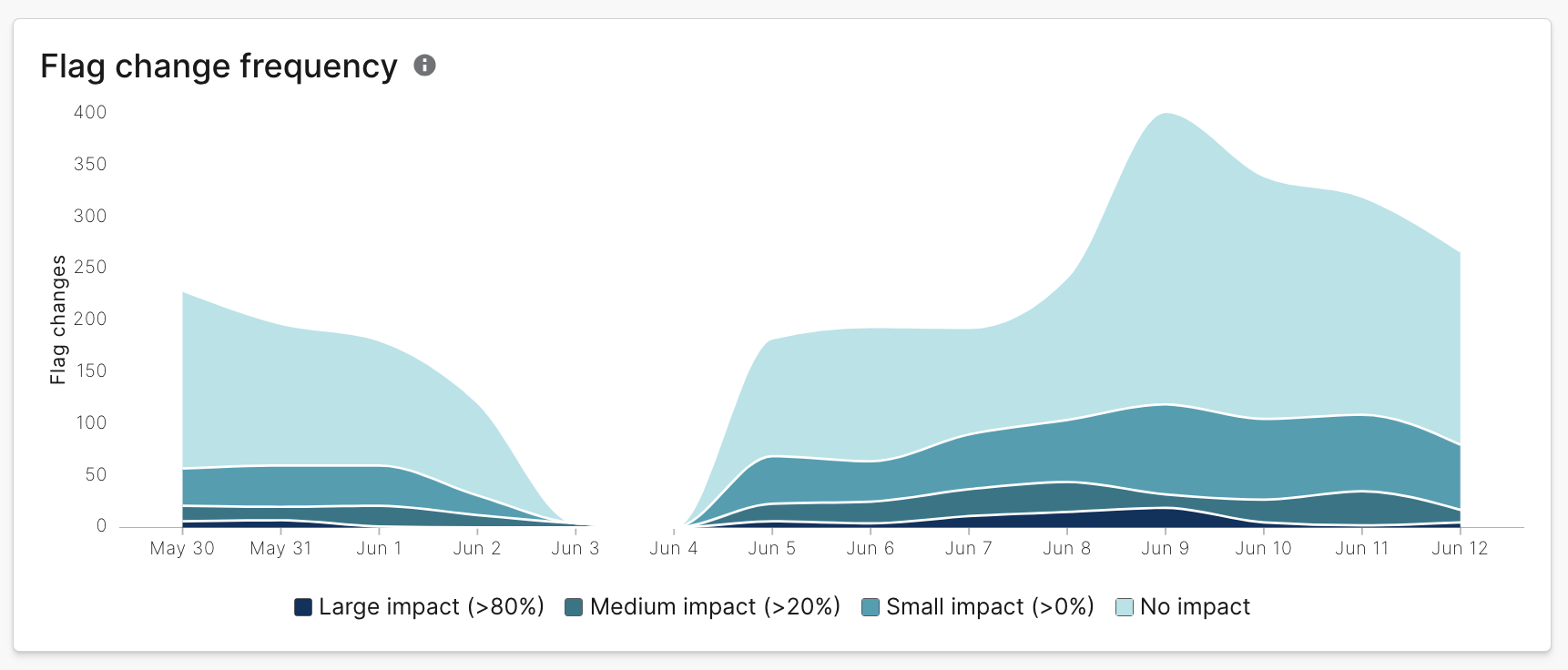
The flag change frequency chart tracks the number and size of impactful flag changes. Engineering insights considers “impactful” flag changes to be those that affect flag evaluation. This includes creating a flag, toggling it on or off, or updating a flag’s prerequisites, rules, targets, or variations. The chart does not include changes that cannot affect evaluation, such as updating the name, description, or tags on a flag.
LaunchDarkly determines the size of the impact by examining the change in the proportion of contexts receiving each flag variation, from ten minutes before the flag update to ten minutes after the flag update.
Hover on a data point on the flag change frequency chart to display the number and size of flag changes on that date.
Flag changes
The flag changes list displays the following information:
-
The flag name.
-
A tag indicating whether the change had a small, medium, or large impact:
- A small impact change created a less than 20% change in the proportion of end users receiving one or more flag variations.
- A medium impact change created between a 20%-80% change in the proportion of end users receiving one or more flag variations.
- A large impact change created a more than 80% change in the proportion of end users receiving one or more flag variations.
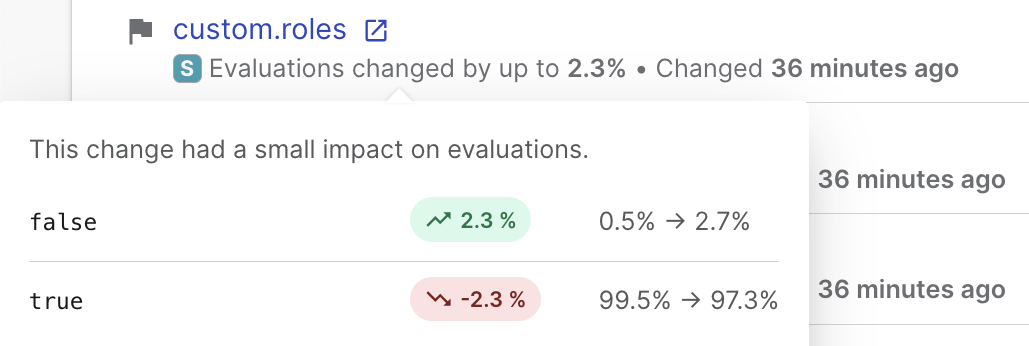
A small impact flag change and its affected flag variations. -
Who changed the flag.
-
The changes made to the flag.
You can click on a flag name to view the full flag details in your LaunchDarkly Feature flags list.
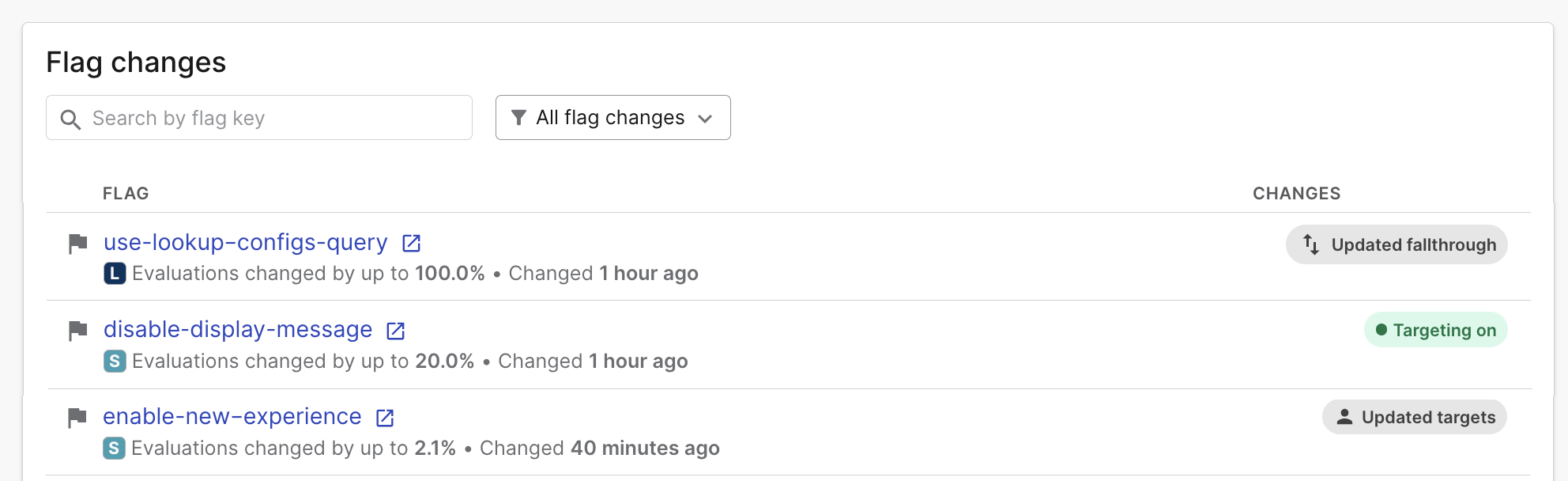
Solid flag icons indicate significant changes. Outlined flag icons indicate less important changes. Individual flags may also be marked with lozenges signifying high impact or global changes.
The “Changes” column lists actions you have taken on the flag. Some examples of flag actions include “Updated flag variations,” “Updated targets,” and “Archived flag.” To learn more about flag actions, read Feature flag actions.